
Lightbox is similar to a folder that allows you to select and group images for purchasing later. Lightbox is located at the bottom of the Stock Images page.
Screenshot
To access and manage Lightbox, follow the steps given below.
- Navigate to Stock Images.
The Stock Images page will be displayed.
- Search for the required image that you wish to buy.
The search results will be displayed.
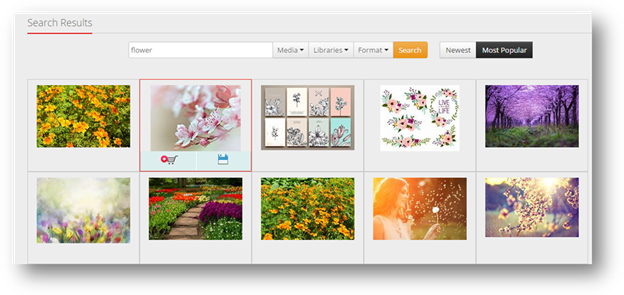
- Click Save (
 ) button on the image.
The selected image will be added to lightbox section. You can also drag & drop images to Lightbox
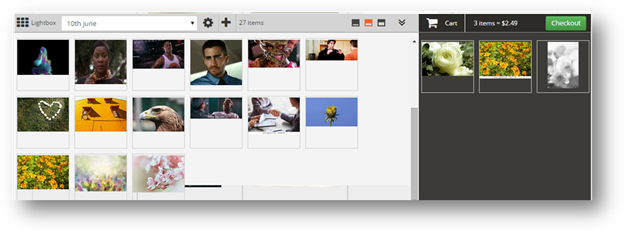
- To add a new Lightbox, click (
 ) icon.
The Add New Lightbox dialog will be displayed.

- Enter the name of the light box in the Lightbox Name text entry box.
- Enter the description of the light box in the Description text entry box.
- Click Save.
The new light box will be added.
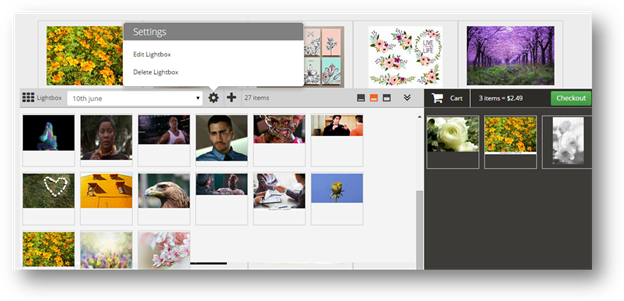
- To edit a lightbox, select that lightbox from the drop-down list (Figure...)
- Select Edit Lightbox (
 ) from the drop-down list.
 - Edit the name of the lightbox.
- Edit the description of the lightbox.
- Drag and drop the images that you wish to include in lightbox.
- Click Update.
The changes made to the lightbox will be updated.
- To delete a lightbox, select that light box from the drop down list.
- Select Delete Lightbox from the drop down list.
The message box asking you confirm the deletion of the light box will be displayed.
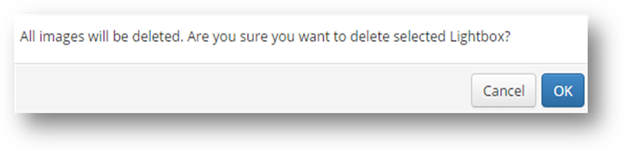
- Click OK.
The selected lightbox will be removed from the list.
Comments
0 comments
Please sign in to leave a comment.