
Adding Social Profiles/Networks
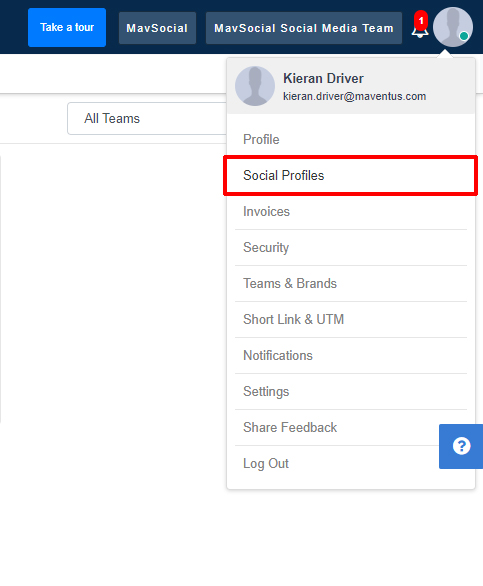
- Click your profile icon in the top-right corner of MavSocial and click Social Profiles from the drop-down menu.
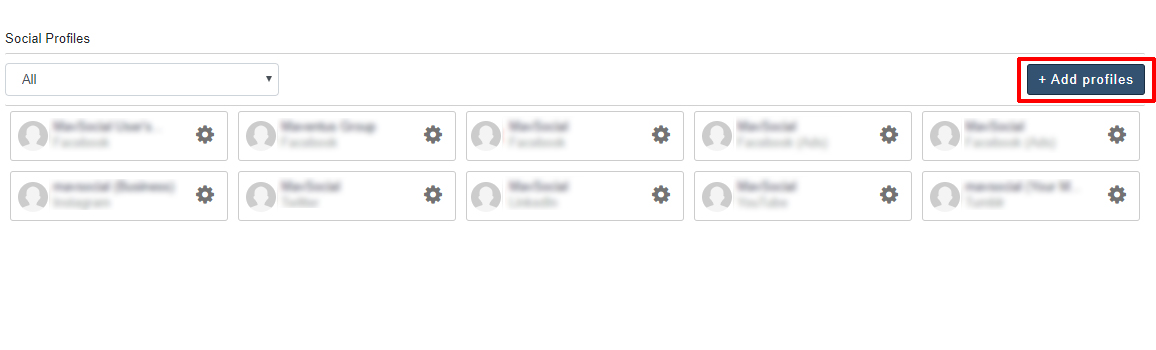
- Here, you will see all your connected social media profiles. To add a new profile to your MavSocial account, click Add Profiles in the top-right corner of the page.
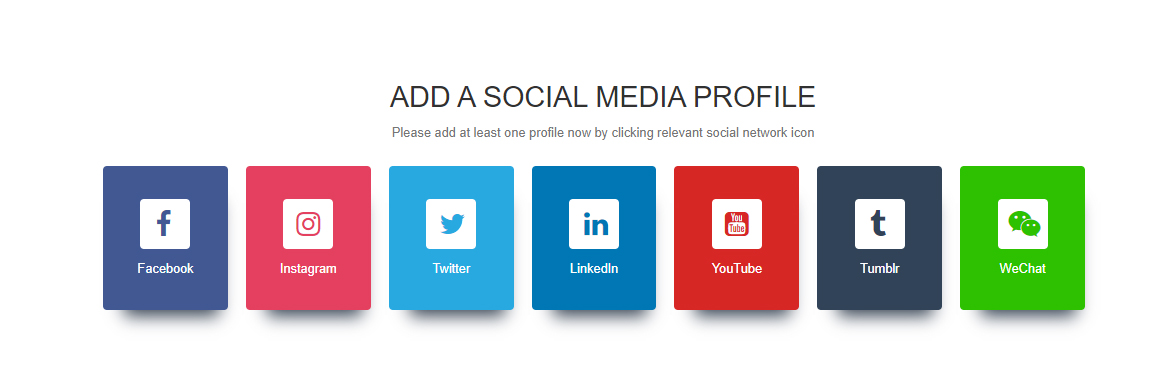
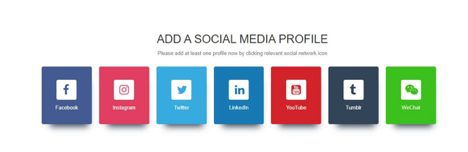
- Next, select the social network to which the account belongs. For example, if you want to add a Twitter account, click Twitter.
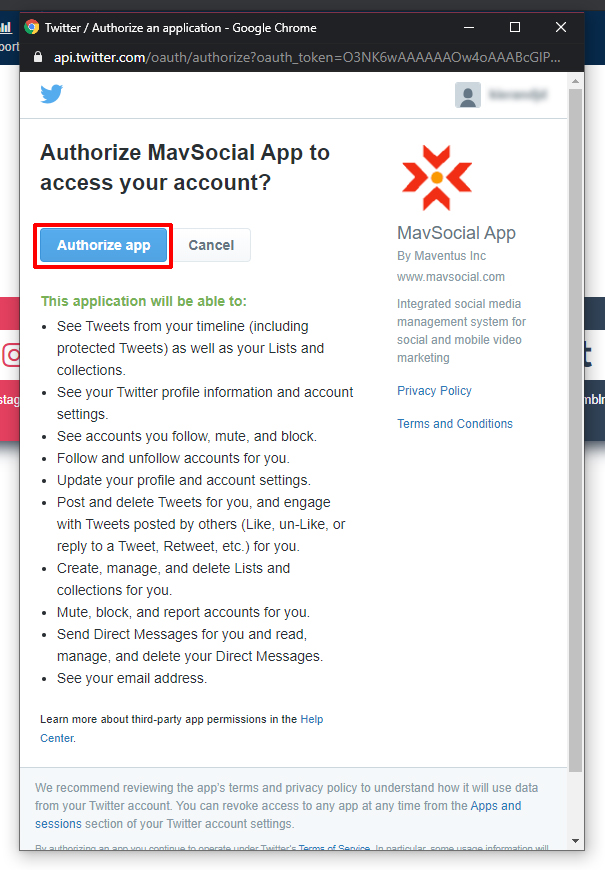
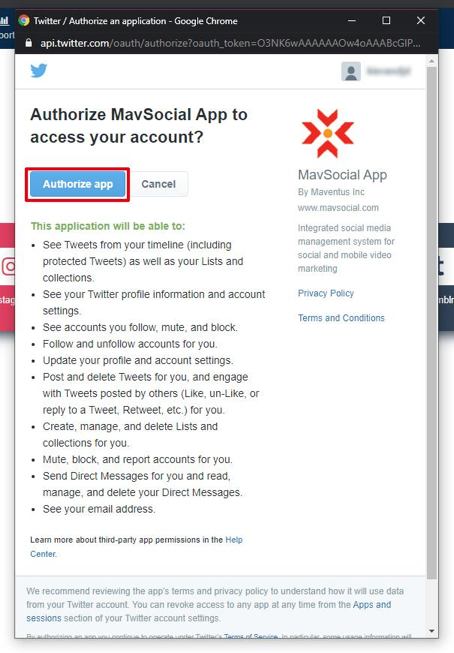
- Sign into the social media account you would like to connect to MavSocial, and allow authorization for MavSocial to connect to your social media account.
For Facebook, you may need to select the pages and groups you wish to connect if your account is an administrator on multiple accounts. - Your account will be added to MavSocial.
How to Search & Filter while Adding Profiles?
- Navigate to Social Profiles
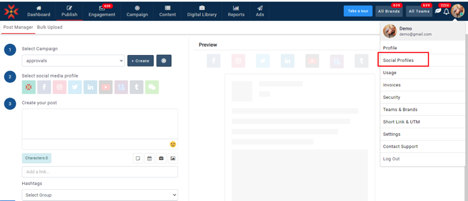
- Click on Add Profiles
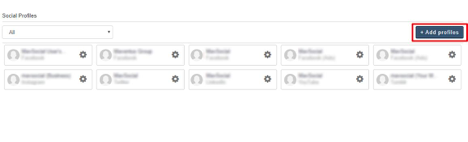
- Click on any network.
- Sign in to the social media account you would like to connect to MavSocial and allow authorization for MavSocial to connect to your social media account.
- You will see a list of profiles that you can add.
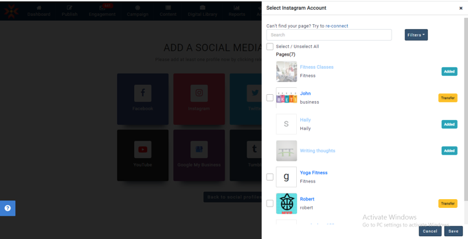
- You can search for the required profile URL
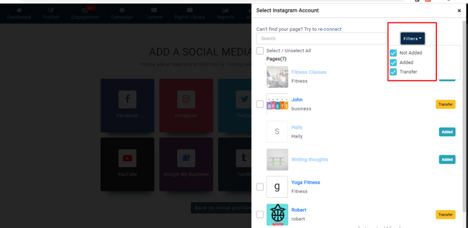
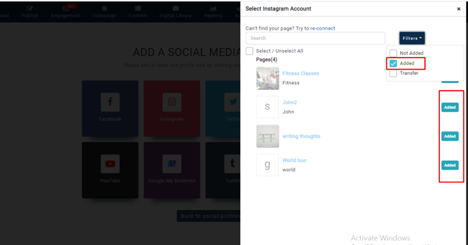
- And filter the profiles as needed (Facebook and Instagram Business).
- You can also navigate to the native profile by clicking on the profile name (Facebook and Instagram Business).
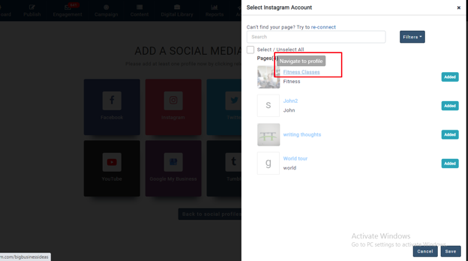
Note: Filter and navigate to a profile is only applicable to Facebook and Instagram Business.
Comments
0 comments
Please sign in to leave a comment.