
The Social Listening functionality is a powerful addition to MavSocial’s extensive social management features, helping you get a comprehensive view of topics, hashtags, brands, industries, and multimedia content to uncover trends.
Social Listening lets you monitor keywords, analyze trends, and engage with specific topics on social media as opposed to Social Inbox where you can monitor and engage with conversations related specifically to your brand.
MavSocial currently supports Social Listening for both Twitter and Instagram, and this functionality is available for PRO, Business & Enterprise users.
Keyword Searches gather and display all posts and comments relevant to the term you enter with options to filter and/or exclude data points.
Adding a New Keyword to Social Listening
- Make sure you have Twitter and Instagram Business accounts added to MavSocial.
- Navigate to Social Listening.
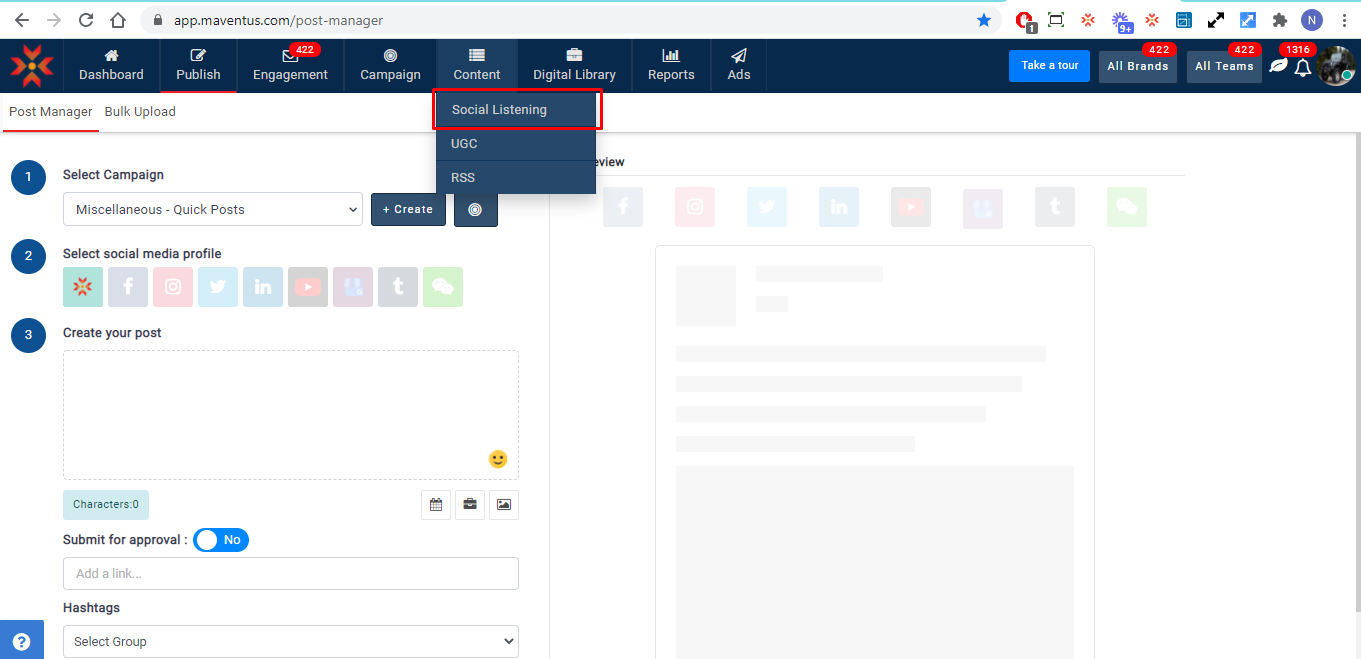
- Click on the Add Keyword button on the top-right corner of the screen.

- You can select Twitter/ Instagram and both networks keywords by selecting the required checkbox beside the social profile icon.
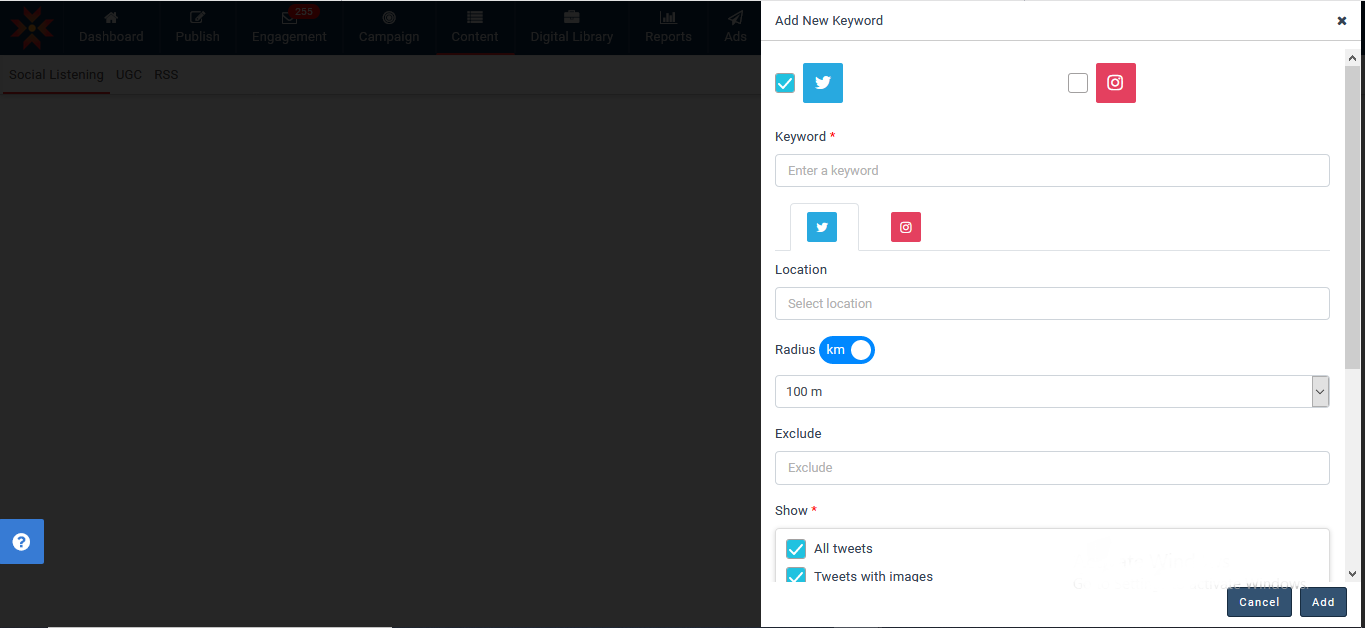
- You will then be able to customize your Keyword Search.

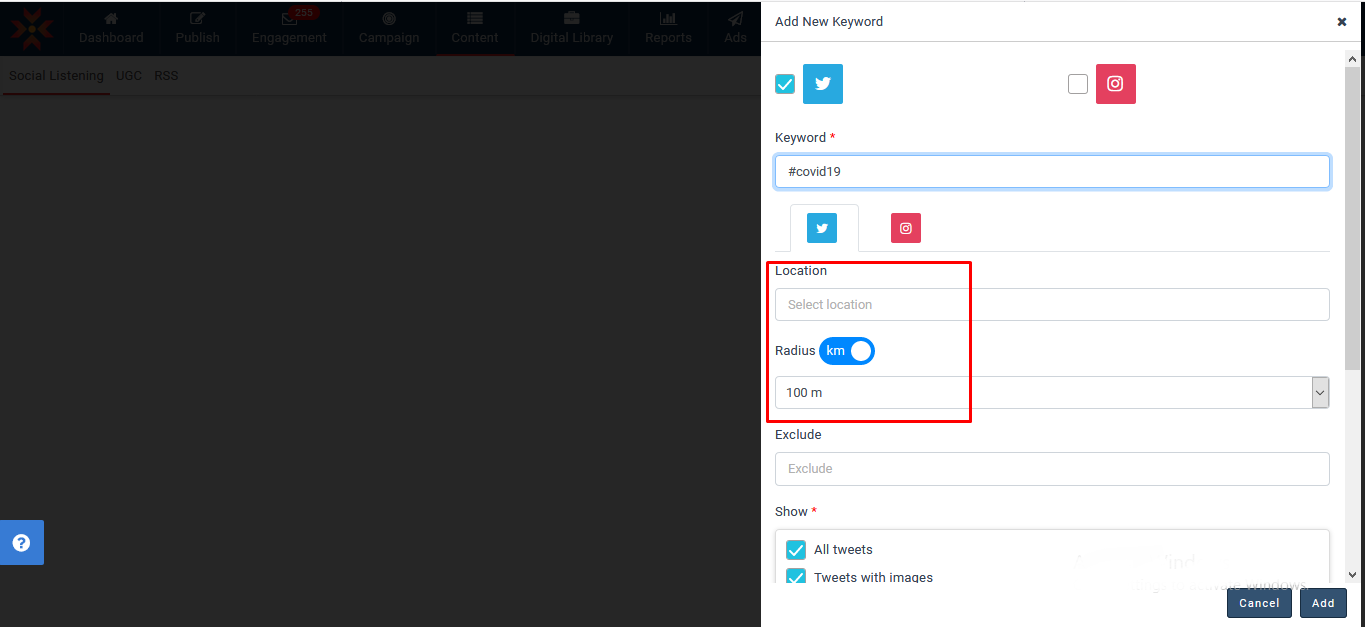
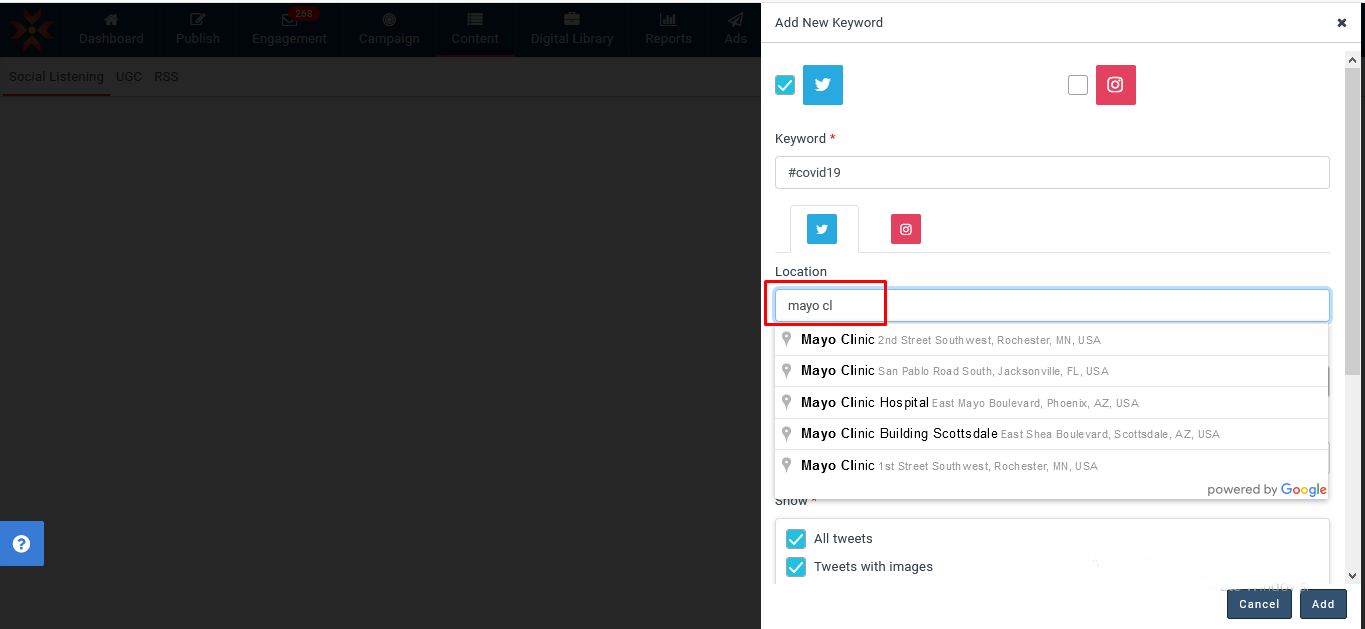
- In the Location tab, you can give the required Location; it will also display suggestions.
- In the radius toggle, you can select the distance of location by kilometers or miles.
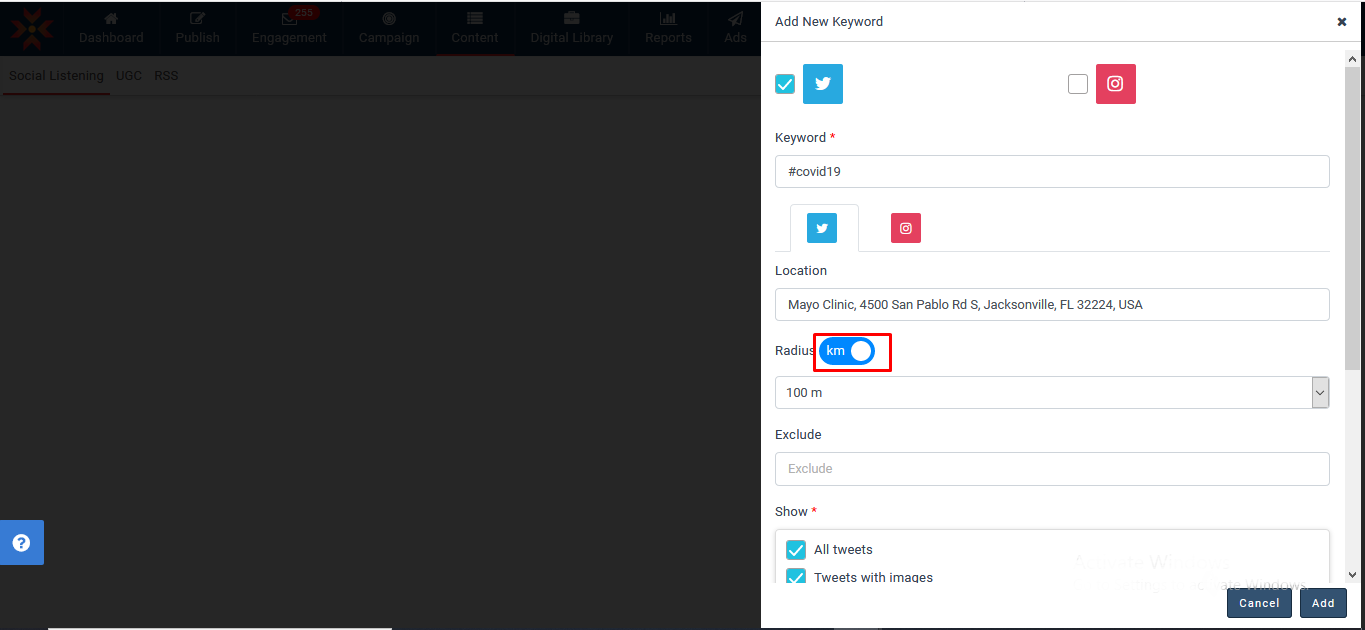
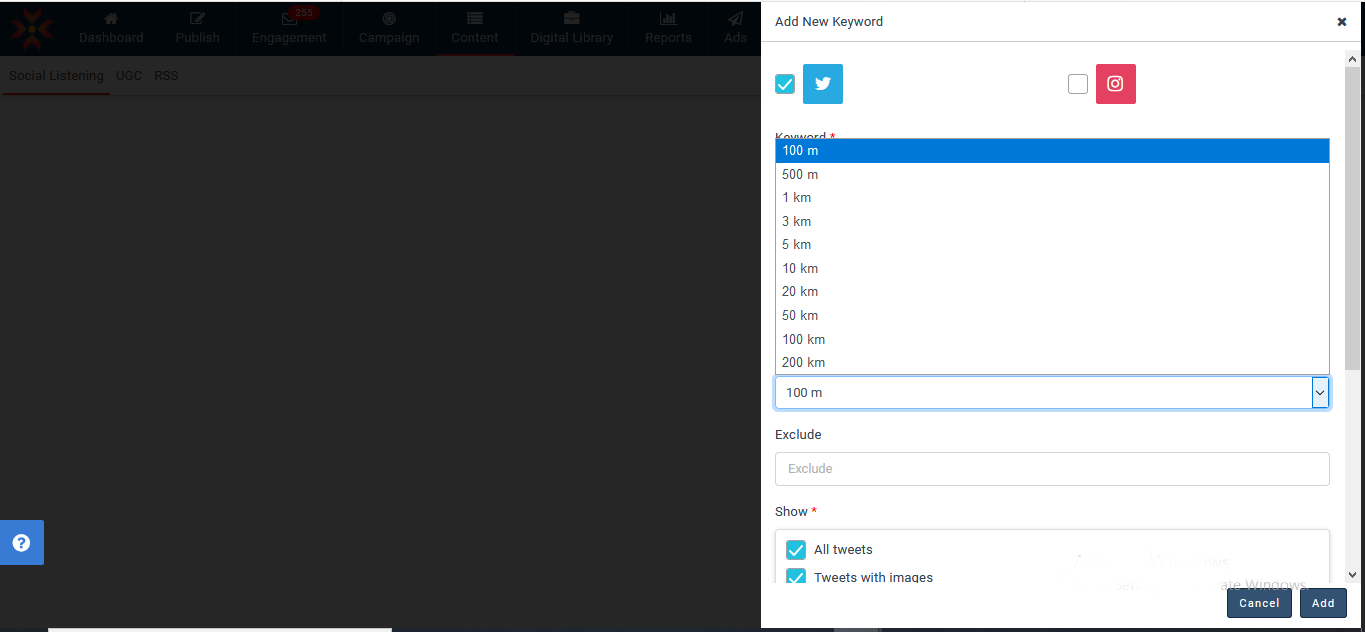
- In kilometers, you can select a radius between 100 m and 200 km.
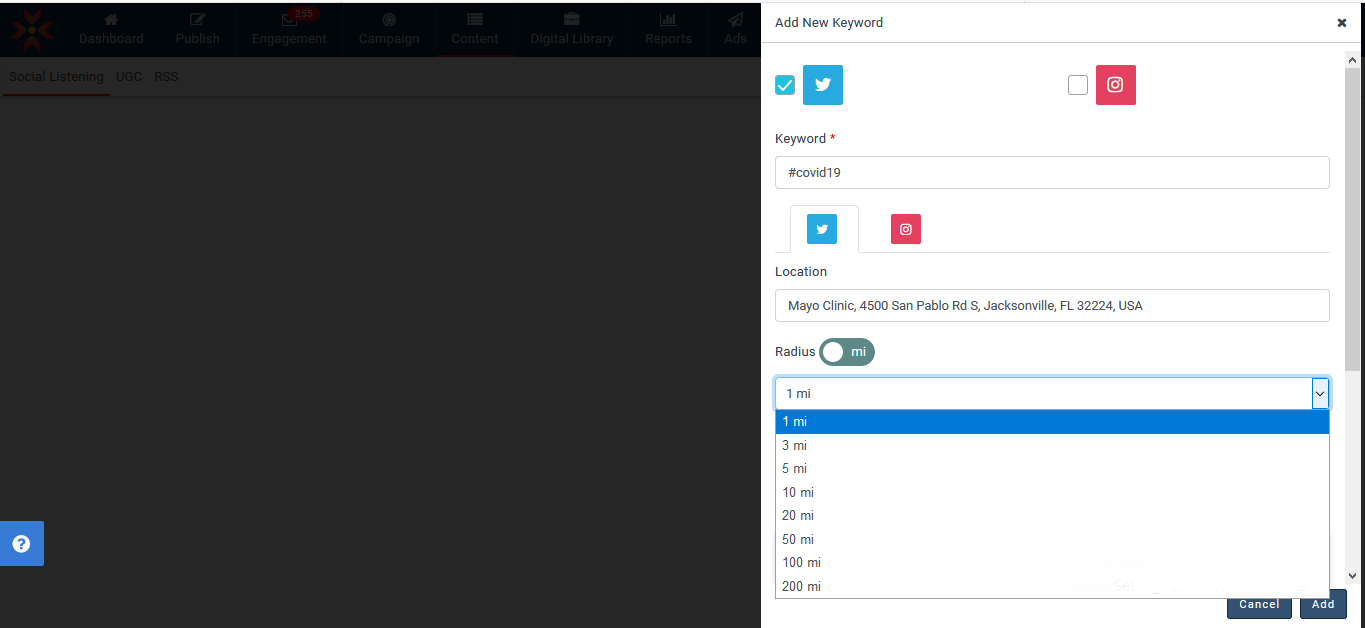
- In miles, you can select a radius between 1 mile and 200 miles.
-
You will then be able to customize your keyword search.
There are six components to a keyword search.
Keyword(s): Enter the term(s) (topics, hashtags, brands, or mentions) you want to track.
Exclude: Enter the term(s) to be excluded. You can use exclusions to remove noise or unrelated content.
Tweet Type: Filter the search by a media type, such as tweets with images, videos, or links.
ReTweets: Filter the search by including or excluding retweets.
Language: Filter the search to find relevant content in the language you are interested in.
Select an account: Select the Twitter account added in MavSocial to engage with posts. - Once you have completed customizing your keyword search, click on the Add button to finalize.
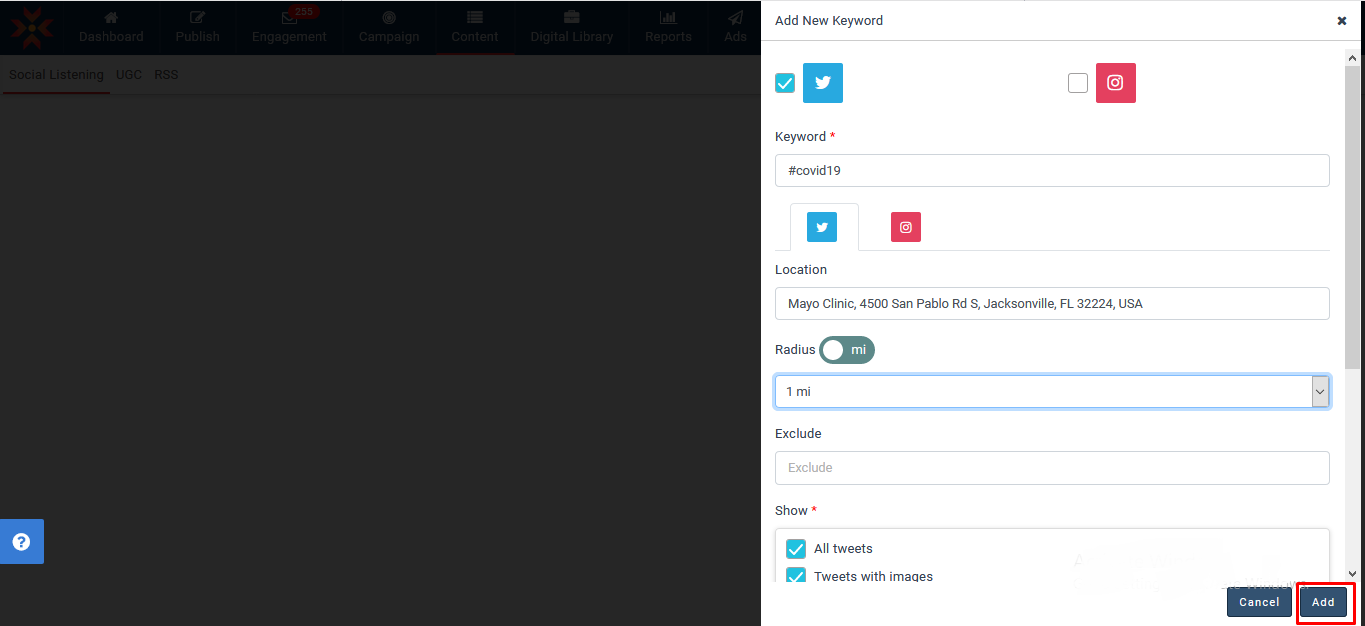
- After clicking on the Add button, the keyword will be added.
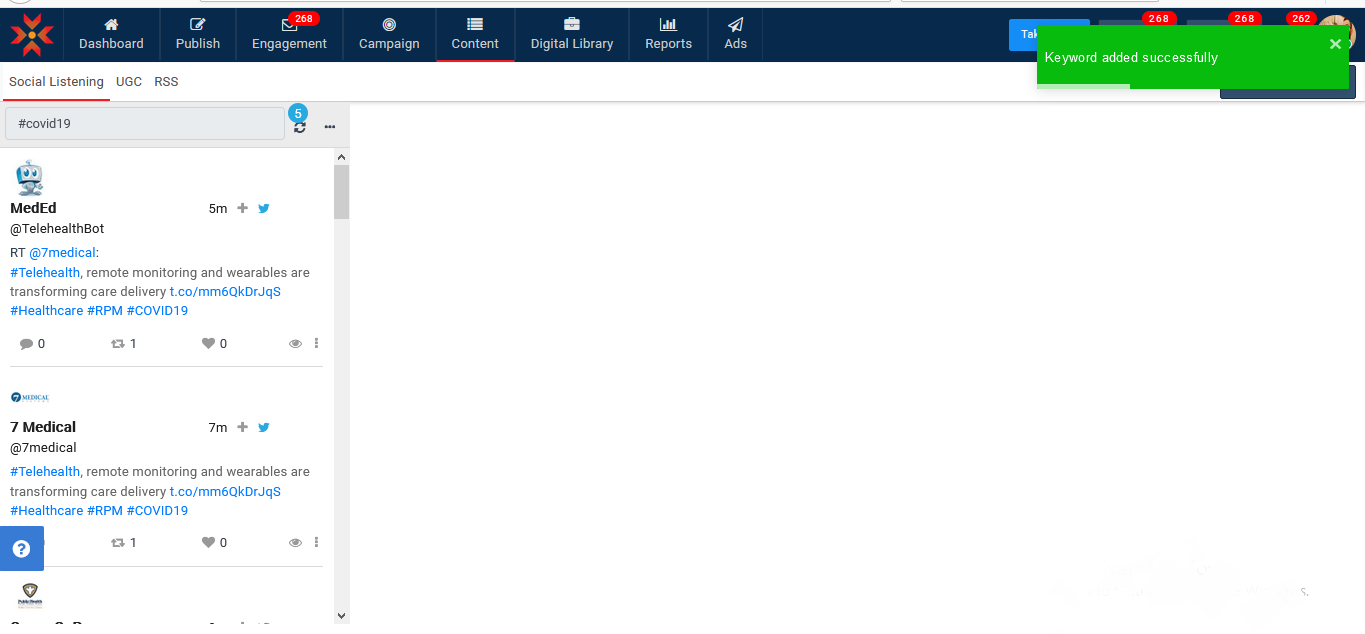
-
Once you reach the keywords limit, you will see the following message.
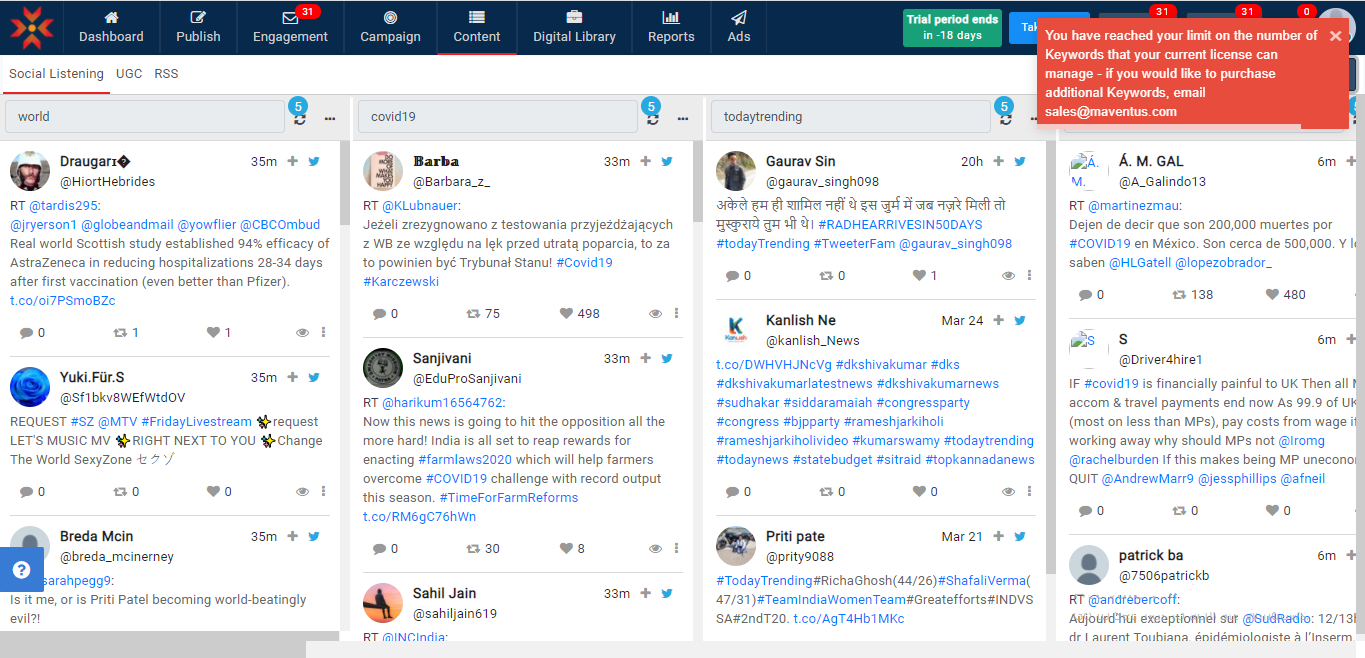
Once you reach the posts count, you will see the following message.
-
To see the limits of keywords and mentions please click on your MavSocial account icon in the top-right corner of MavSocial, and navigate to Profile from the dropdown menu.
Notes:
- Most recent posts with the searched keyword will be shown (maximum 7 days) for Twitter
- Newly created Keyword Searches will be shown adjacent to the older one
- Posts from the past 24hours that contains a specific Hashtags will be shown for Instagram networks
- Location and Radius options will be visible for only Enterprise and Business subscription
Engaging from Social Listening Feed
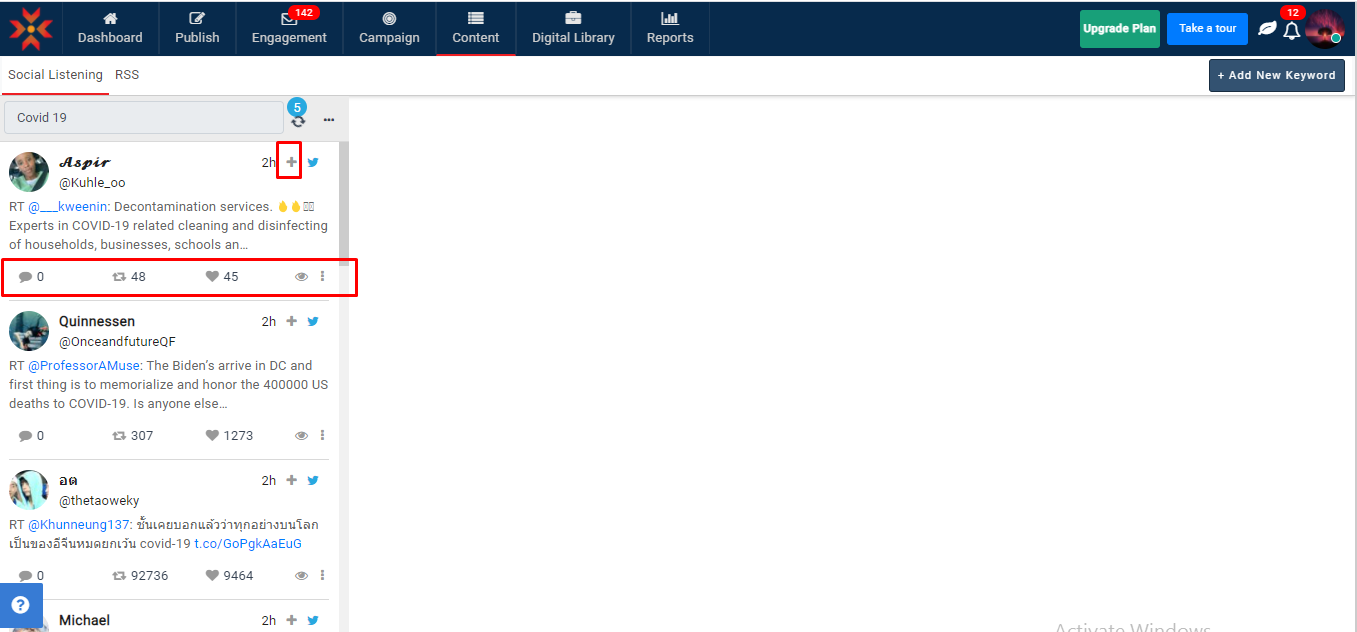
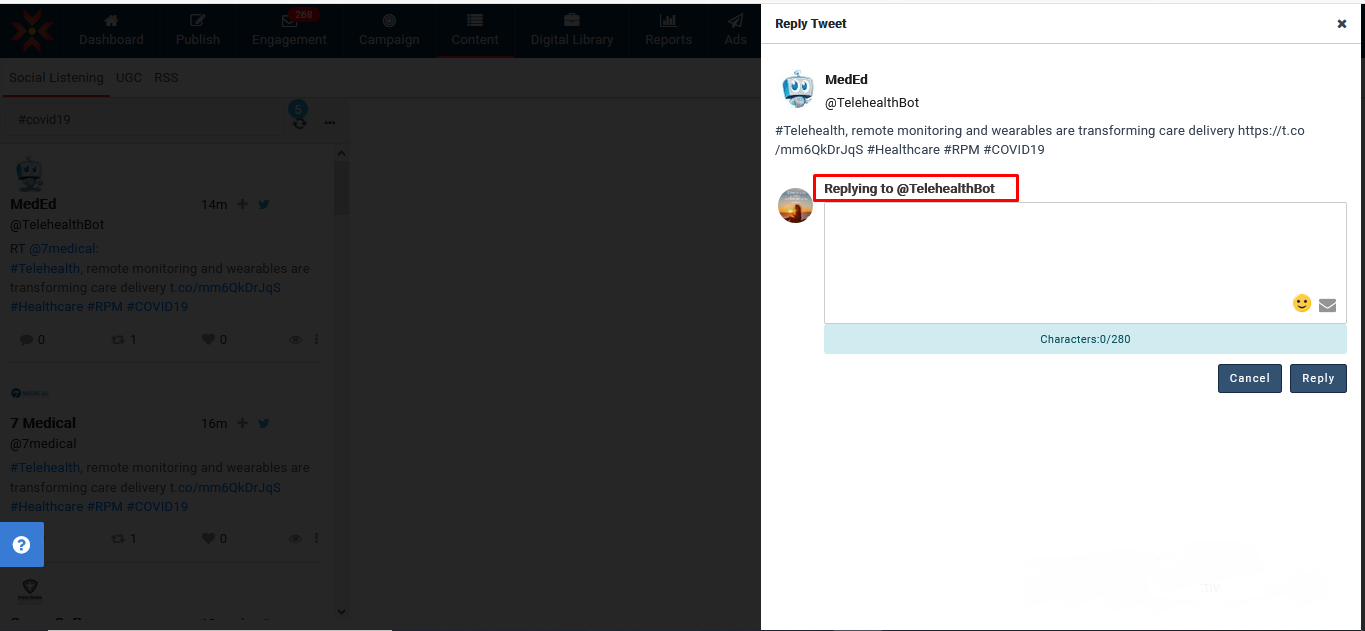
- You can Follow, Like, Retweet & Reply to posts by clicking on respective icons for Twitter networks.
- You can also switch the account you reply with.
Updating Social Listening Feed
- Latest feeds will auto-update based on the interval you selected.
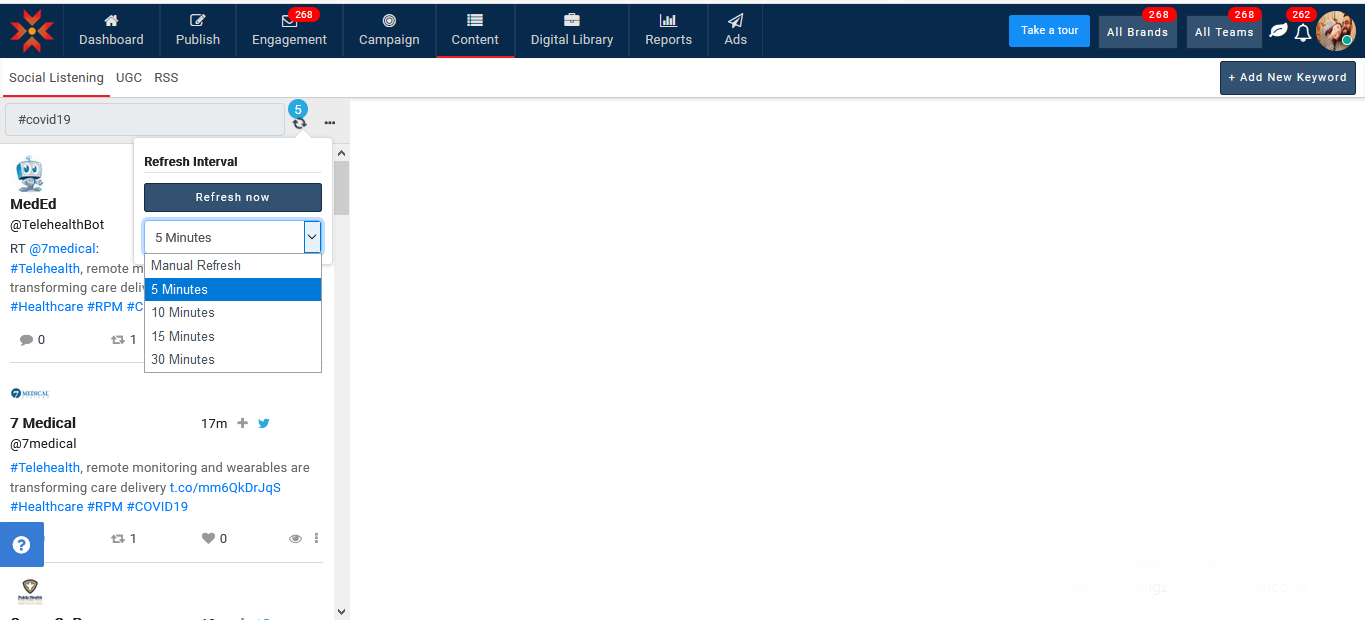
- Posts related to that keyword will be populated and shown in chronological order.
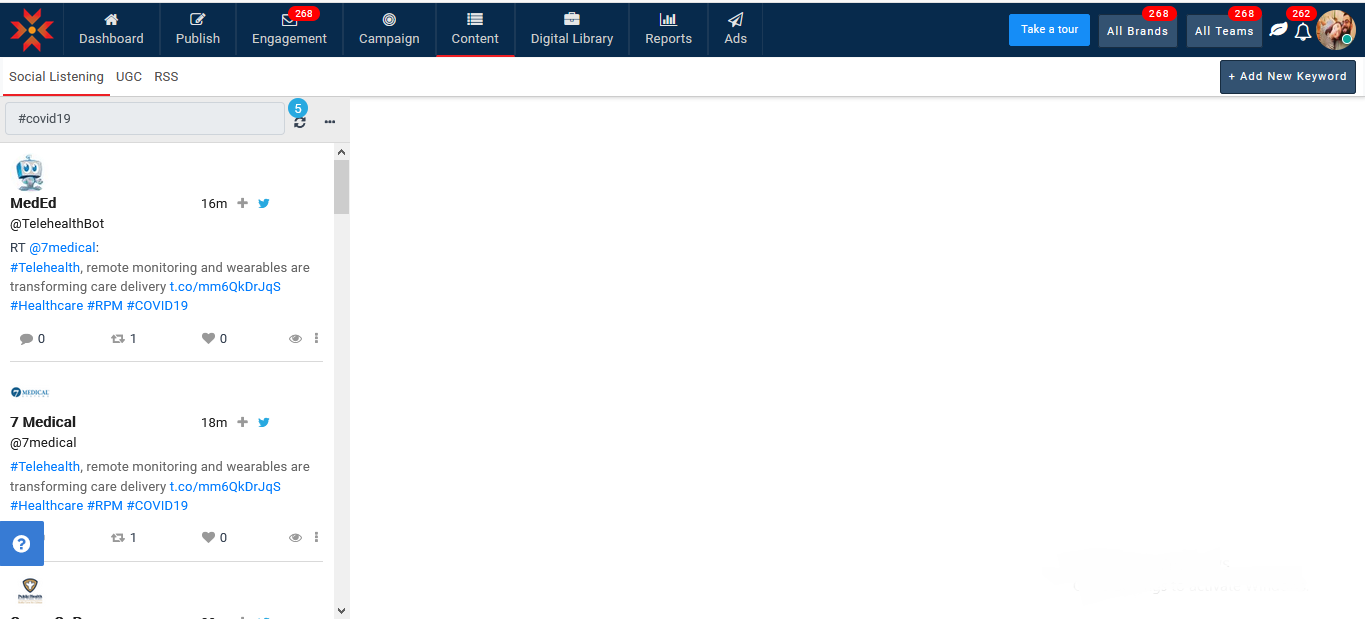
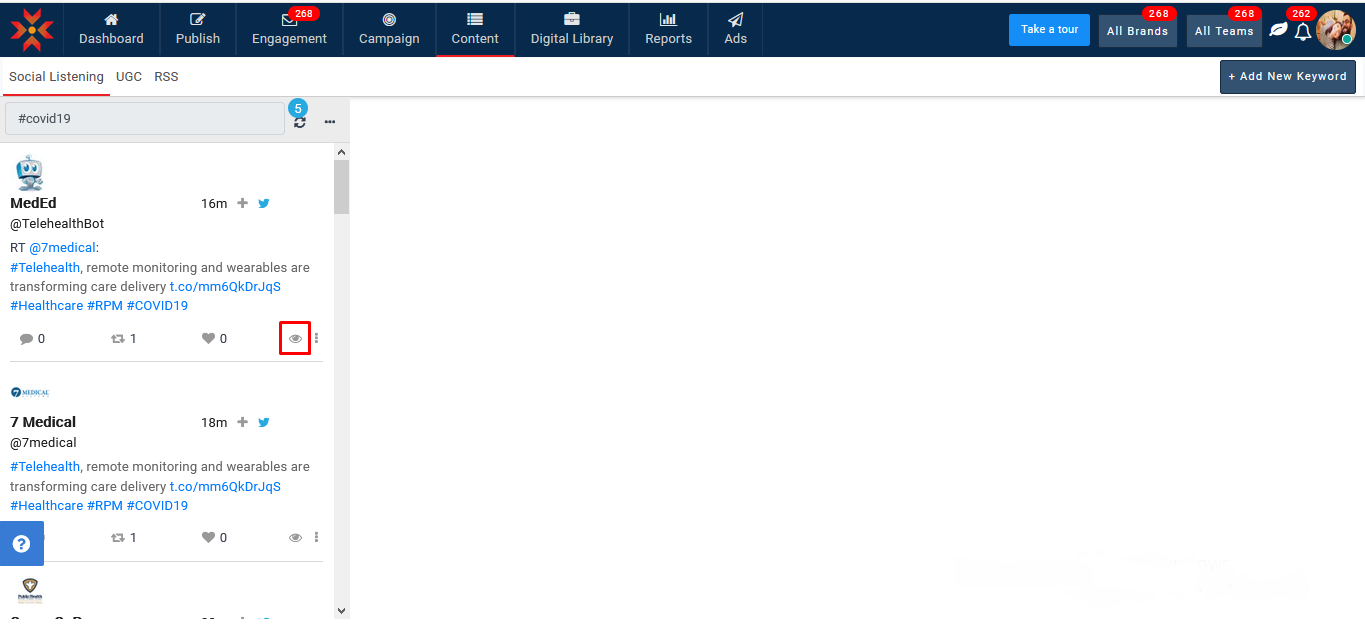
Viewing Full Post Previews from Social Listening Feed
- Click on the preview icon.
- You can also engage with the post from here.
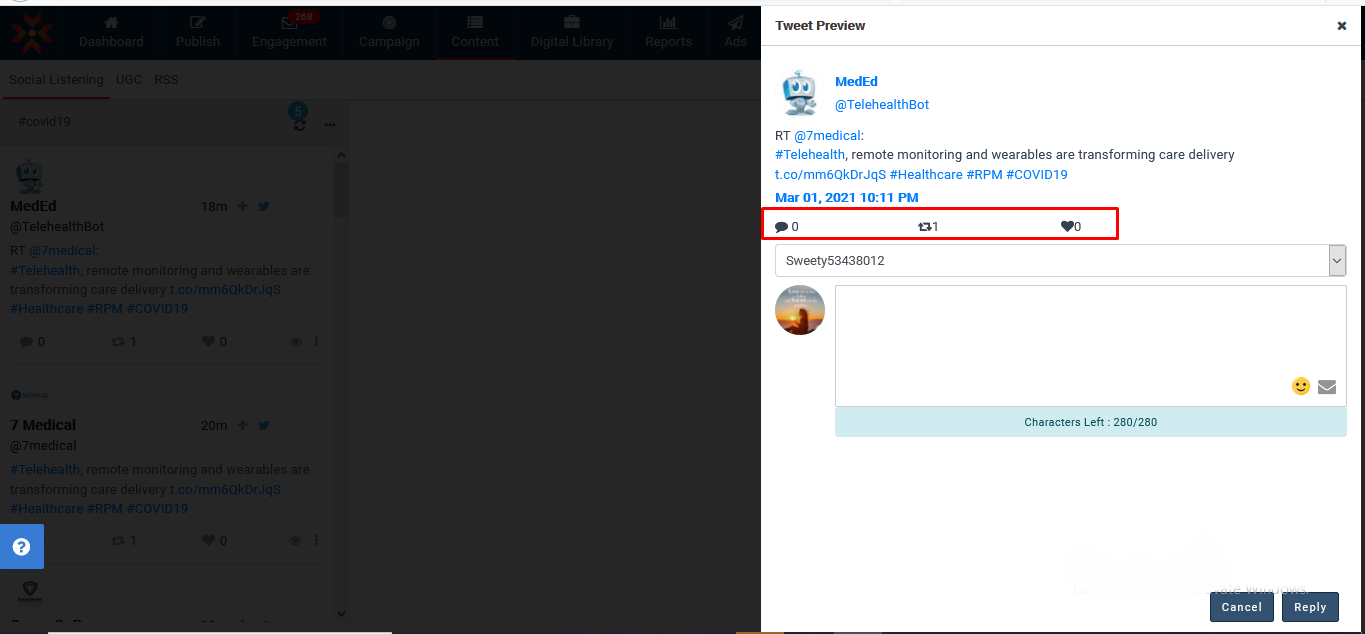
To send a Direct Message to the post owner - Click the vertical three dots below the post description.
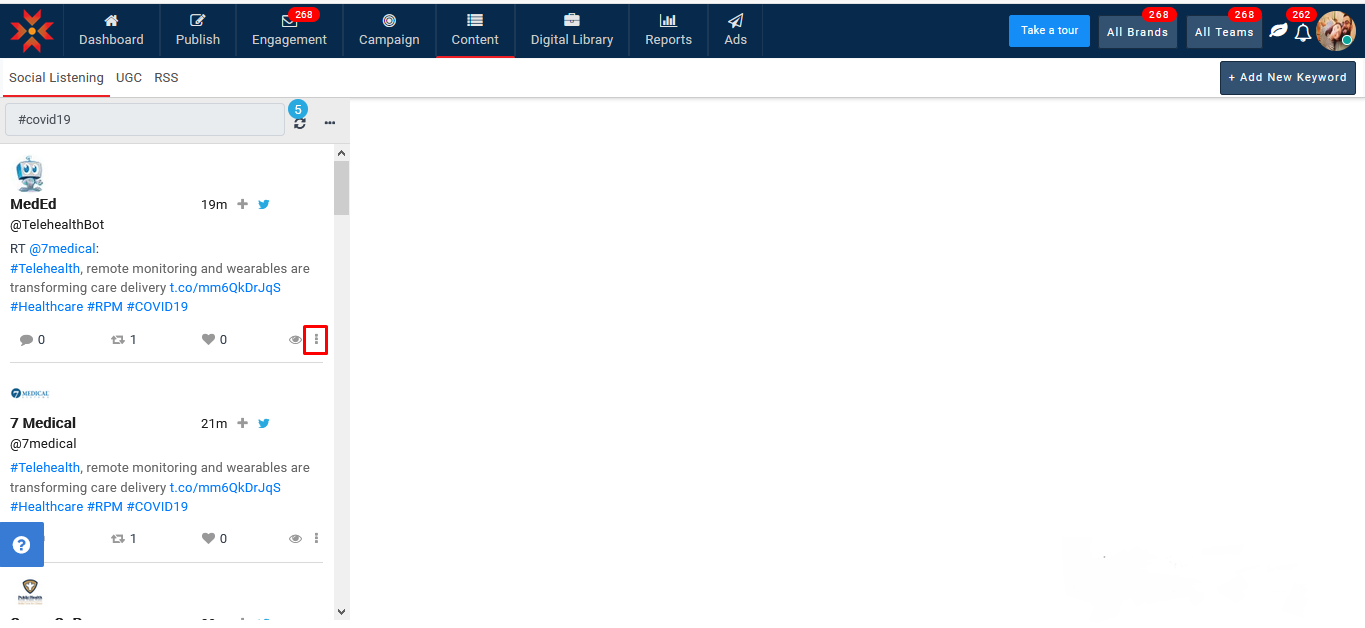
- Click on “Direct Message” option to send the message.
Note: You can send direct messages only to your followers
Editing a Keyword Search
- Click the three dots in the column header, next to the refresh icon.

- Refine your search criteria.
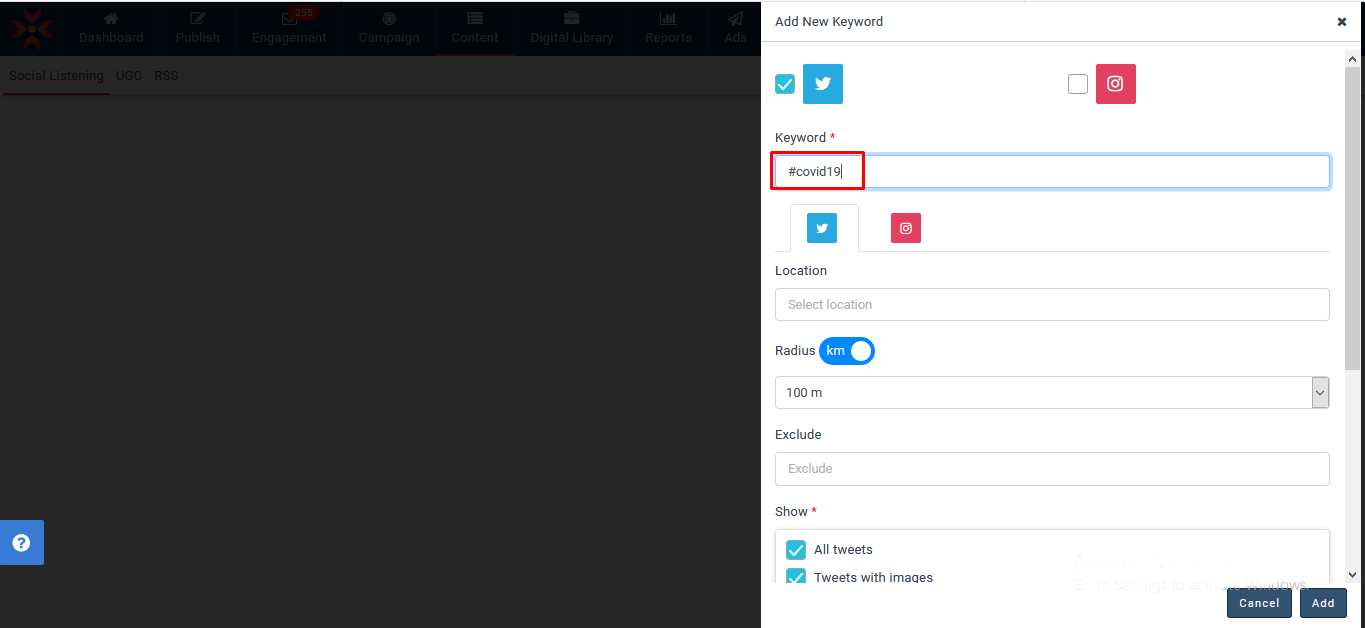
- Click the Update button to save changes.

Removing a Keyword Search
- Click the three dots in the column header, next to the refresh icon.

- Click the Remove button to delete the Keyword Search.

Note: Team members can see Super Admin-created keywords and the Super Admin can see team member-created keywords.
Comments
0 comments
Please sign in to leave a comment.