
Available for Enterprise, Business, PRO, and Advanced subscriptions
You can select inbox notifications you want to receive via email, in-app, and mobile notifications.
How to turn ON/OFF notifications?
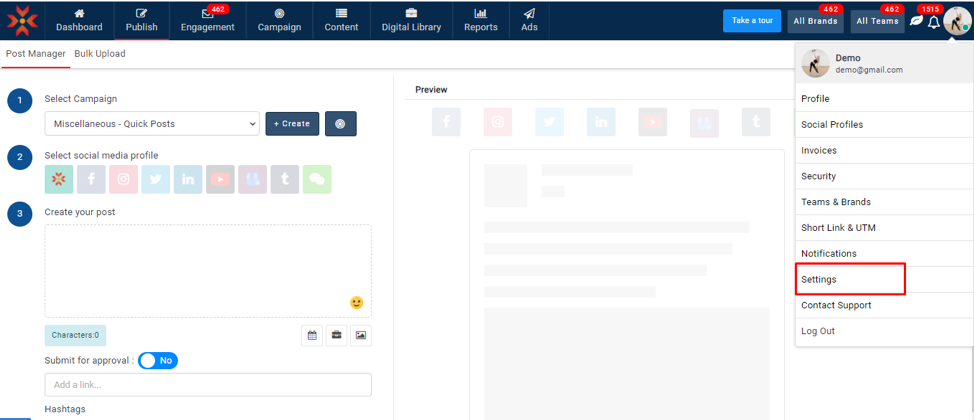
1. Navigate to Accounts -> Settings
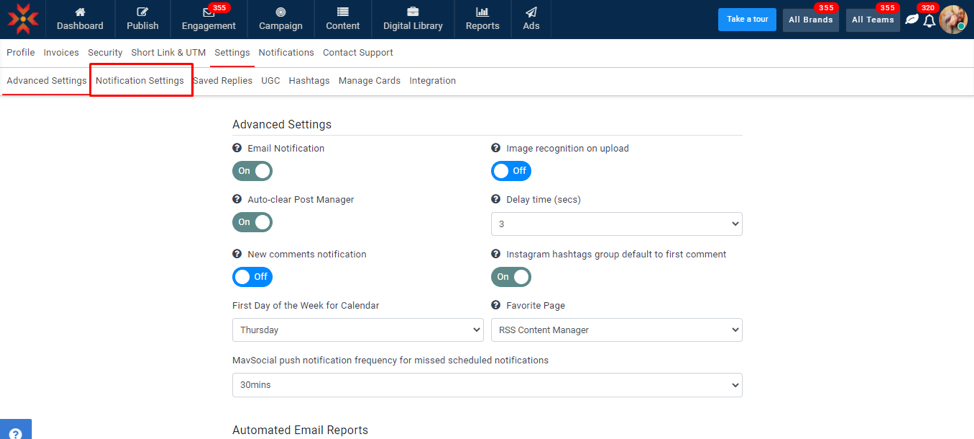
2. Click on Notifications Settings
3. You can see all options with checkboxes.
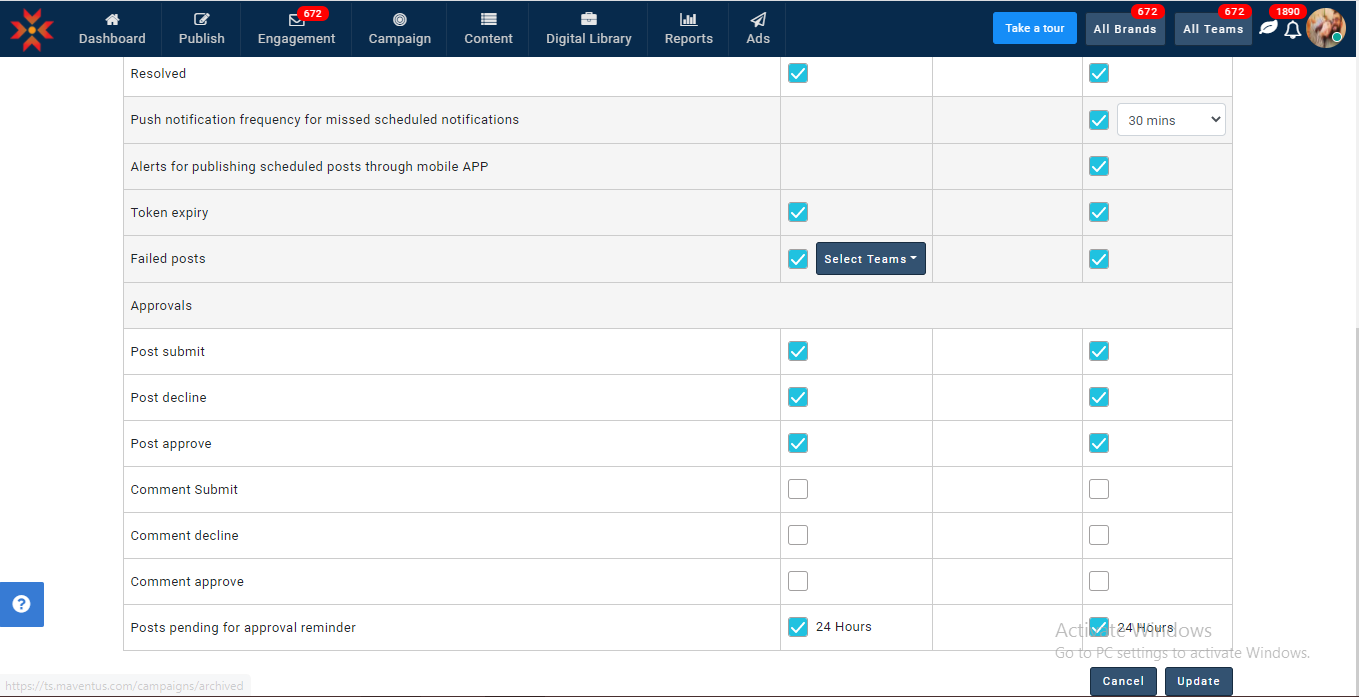
4. Select or deselect appropriate notifications you wish to receive and click on the Update button.
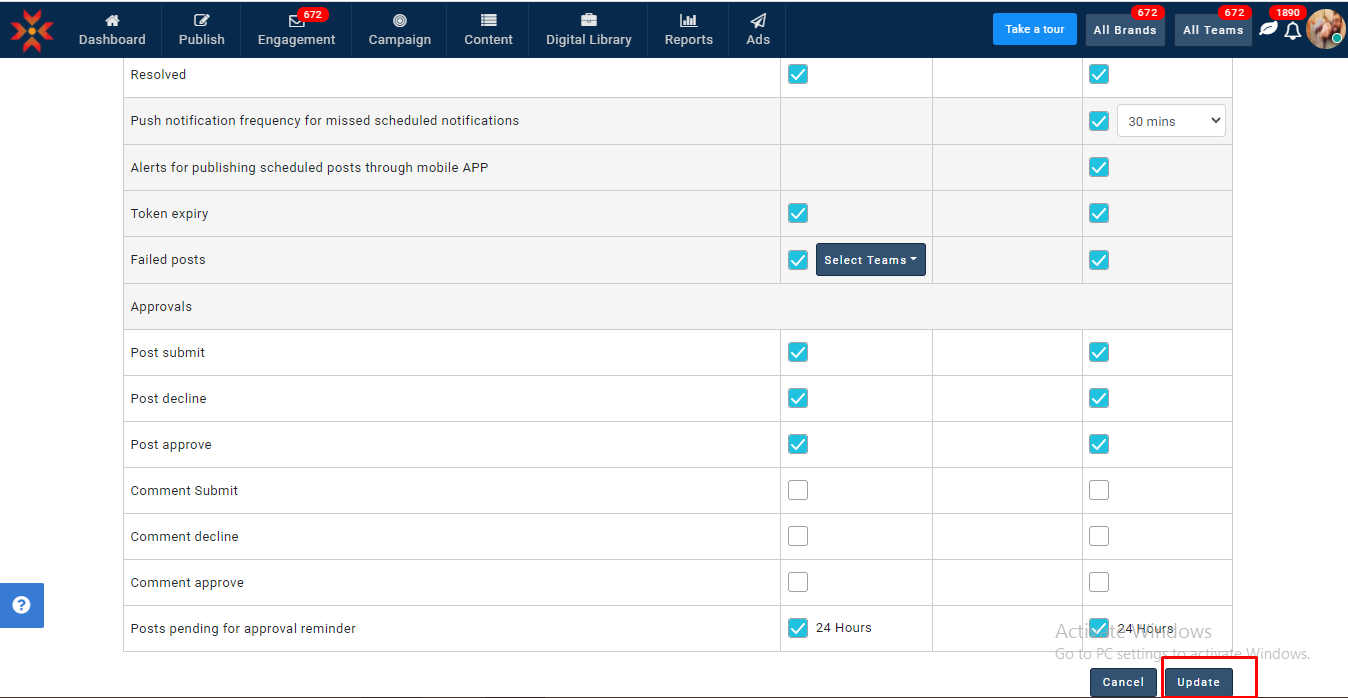
5. You can also select the frequency for your notifications by clicking on the dropdown beside the check box.
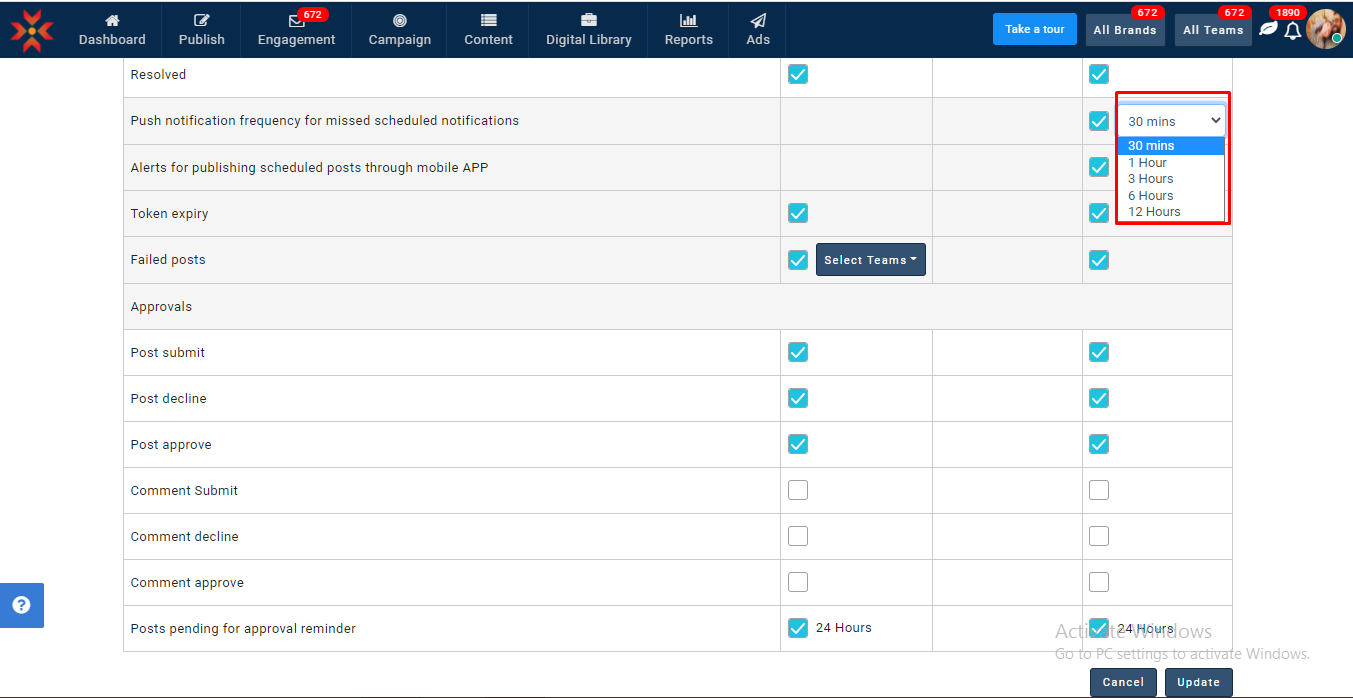
6. You will see a success message after updating the required fields.
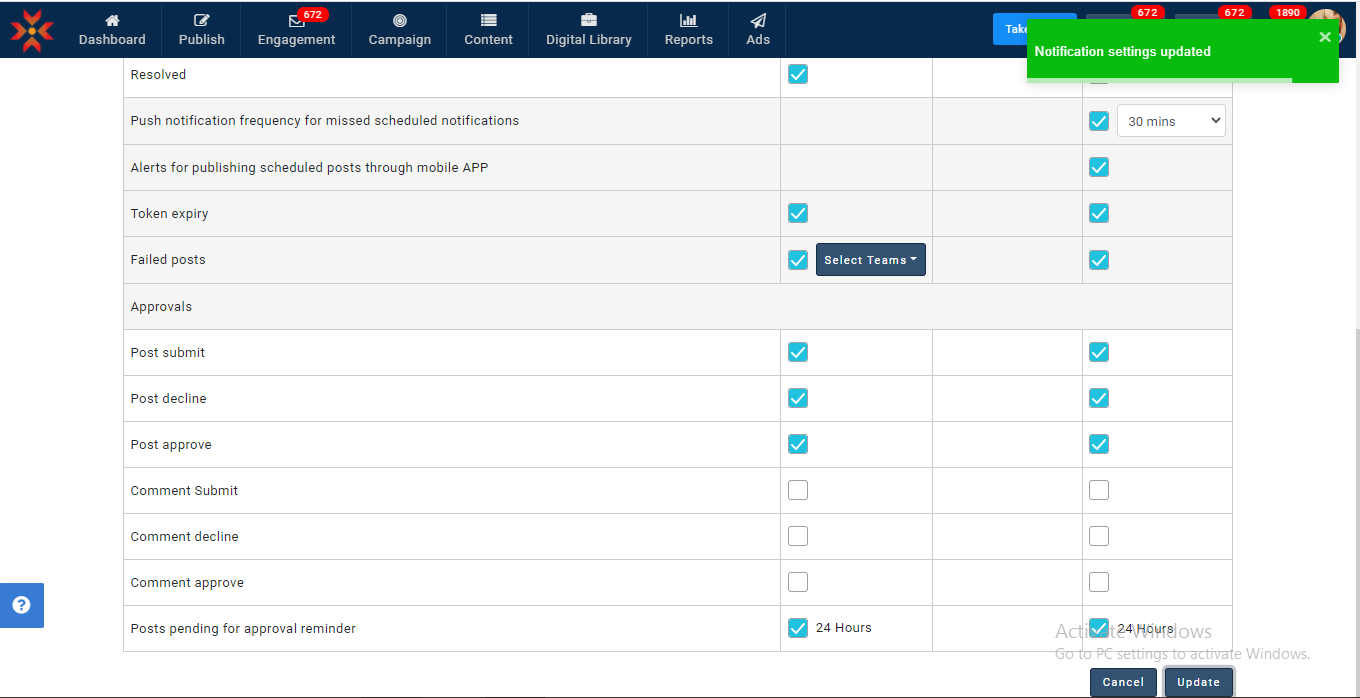
7. Click on the cancel button if you want to undo the selected checkboxes
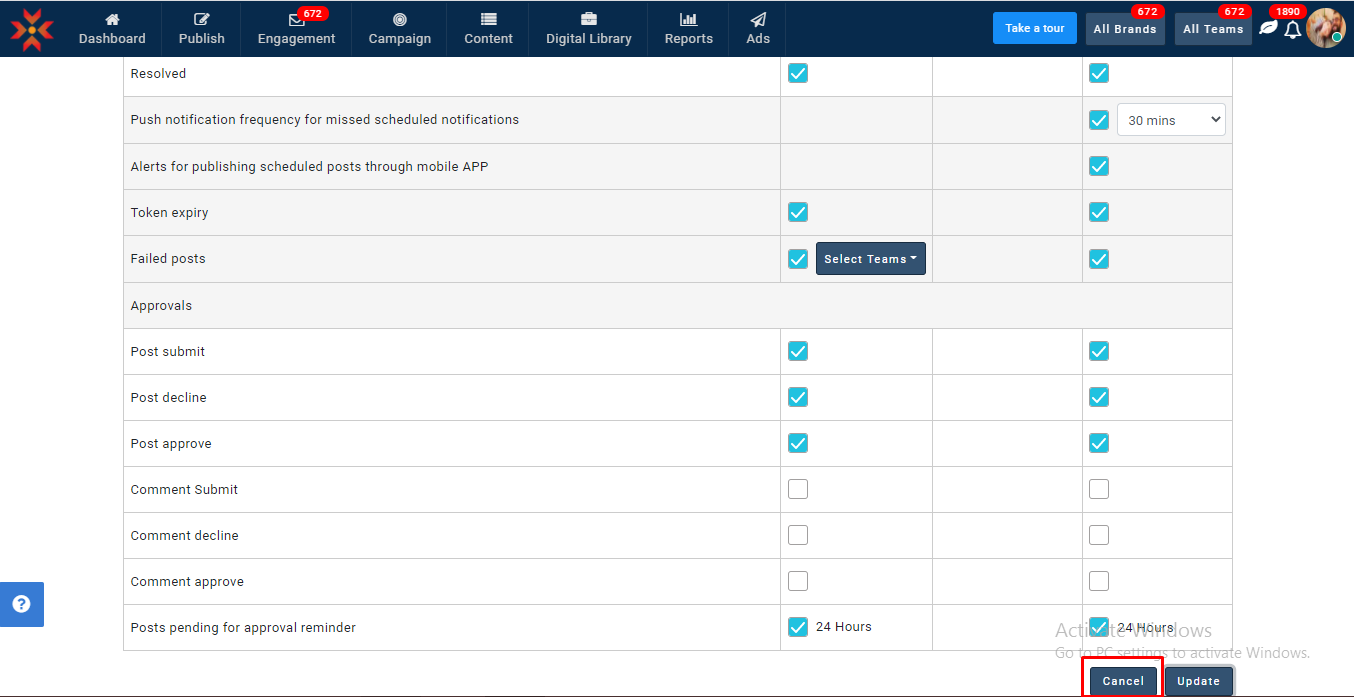
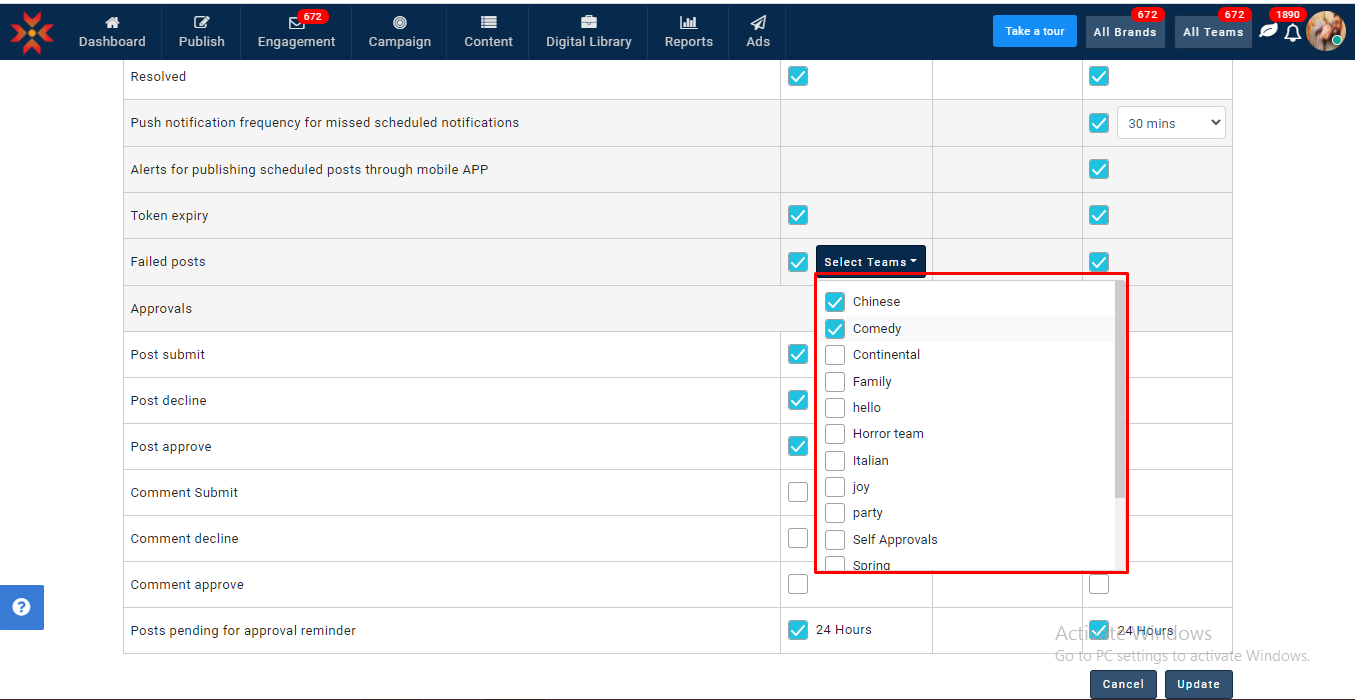
How obtain failed notifications for specific teams?
- Besides failed posts, you can select teams dropdown
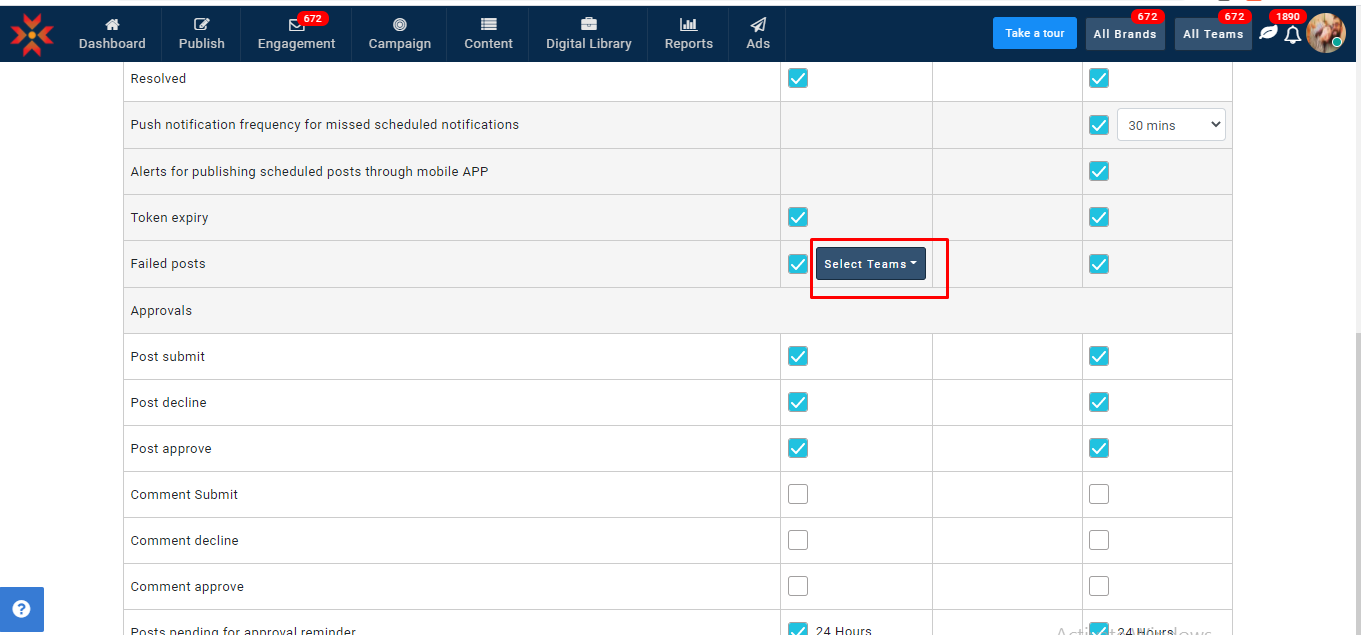
- When we select a particular team in the drop-down list, failed post notification will be shared to that specific team only
Note:
- For new users, hourly email notifications will be initially enabled
- We are showing the top 5 comments which have the mosr likes in the selected period for all types of posts
- We are showing the latest top 5 messages for direct messages
You have the following options:
Comments: Comments count will be shown when your feed has any new comments.
Mentions: Mentions count will be shown when your feed has any new mentions.
Direct Messages: Direct Messages count will be shown when you receive any new messages.
Replies: Replies count will be shown when your post has any new replies for comments.
Ad Comments: Ad comments count will be shown when your Ads post has any new comments.
Reviews: Reviews count will be shown when your location has any new reviews
Token Expiry: Token expiry notification will be shared when the social profile token expires.
Failed Posts: When posts fail for any reason, a notification will be shared.
Post submit: When a team member submits a post, a notification will be shared.
Post decline: When a post is declined, a notification will be shared.
Post approved: When a post is approved, a notification will be shared.
Assigned: A notification will be given when a team member or super admin is assigned or reassigned post.
Resolved: When a post is resolved by a team member or super admin, a notification will be shared.
Comment Submit: When a comment/reply is submitted by a team member for approval, a notification will be shared.
Comment Approval: When a submitted comment/reply is approved, a notification will be shared.
Comment Decline: When a submitted comment/reply is declined, a notification will be shared.
Visitor Posts: Visitor posts count will be shown whenever you receive any new post.
Social Listening: When new mentions are added to an existing keyword, notifications will be shared.
Push notification frequency for missed scheduled notifications: A push notification will appear when manually published posts are not published.
Alerts for publishing scheduled posts through mobile APP: A push notification will appear when scheduled posts are to be published manually from the mobile app.
Difference between Email, In-app and Mobile Notifications
Email: Emails will be sent to the relevant account 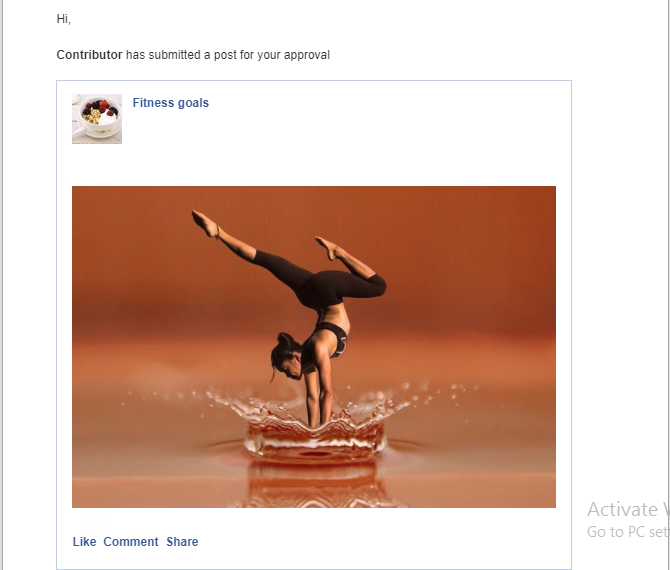
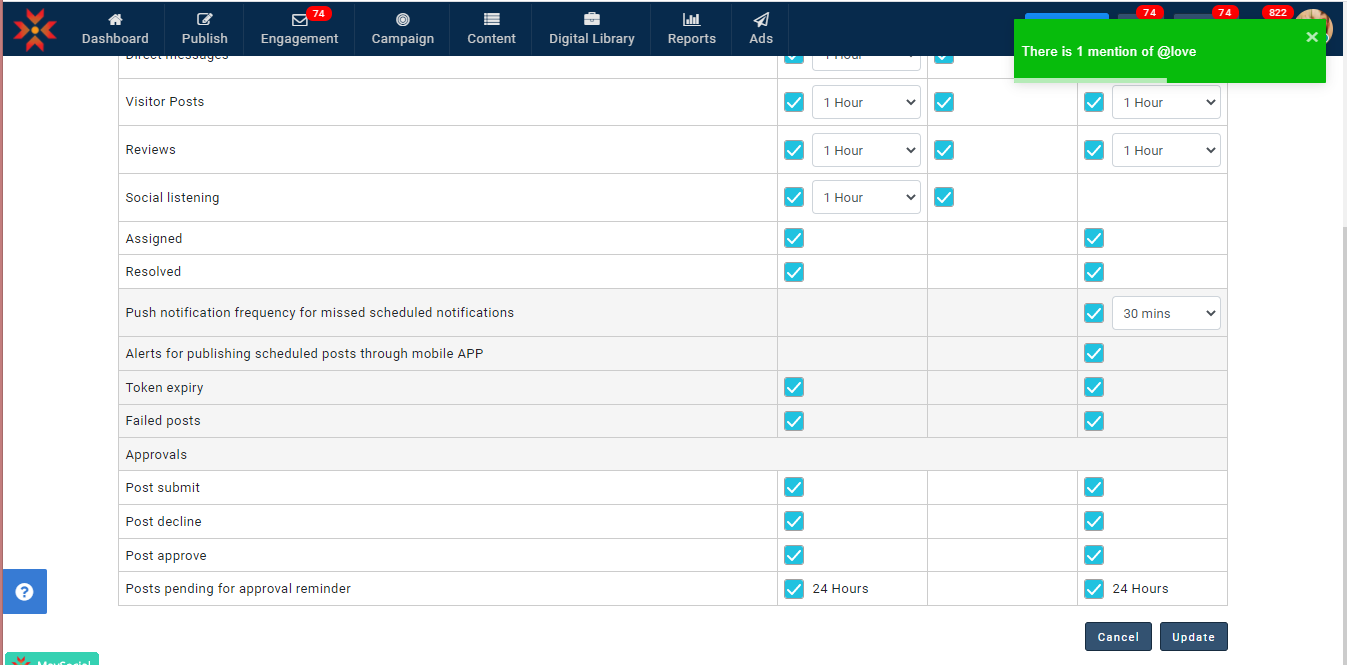
In-app: Notifications pop-up will be sent to the respective account
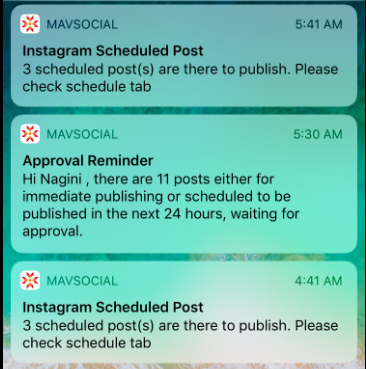
Mobile: Mobile push notifications will be sent to the respective account in the selected period.
Comments
0 comments
Please sign in to leave a comment.