
Instagram publishing is applicable to Advanced, PRO, Business, and Enterprise users.
You can easily share single image, video, and carousel posts to Instagram Personal Accounts with MavSocial iOS and Android application.
As a registered user within the MavSocial application, you can add multiple Instagram accounts, create, save, and schedule posts. These posts are pushed with a notification from the MavSocial app which is available from the Apple store for IOS and Google Play Store for Android. With the MavSocial app, you can publish your posts.
The MavSocial app's Dashboard helps you to quickly get the statistics for scheduled, saved and published posts and also details of the latest 5 scheduled posts.
Creating Instagram posts via MavSocial on desktop
- Open the Post Manager.
Add your Instagram accounts from the Network section and in Post Manager, select an image post and select your Instagram network(s).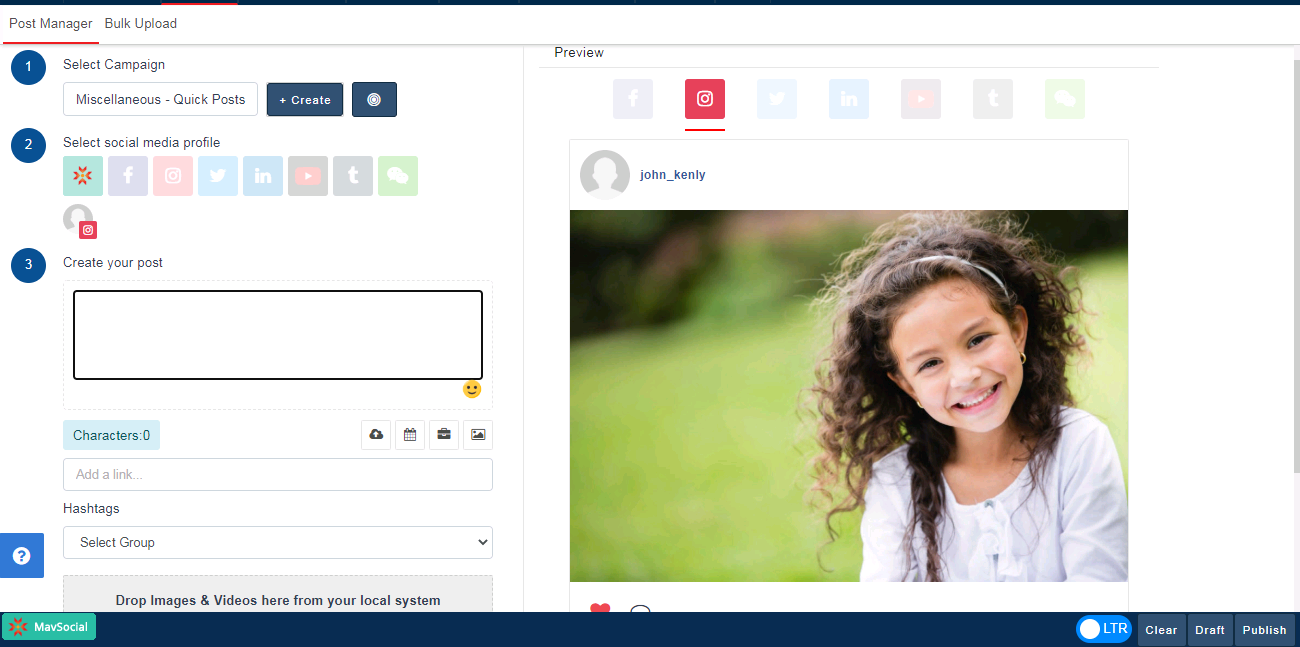
Saving posts as drafts
By clicking Draft, the post will be saved in the Campaign List. Your drafted Instagram post can now be seen in the Campaign Planner.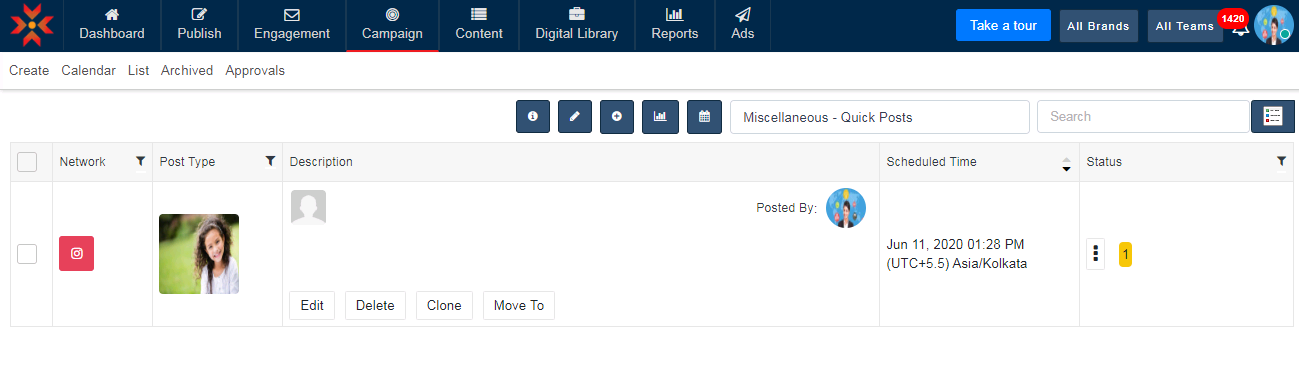
Scheduling posts to Instagram
You can also schedule the time and date for your post to be published via MavSocial, by clicking the Schedule icon and then selecting the time and date. When finished, click the Schedule to schedule the post to publish at the selected time and date.
Creating Instagram posts via the MavSocial mobile app
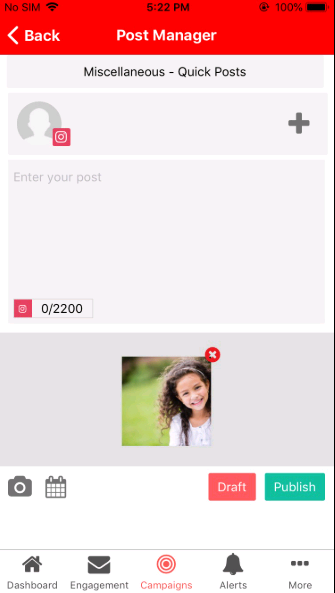
- Navigate to the Post Manager, and select Instagram accounts from using the plus icon toward the top of the screen.
- Add an image or video file to your post using the camera icon in the bottom-left of the screen.
Saving posts as drafts
By clicking Draft/Publish, the post will be saved in the Campaigns tab, and can now be seen in Campaigns along with its draft status and the respective date.
Scheduling posts to Instagram
You can schedule the time for your post to be published by selecting the Schedule icon. Then select the date and time you wish to publish the post, and then click on the Schedule button. The post will now be scheduled. The scheduled post can be seen in the Campaigns tab under the Scheduled status on the respective scheduled date.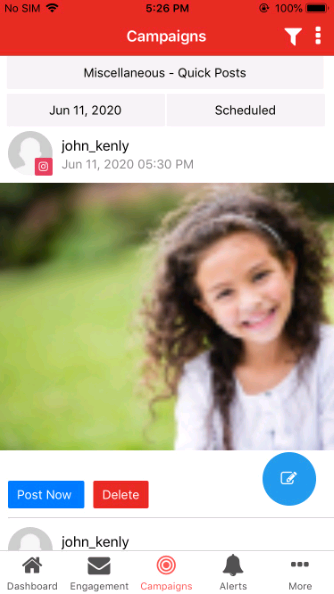
Publishing Instagram posts via the MavSocial mobile app
Open the MavSocial application on your mobile device and you will see a message saying the MavSocial app would like to send you notifications. Select Allow, then log in using the same credentials as your MavSocial account.
Once you have logged in, the MavSocial Dashboard will appear. This displays the number of posts and the engagement for the respective selected social network.
Publishing drafted posts to Instagram from the mobile app
- After login, go to the Campaigns tab.
- Select the campaign in which the desired Instagram post was created
- Click the Date field, and select the date for which the post was drafted.
- Select the Status filter and choose Draft.
All posts matching the criteria will be shown.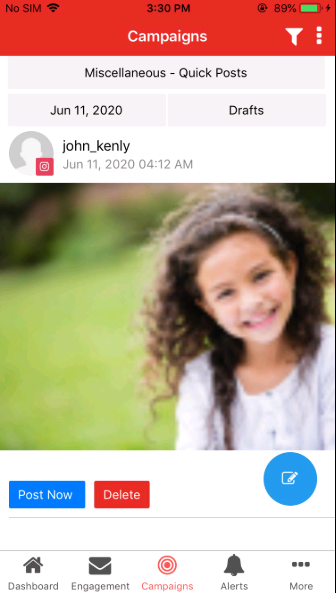
To publish an Instagram post immediately click Post Now on the desired post. A pop-up will display with "Content copied to clipboard". Click OK, and another pop-up will display asking “Are you logged into the right account on Instagram?” It is important to make sure that you are logged into the account you wish to publish to in the Instagram app.
Once you confirmed that you are logged into the correct account click OK and you will be directed to the Instagram application where a new window will appear. Select the “Copy to Instagram” image.
The Instagram application will open and you can crop, filter, and edit your images directly in Instagram. On the Share To page, press into the caption field, and paste the caption that was copied from the drafted post in MavSocial. Then click the Share button at the bottom to publish this image.
The post will now display with the Published status in the Campaigns tab of the MavSocial mobile app.

Instagram posts that have already been published can be re-posted any time by clicking the Re-post Now button in the Campaigns tab, under the Published status filter with the respective date.
Comments
0 comments
Please sign in to leave a comment.