
The Post Manager allows you to publish posts to your social media pages.
Here, you can publish the post immediately, save the post as a Draft, or Schedule the post to publish at a particular date and time.
This feature is available for Enterprise, Business, PRO, and Advanced users
How to create a Post?
- Navigate to the post manager by clicking on the post manager icon
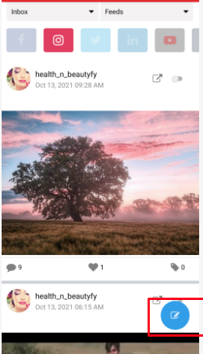
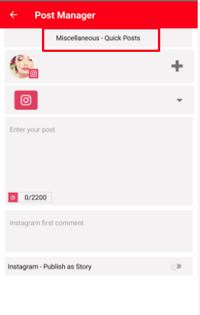
- Choose the campaign to create the post.
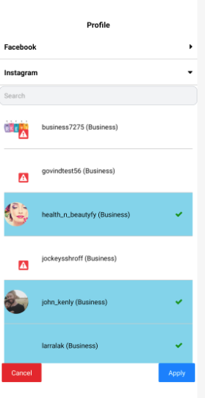
- Select the social media accounts and networks you would like to Publish/Draft/Schedule and click on the apply button
- The selected social profiles for each social network is shown below campaigns
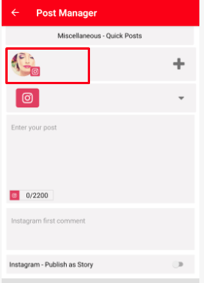
- You can add images or videos directly from your mobile by clicking the Camera icon
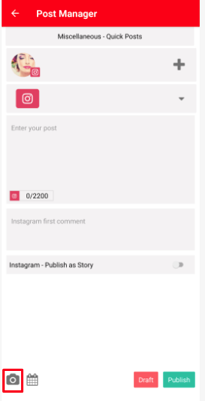
- Once finished creating the post, you may Publish the post, save the post as a Draft, or Schedule the post to publish at a specific date and time.
- To publish, press the Publish button in the bottom-right corner.
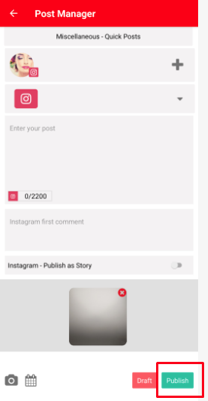
- A notification message will appear confirming that you have successfully published your post to the selected social media networks.
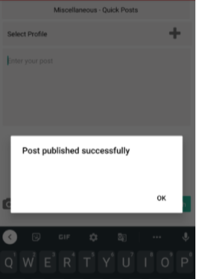
- To publish, press the Publish button in the bottom-right corner.
- To save this post as a Draft, press the Draft button in the bottom-right corner of the screen. Your post will be saved as a draft in the selected campaign.
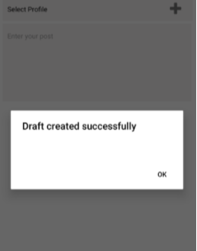
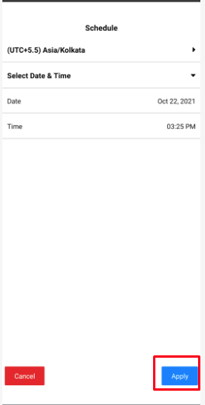
- To schedule, click on the calendar icon and choose the date and time you'd like to post, and according to which time zone. When finished selecting the date and time to publish, press Apply in the bottom-right corner
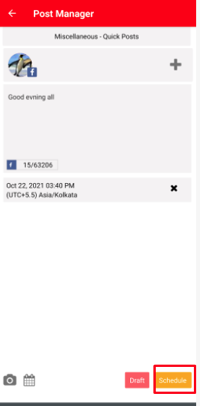
- Press Schedule in the bottom-right corner of the page.
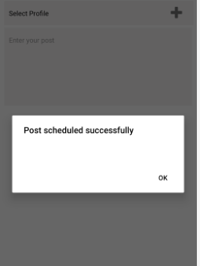
- A notification message will appear confirming that you have successfully scheduled your post to the selected social media networks
Comments
0 comments
Please sign in to leave a comment.