
This feature allows you to Publish/Schedule RSS articles from the Bulk uploader
This feature is available for Enterprise, Business, PRO, and Advance subscriptions.
How to Publish/Schedule RSS articles from Bulk Uploader?
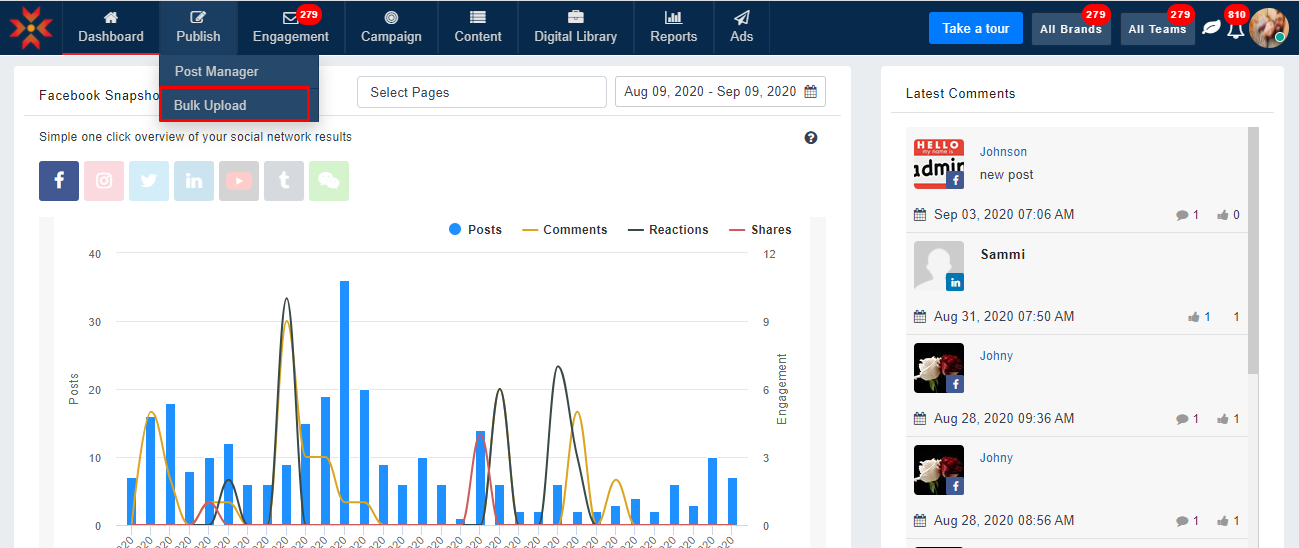
- Navigate to the Bulk Uploader.
- Select the desired network and profile, and date format.
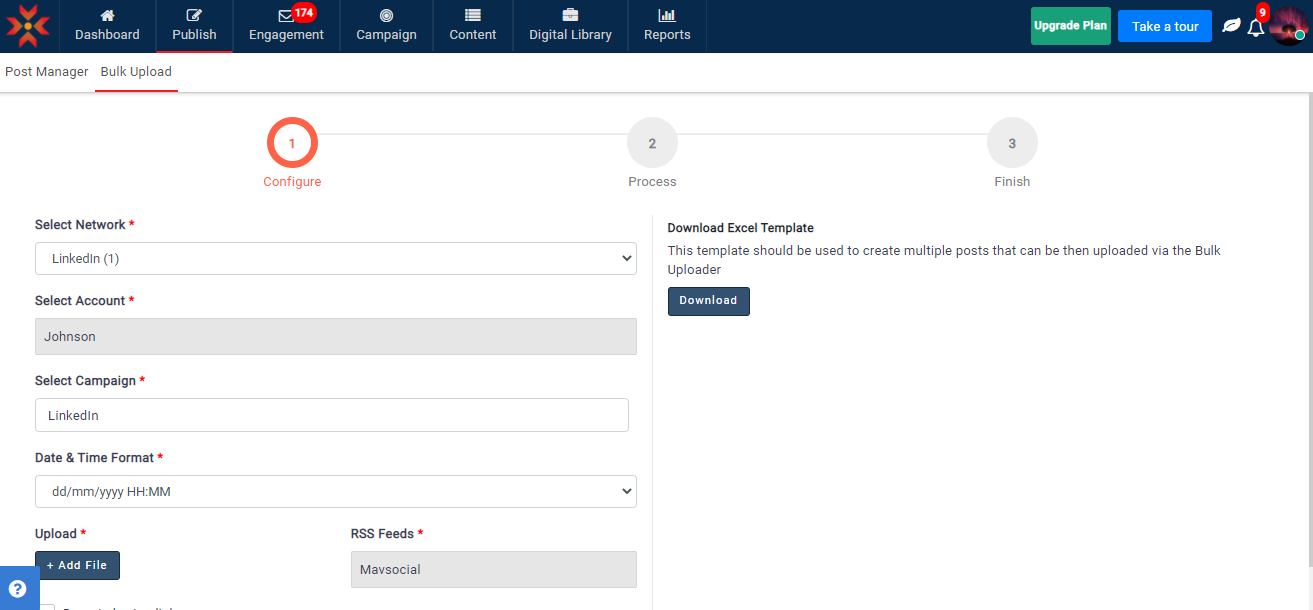
- Select the RSS feed from the RSS Feed(s) drop-down and click the Upload & Continue button.

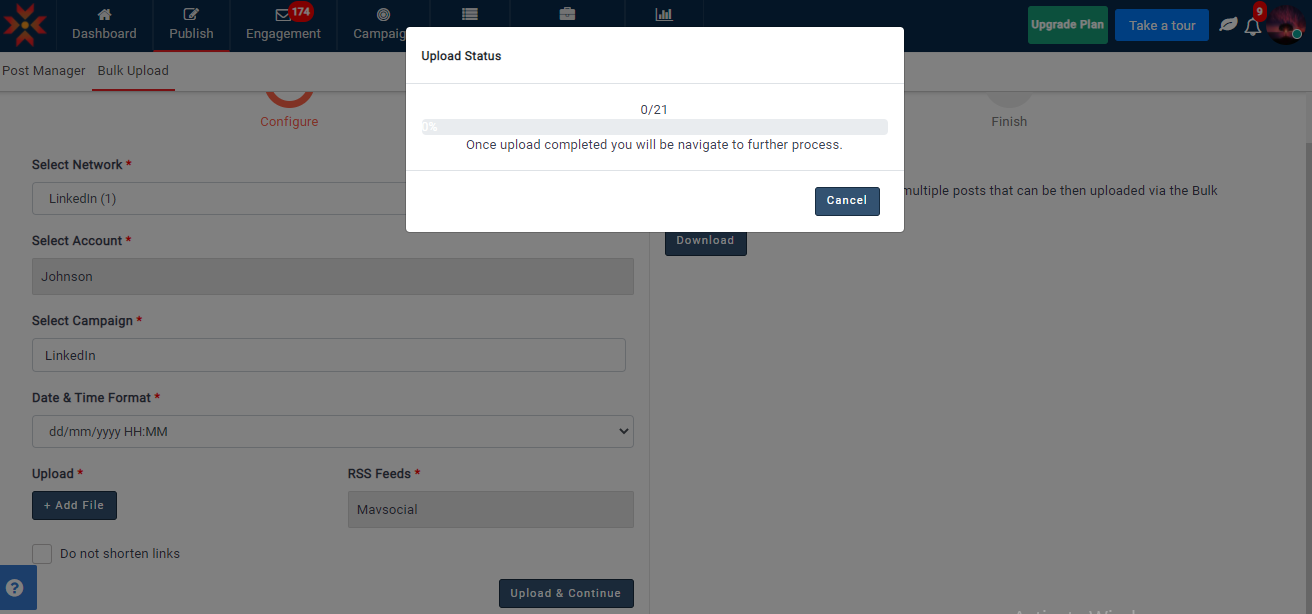
- You will see the upload progress when moving to the second step.
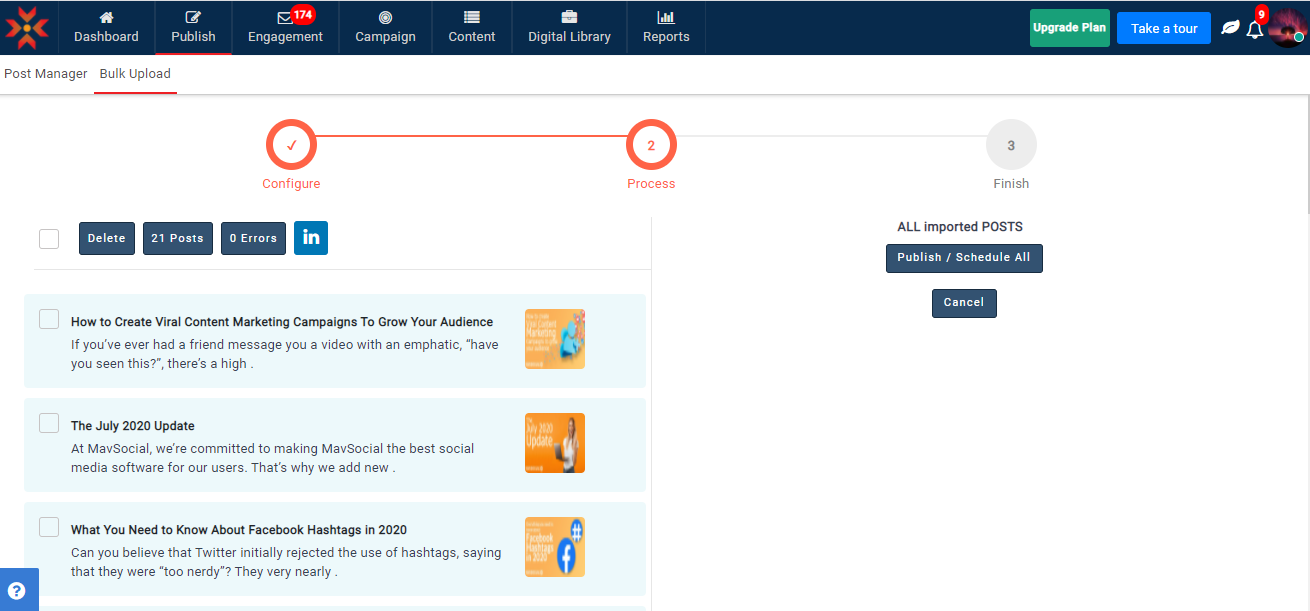
- In the second step, you will see the latest articles from the selected RSS Feed(s).
- You can edit the articles by clicking on the selected article.
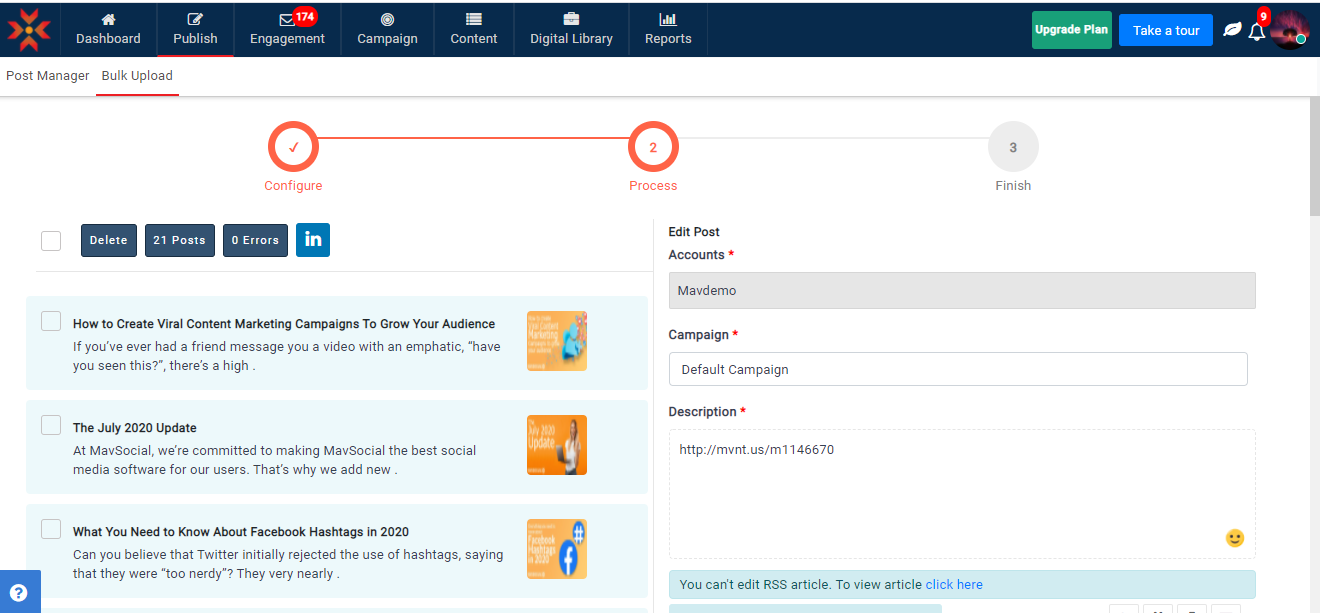
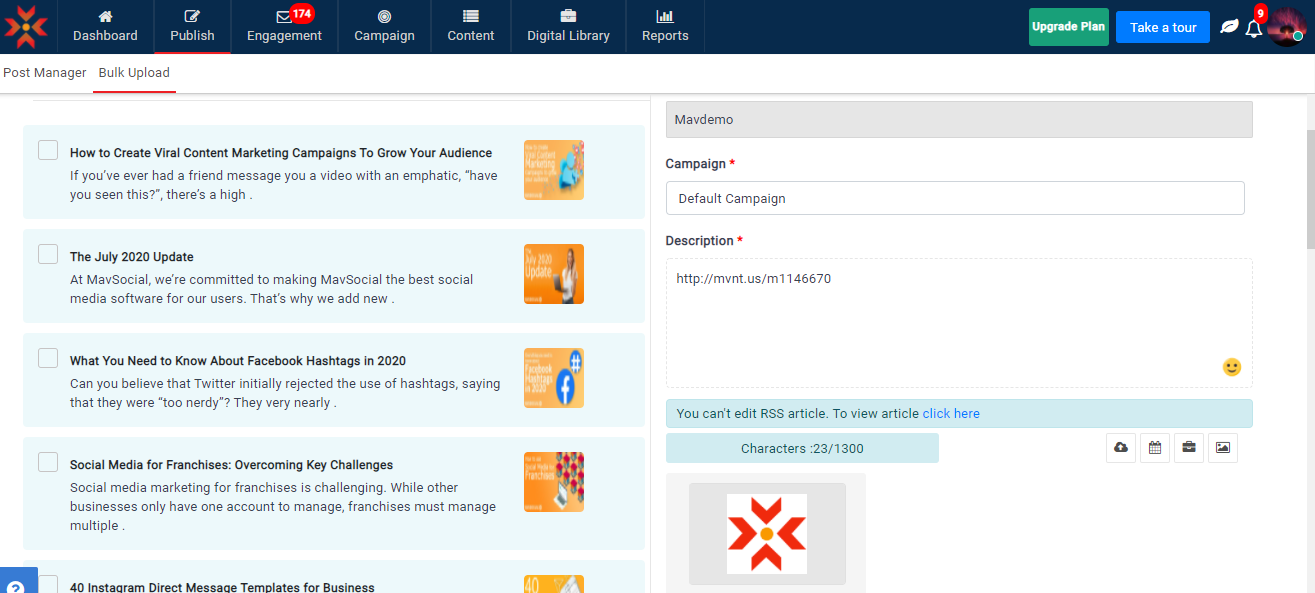
- Here you can edit the post description or you can add images/videos.
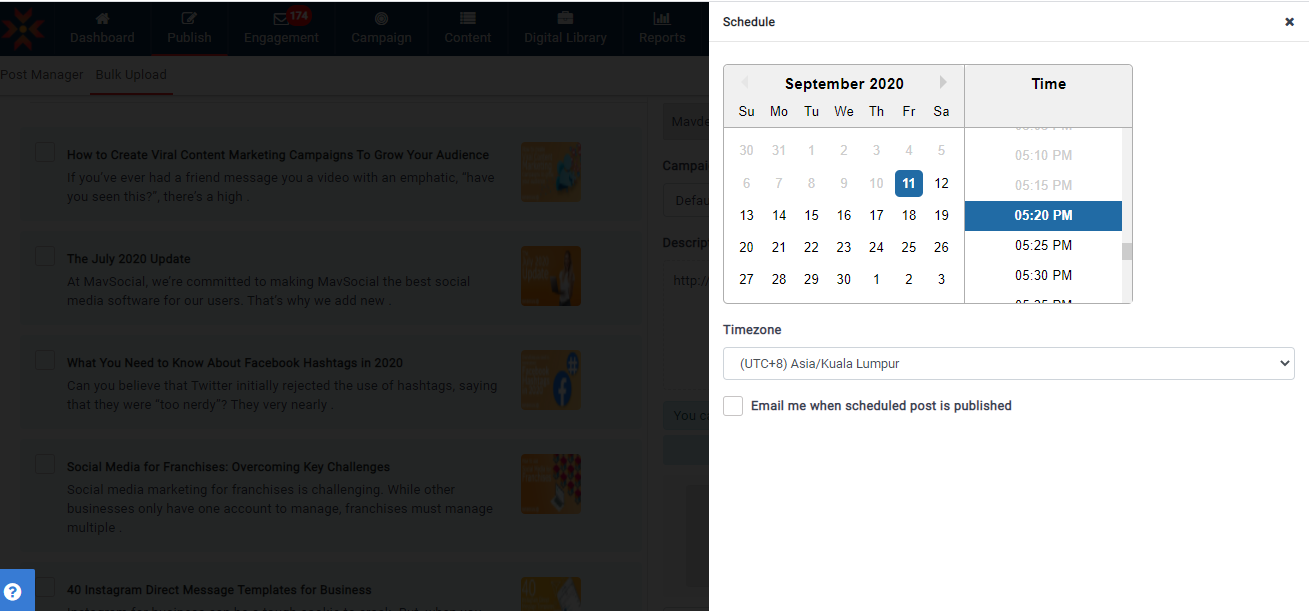
- Click on the calendar and select the date and time you would like to schedule the posts.
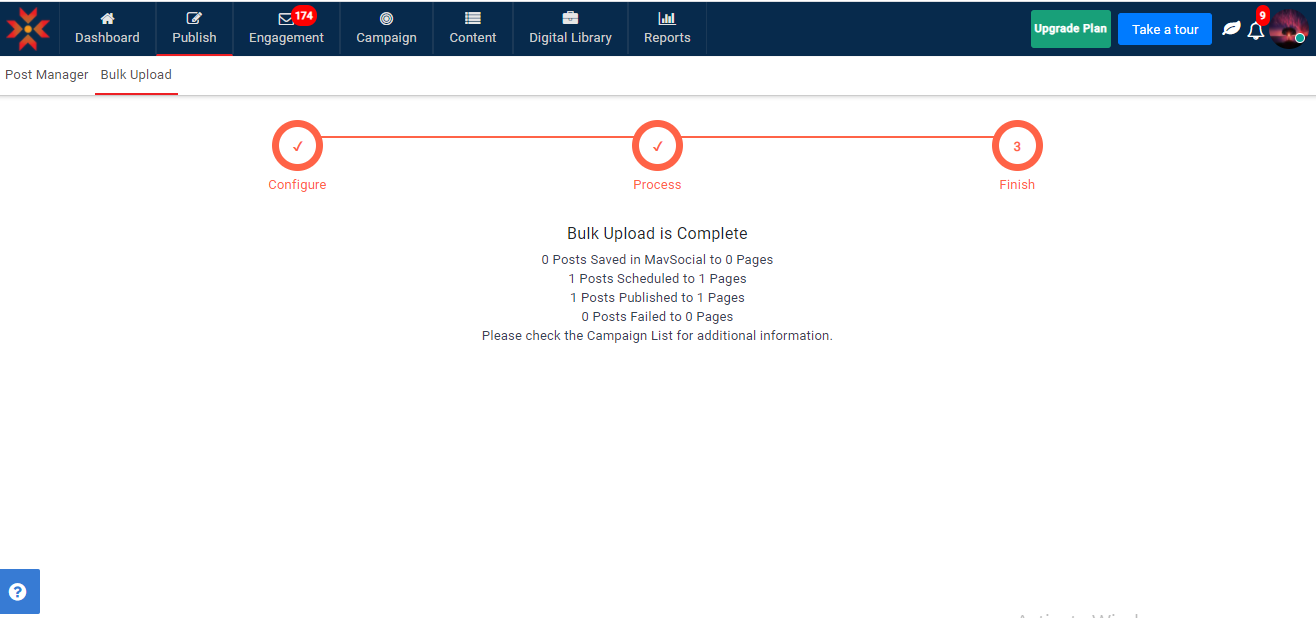
- You will see a success message popup after scheduling the articles.
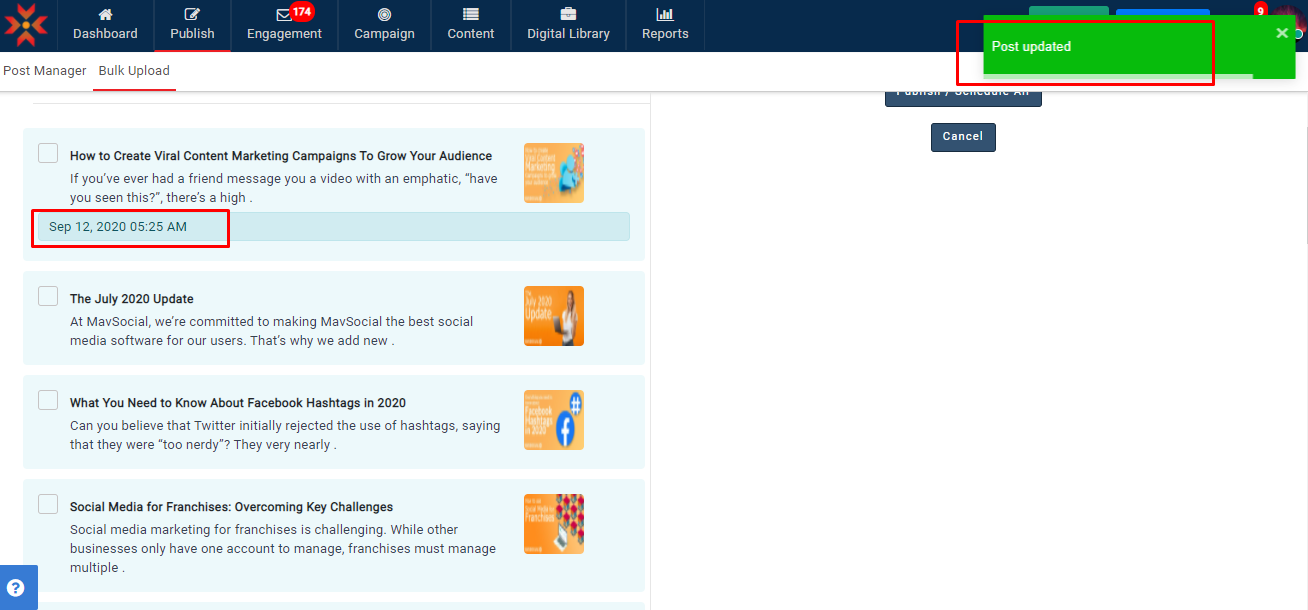
- After Updating the articles click Publish/Schedule All.
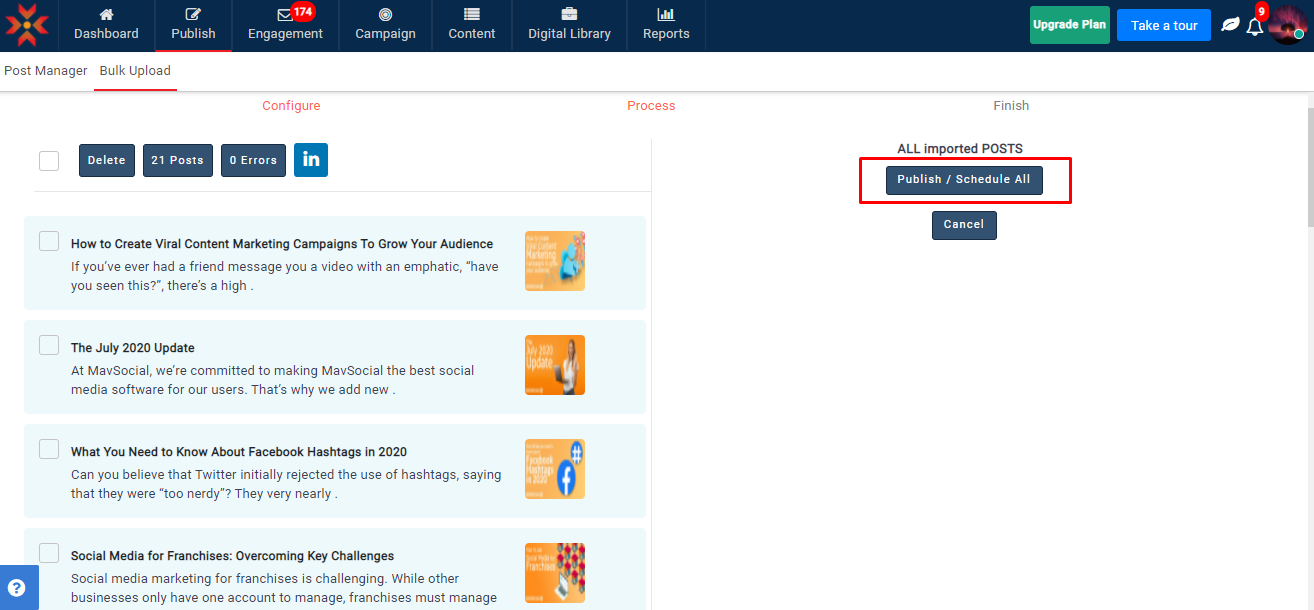
- All the articles will be published/scheduled at their selected time.
Note:
- You should schedule articles with at least a 30min time difference.
- Schedule up to 100 articles at a time to your Facebook profiles, 250 articles to Twitter, 100 articles to Instagram, 25 posts to LinkedIn & 100 posts to Google My Business by uploading RSS feeds via the Bulk Uploader.
- Time must be set at least 1 hour in advance from the current time when you select RSS feeds.
Comments
0 comments
Please sign in to leave a comment.