
If you forget the password for access to your MavSocial application, you can request for a new password. To do so, follow the steps given below.
- On the MavSocial Login dialog, click the “Forgot Password” link.
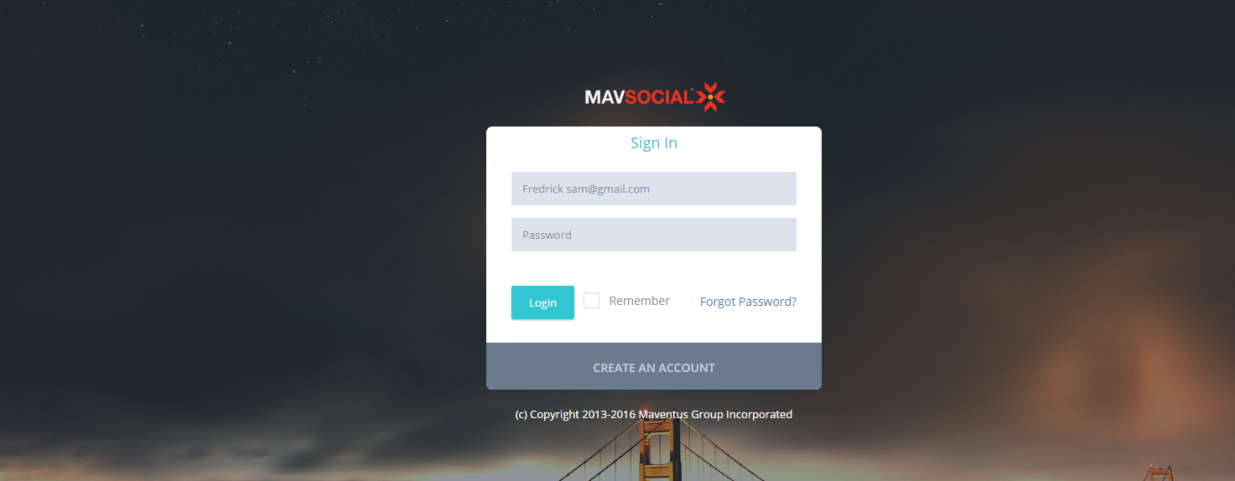
Forgot Password dialog box will be displayed.

Enter your email address in the Email text entry box.
- Click the “Submit” button.
You will receive an email from the MavSocial team with a link for you to change your password.
- Click the provided link or copy and paste the link in the address bar of your browser to open the New Password dialog.
- On the New Password dialog, enter the new password in the Password text entry box.
- Confirm your password by re-entering it in the Retype Password text entry box.
- Click the “Save” button.
The message box confirming the successful update of your password will be displayed.
- Click the “OK” button.
Your password will be reset and you can log into the MavSocial application by using the new login credentials.
Note: For security reasons, we recommend you change your password by using the Profile option in the top right menu in the MavSocial application.
Comments
0 comments
Please sign in to leave a comment.