
The Account section helps you manage your profile, change your password, change the company logo, and change your timezone.
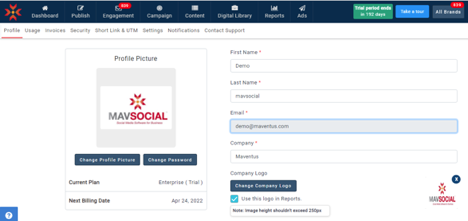
Navigate to your account profile on the top right corner of the application and select the Profile option from the dropdown list.
The Profile page will be displayed.
Editing Your Profile
- The Profile page allows you to edit your profile, change the password and profile picture.
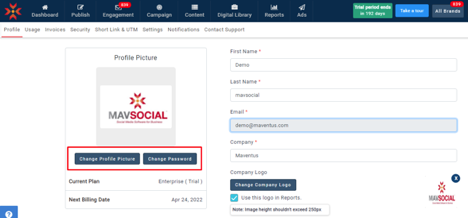
- You can upload a profile picture by clicking the Change Profile Picture button.
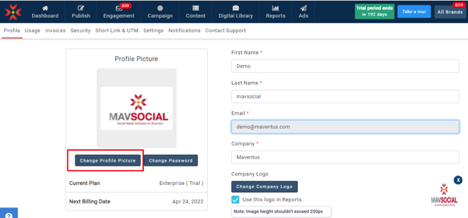
- Select the picture that you wish to upload and click Open.
- The selected profile picture will be uploaded.
- To change your password, click Change Password.
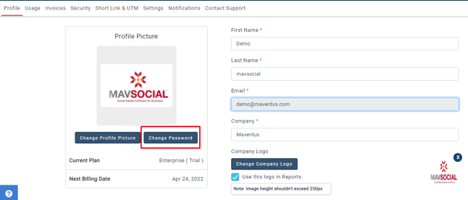
- The Change Password dialog box will be displayed.
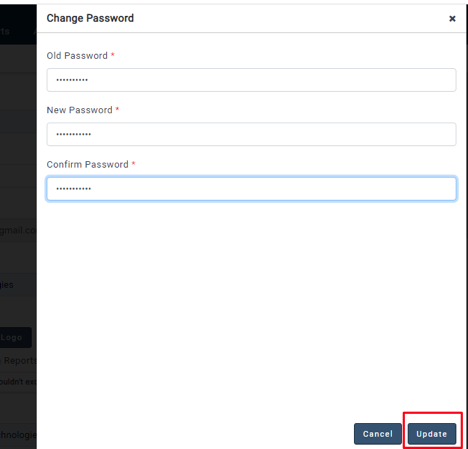
- Make necessary changes and click Update.
- To change the company logo on, click Change company logo
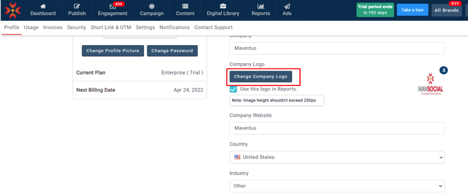
- Select the picture that you wish to upload and click Open.
- The selected picture will be uploaded.
- You can use this logo in your customized reports.
- The default time zone will be set based on the user's account signup location; if you want to change the time one, you can change it in the time zones dropdown.
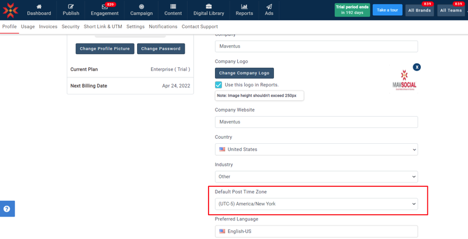
- Make changes and click on Submit button
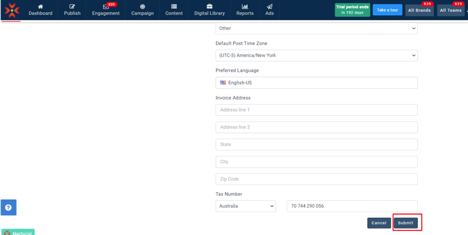
- The changes will be updated
Comments
0 comments
Please sign in to leave a comment.