
Two-Step verification functionality is used to add stronger security to your MavSocial account. Available for Enterprise, Business, PRO, Advanced and SBE subscriptions
How to add two-step verification to your MavSocial account
- Go to Account > Security.
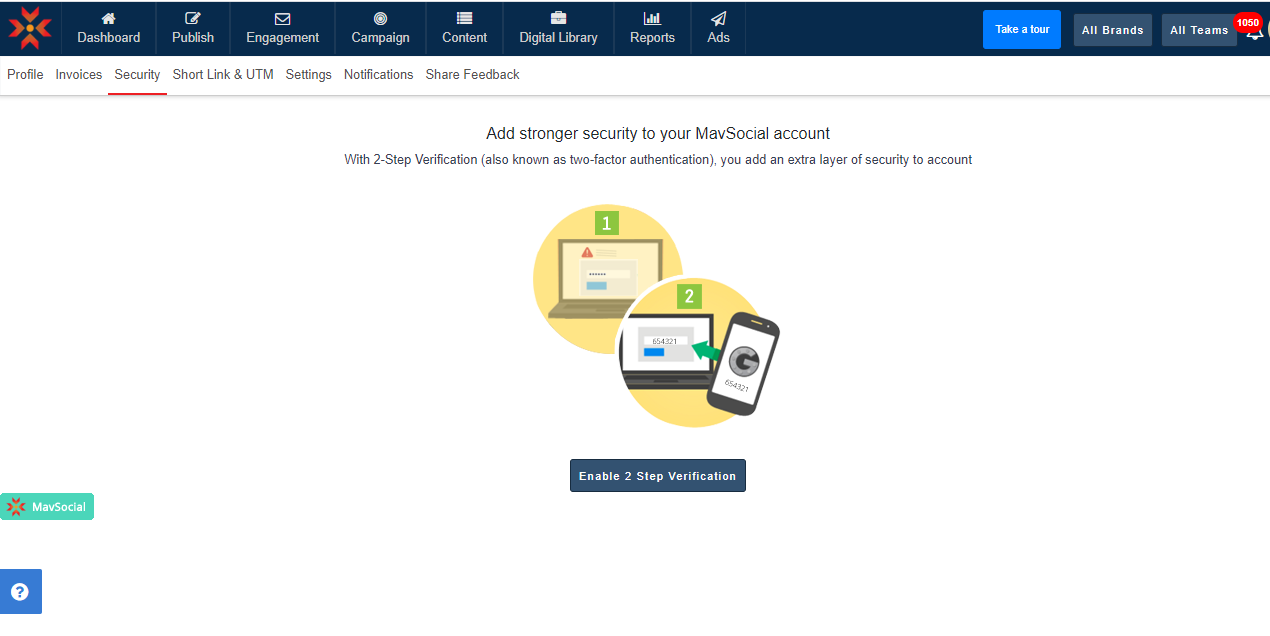
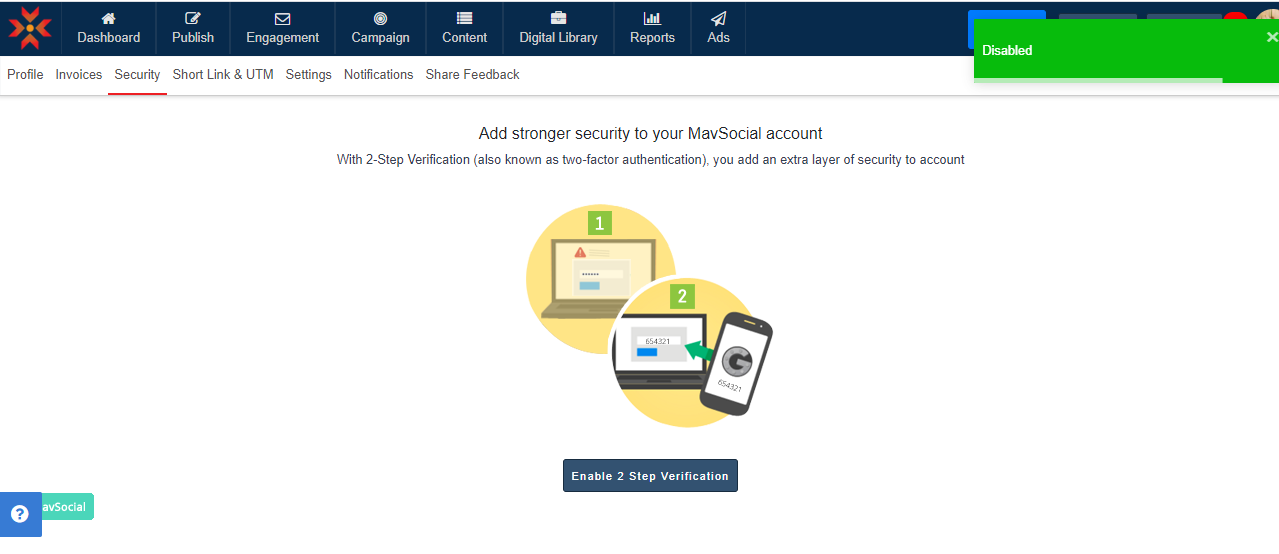
- Click on Enable 2-Step Verification and after clicking, a one-time code box will appear. Now Install Google Authenticator on your mobile device.
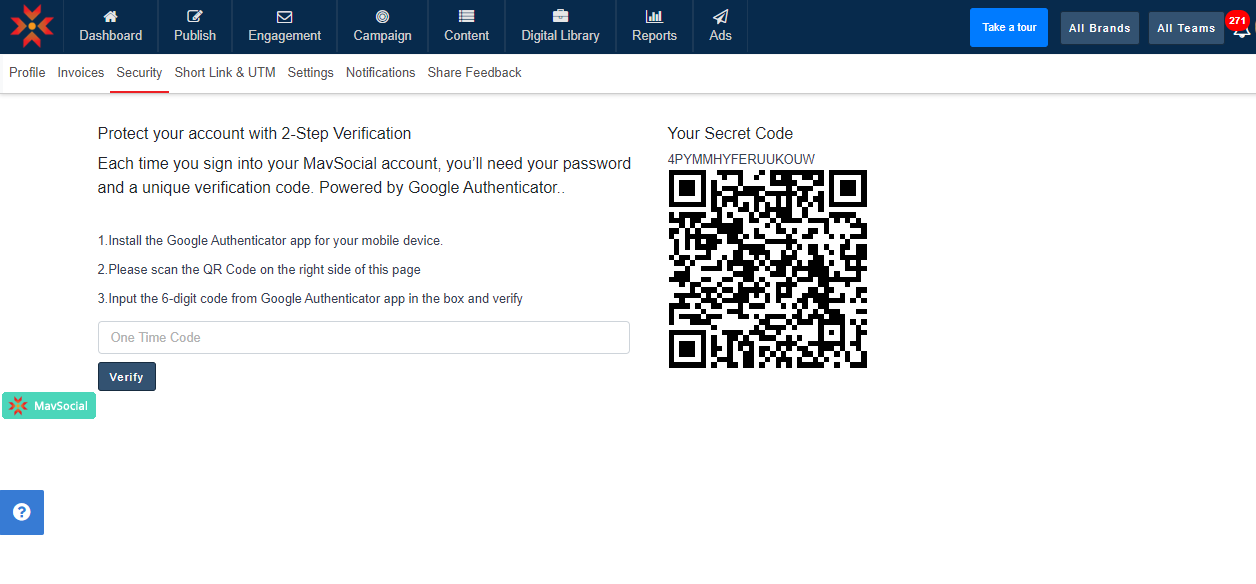
- Scan the QR code on the page from your mobile phone so that you can get your One-time code. Type this code in One Time Code field.
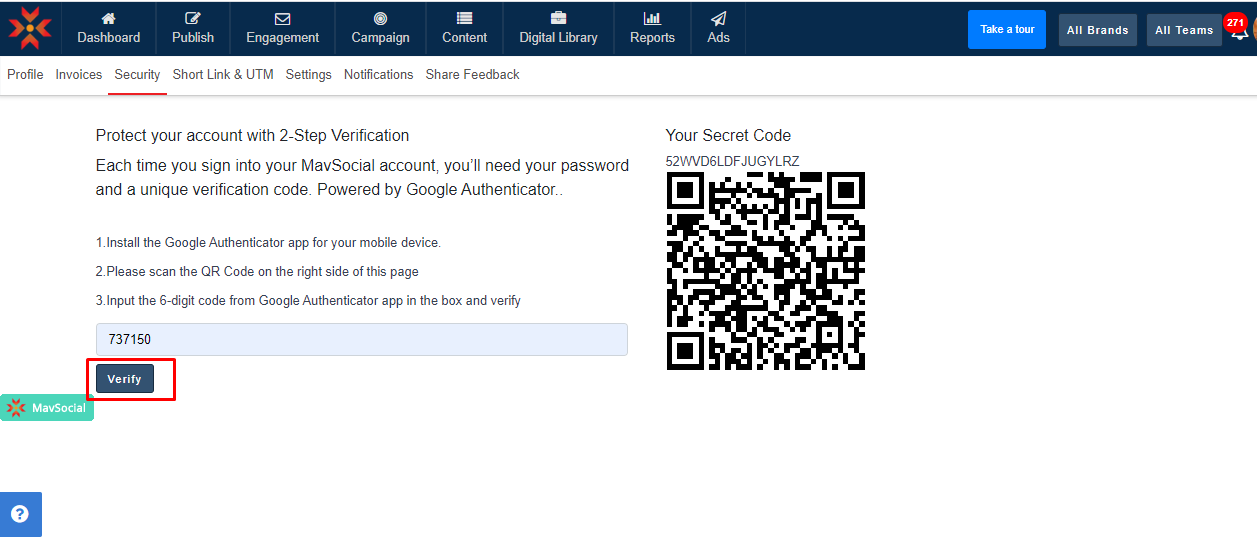
- After entering code please verify by clicking on the Verify button.
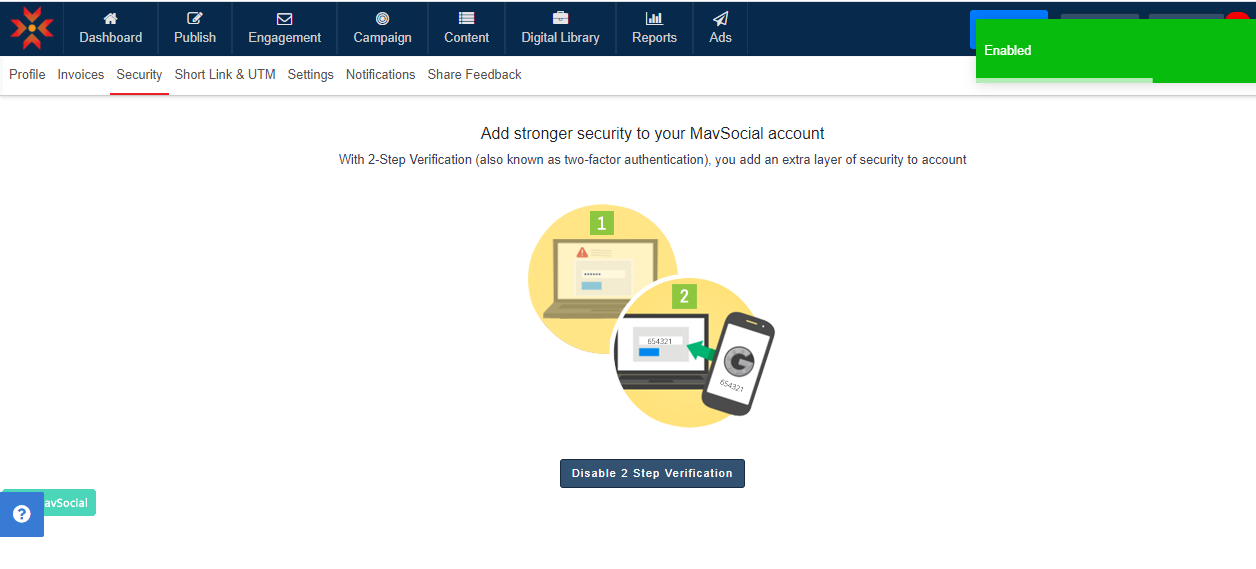
- After clicking on the verify button you will see below screenshot and 2-step verification enabled for your account.
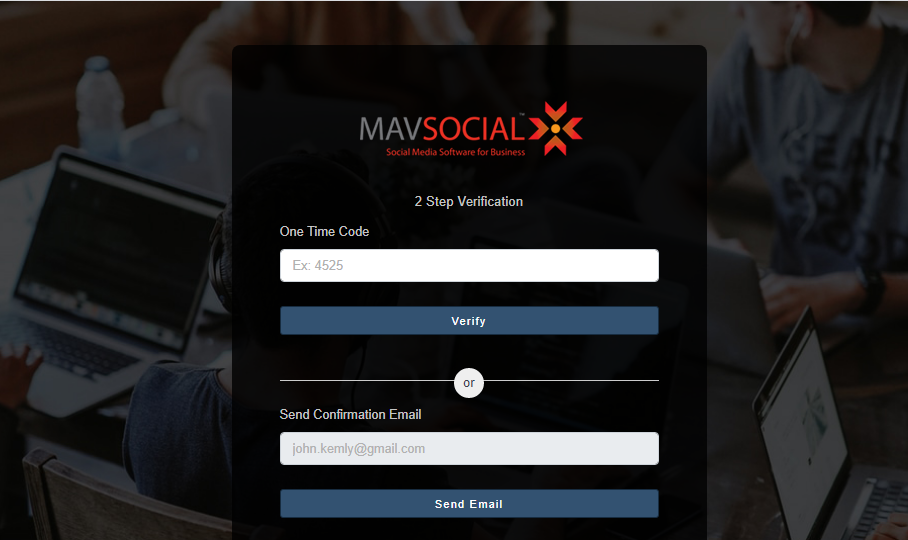
- Now when you logout and try to log in, the Verify Your Account page will display where you have to either click One Time Code or click Send Email for a verification code in order to go to your Favorite page. To enter the code, open Google Authenticator on mobile and copy the code. Please note that the code in the Google Authenticator Mobile App is active only for 20 seconds and a new code is generated again. If you prefer a confirmation email, then you get the verification code in your email.
How to disable 2-step verification
- To Disable security click on Disable 2-Step Verification button.
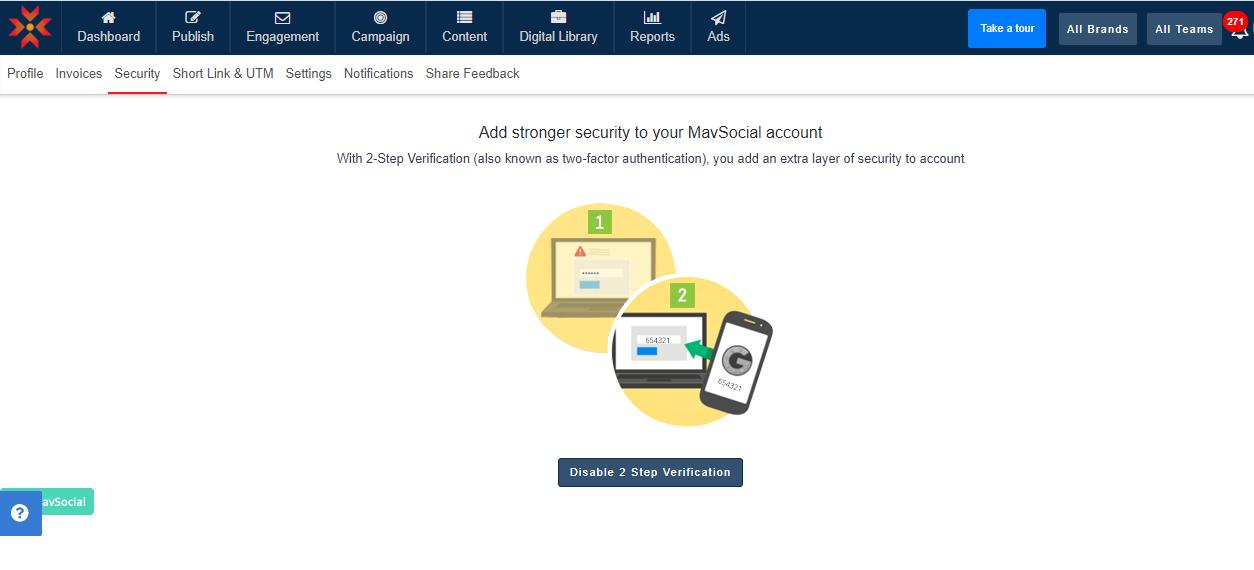
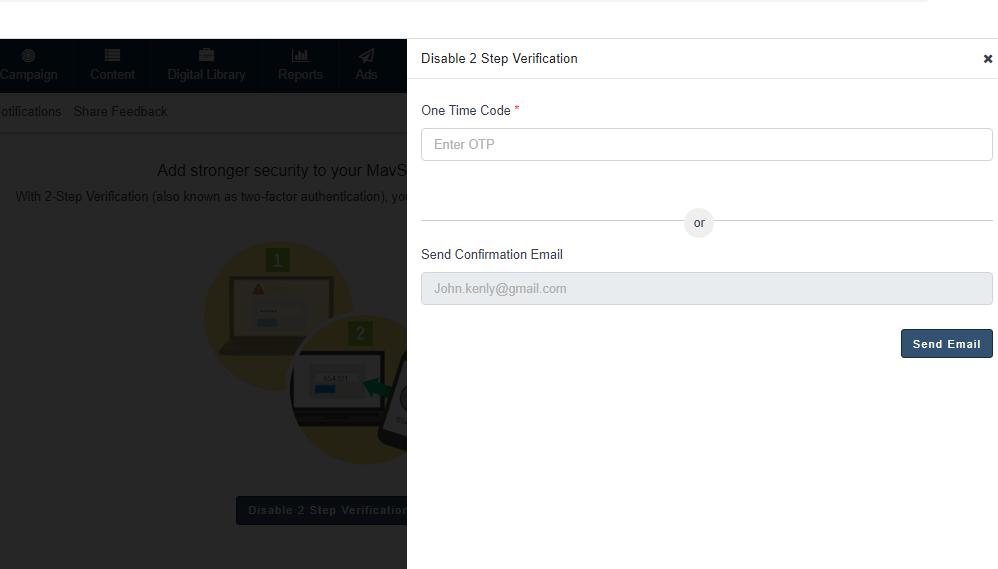
- After clicking on disable 2-step verification, a one-time code box will appear. Now enter the code which is in the authenticator. You can also disable by clicking on the send email button, so that we will get a verification mail to our email address.
- After entering code please verify by clicking on the Verify button.
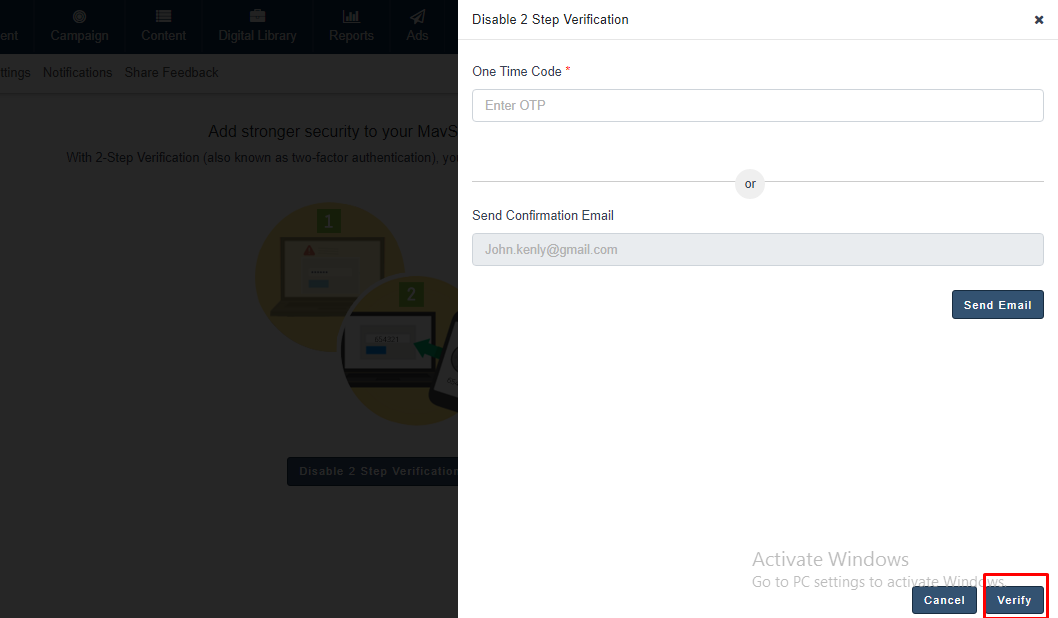
- Security will be disabled after verifying the given one-time code.
Comments
0 comments
Please sign in to leave a comment.