
What is Facebook Advertising?
Facebook advertising allows you to reach people based on location, age, gender, interests, job title, upcoming life events, and more, with regular updates on how well your ads are performing. You can create a single Ad or Bulk Ads in MavSocial.
This feature is available to Business users.
How to create a Facebook Ad
- Select the Facebook profile which page posts you want to create Ads from the list of Pages.
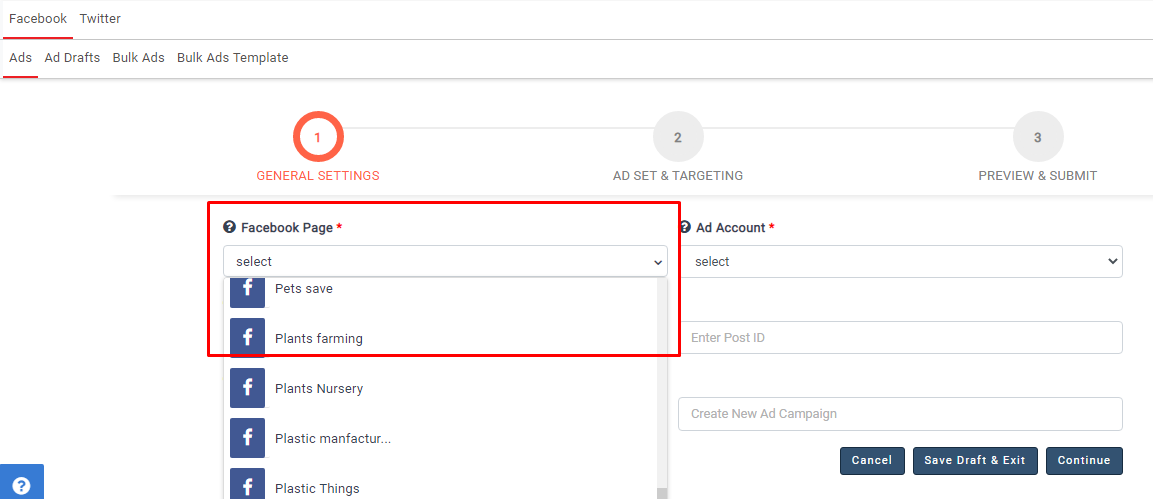
- A list of Ad accounts will be shown in the Ad Account dropdown list after selecting the Facebook page.
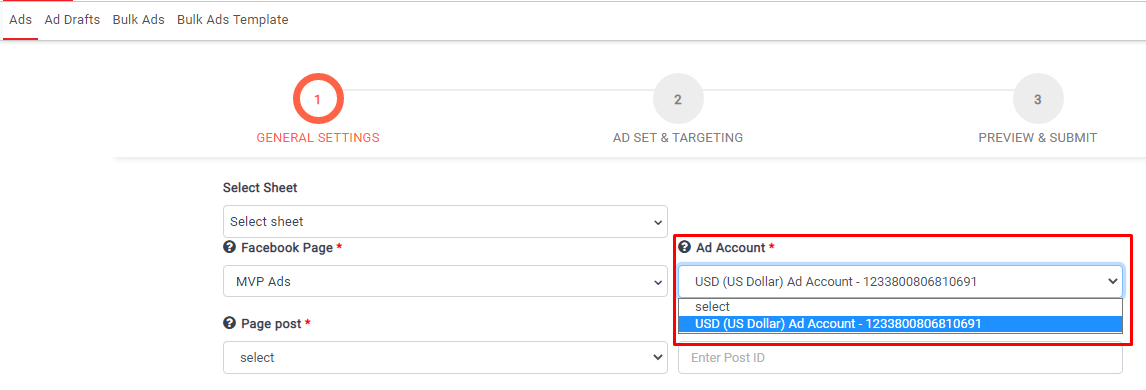
- Select the Ad Account which you want to create and run Ads.
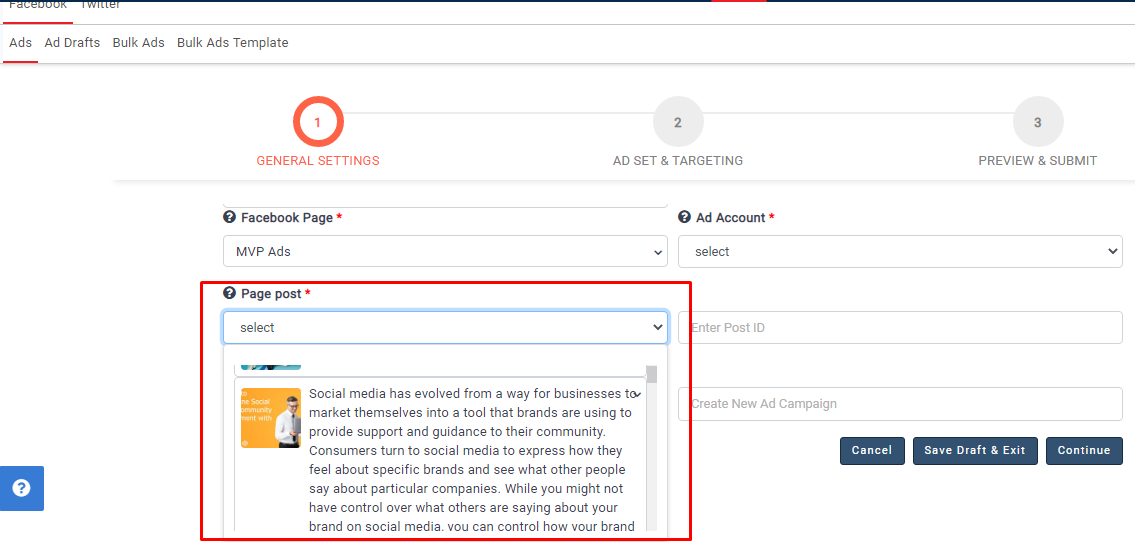
- Select a post from the list of Page Posts which you want to Create Ad or else you can enter post id in the Enter Post ID field.
- Select Campaign from the Ad campaigns dropdown list if you want to create Ad under the Existing campaigns.
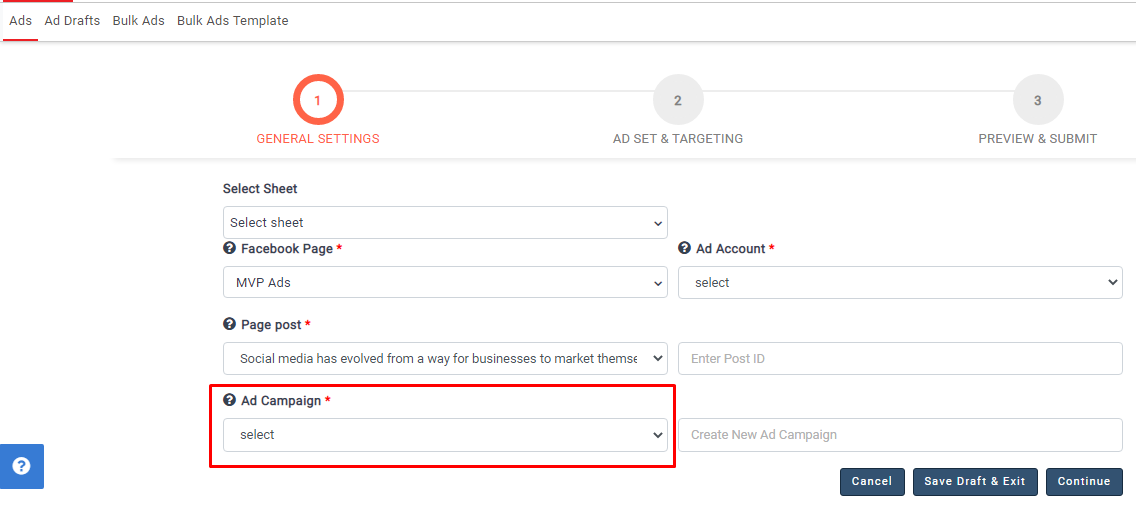
- Start typing in the Create New Campaign field if you want to create new campaign.
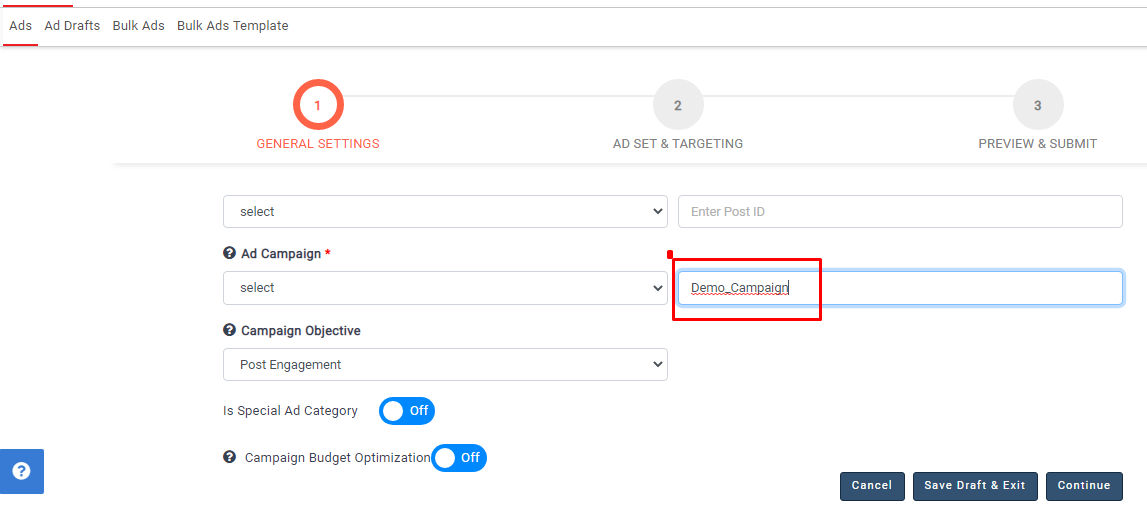
- Select the Campaign Objective, Your advertising objective is what you want people to do when they see your ads. Currently, we are supporting below four types of objectives.
Post Engagement: Reach people more likely to engage with your post. Engagement includes likes, comments and shares but can also include offers claimed from your page.
Reach: Show your ad to as many people as possible in your target audience.
Store Traffic: Show your ad to people most likely to visit your physical stores when they're near them
Conversions: Encourage people to take a specific action on your business's site, such as having them to add items to a cart, download your app, register for your site, or make a purchase.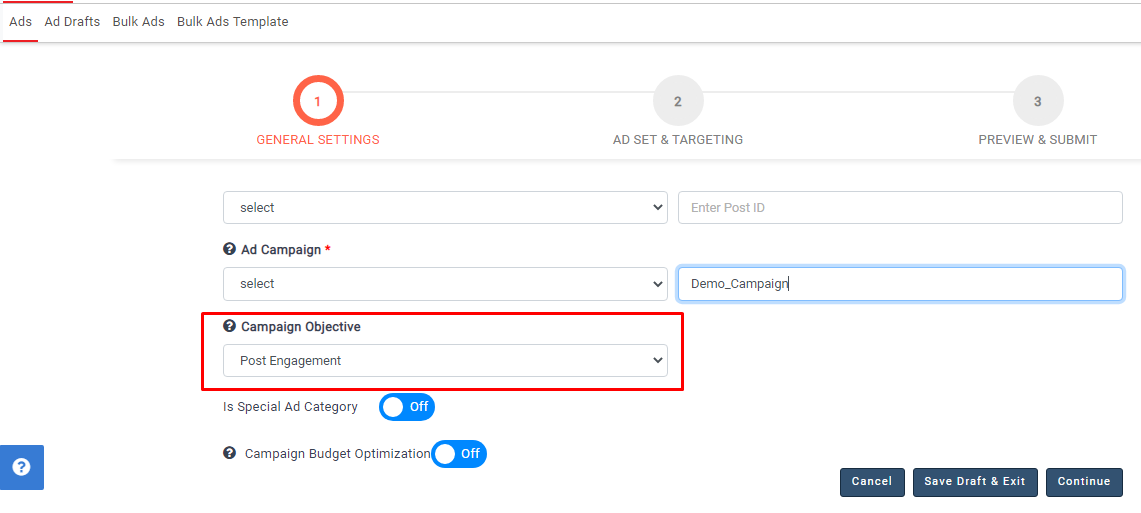
- Switch on the toggle for Is Special Ad Category, if you want to run the Ad for this category.
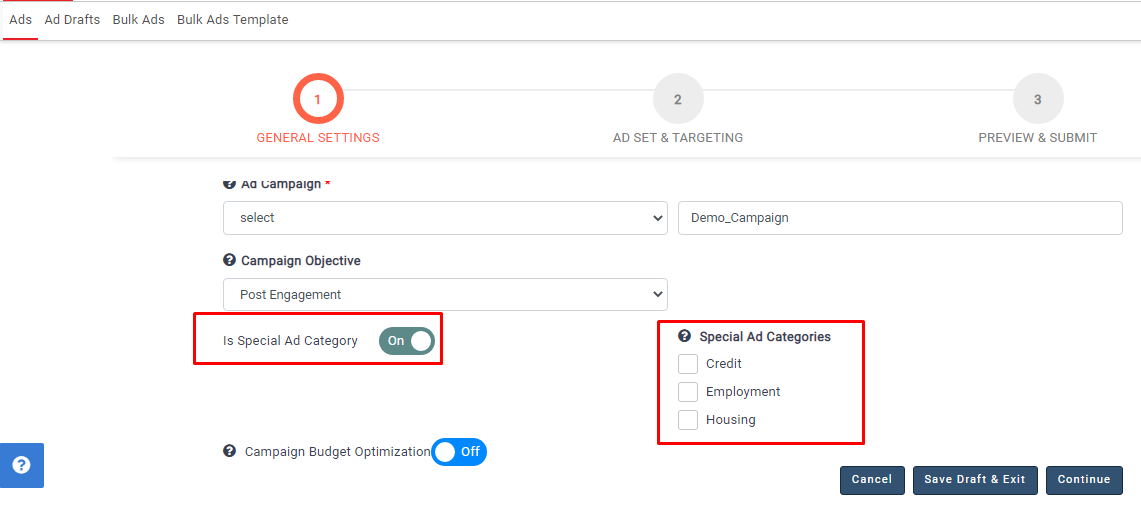
- Special Ad categories will be enabled after switching on the toggle; these are Credit, Employment, Housing. Check the check box of one of the three options.
- You can choose to switch on Campaign Budget Optimization.
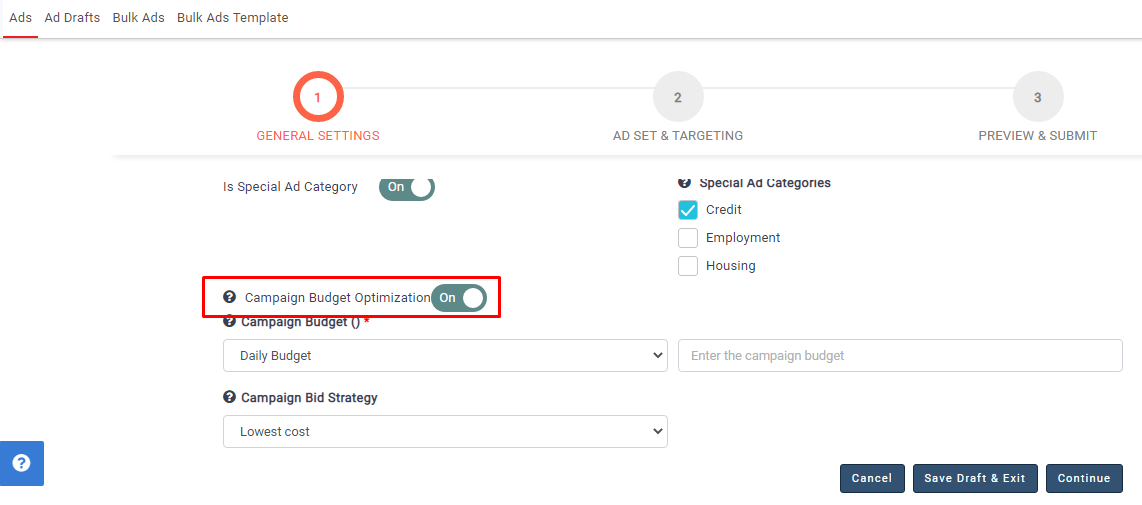
- You need to select the budget type, amount, and bid strategy under the Campaign Budget Optimization.
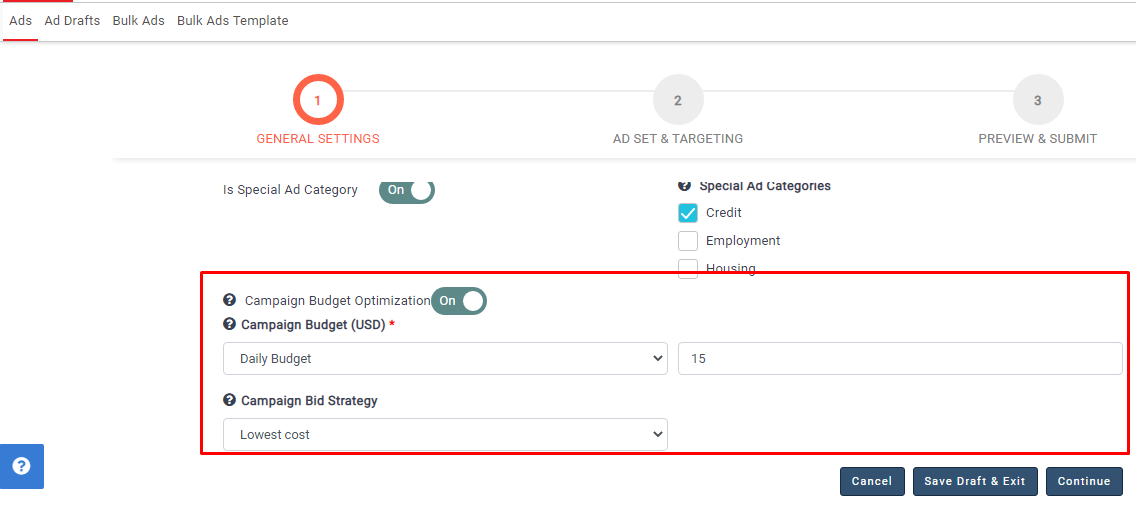
- Click on the continue button after completing these options, and the campaign will be created in Facebook. The page will be moved to the next step as shown below.
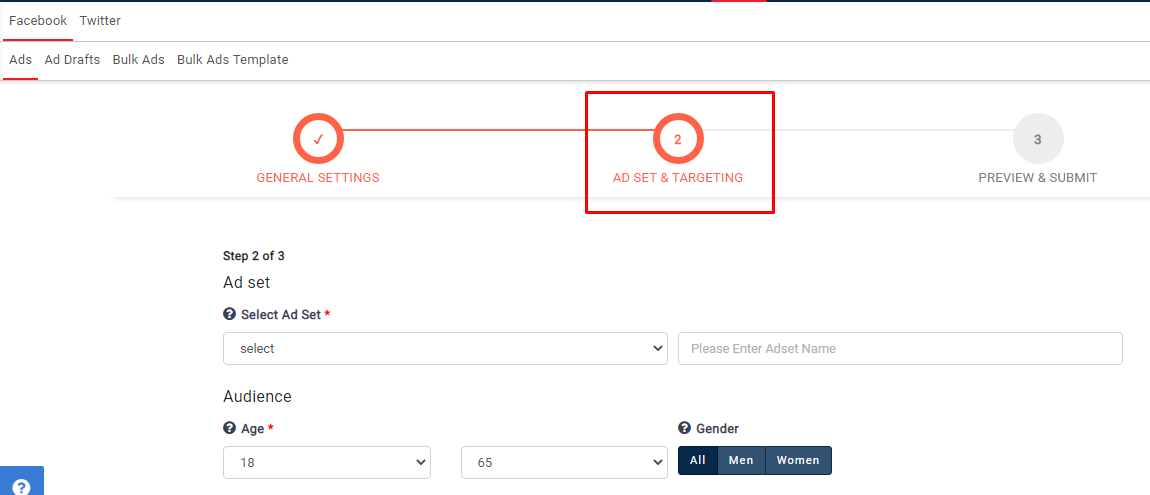
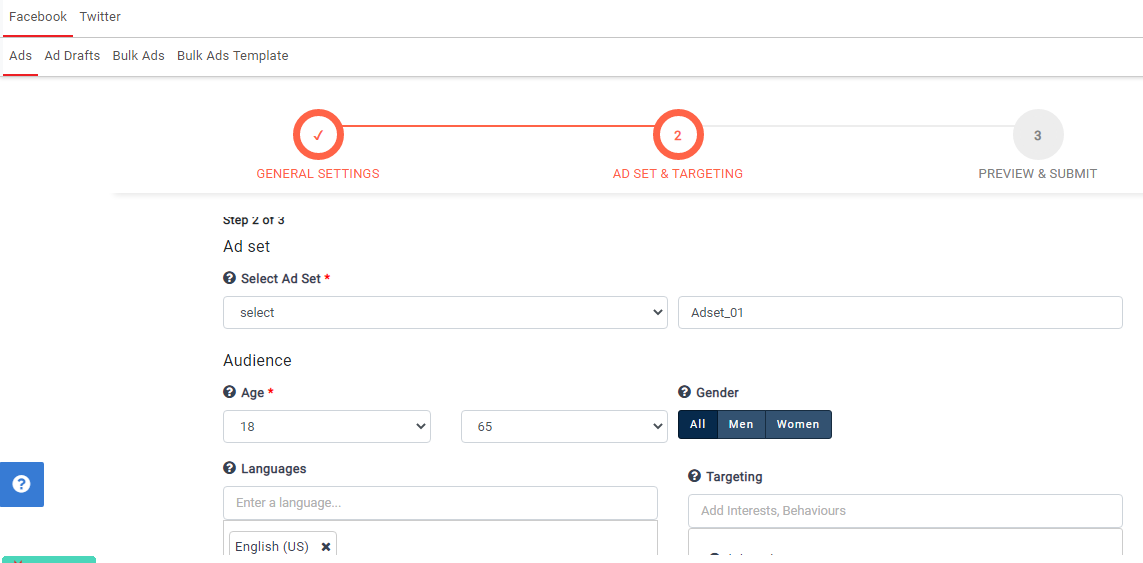
- In this step, you need to create the Ad set and targeting options like Age, Gender, Location, Targeting, Languages, and more.
- Here you are able to select an existing Custom Audience.
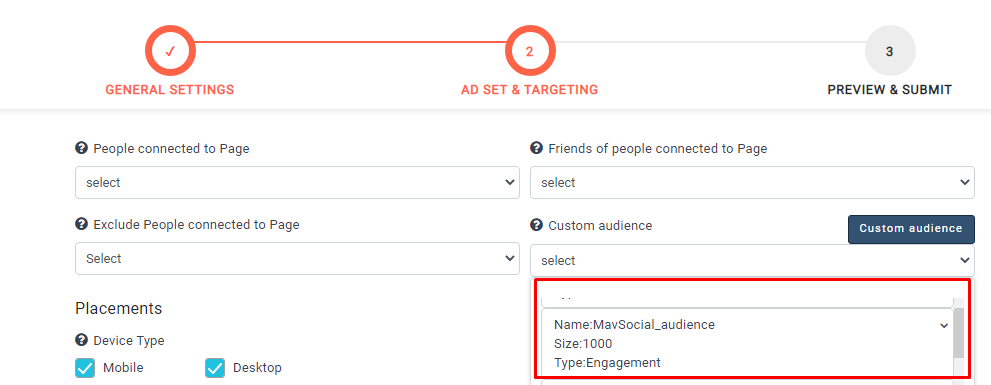
- Select the audience from the list of Existing audiences.
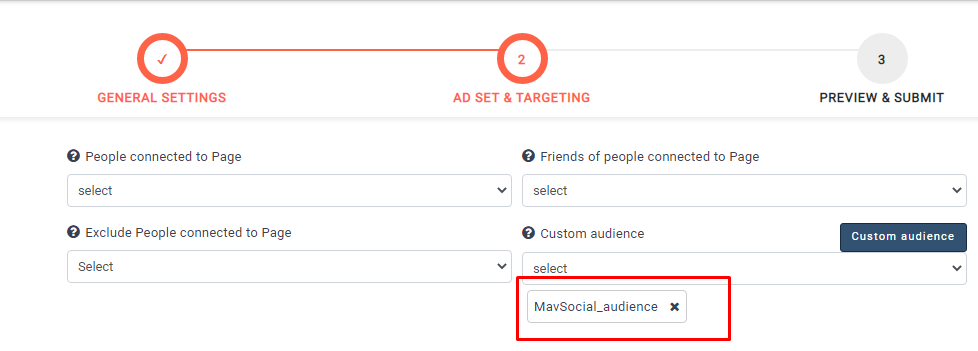
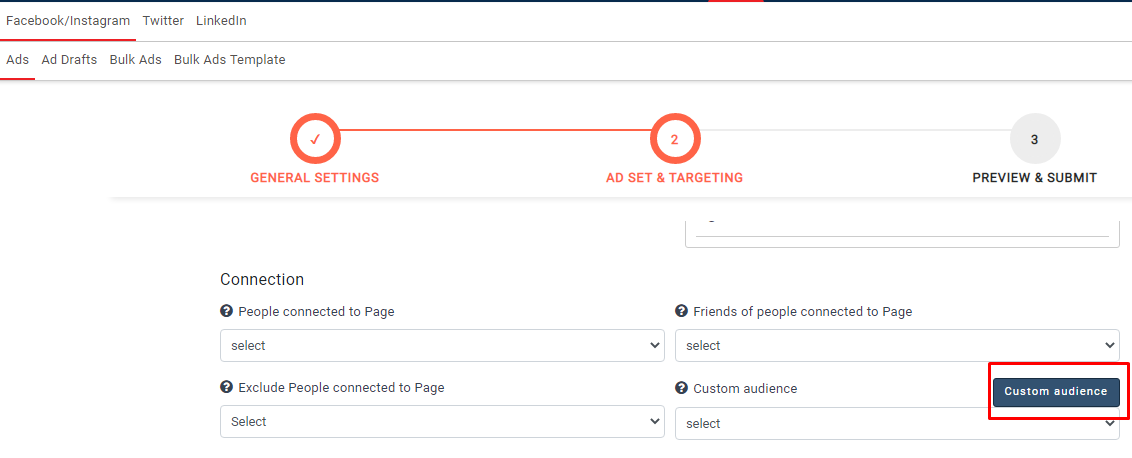
- To create a new Custom Audience, click the Custom Audience button.
- Select the data source to create your audience from.
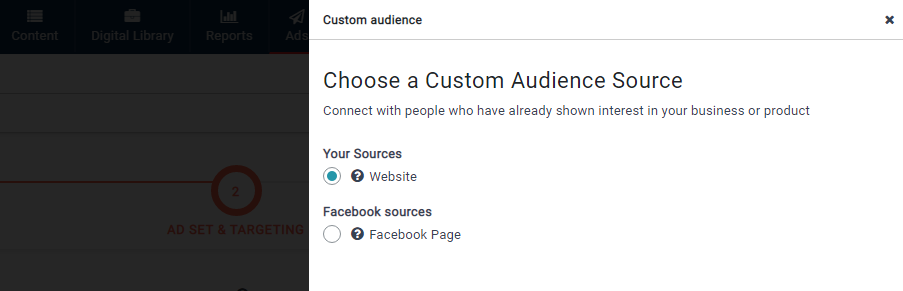
- After selecting the source, click Next.
- You can choose to target people who meet either all or any of the Include criteria.
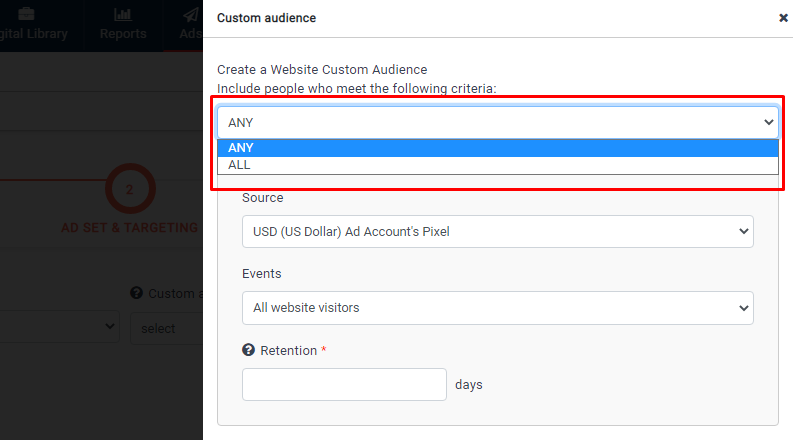
- Select the source and the event the target audience has triggered.
- Type the number of days' retention.
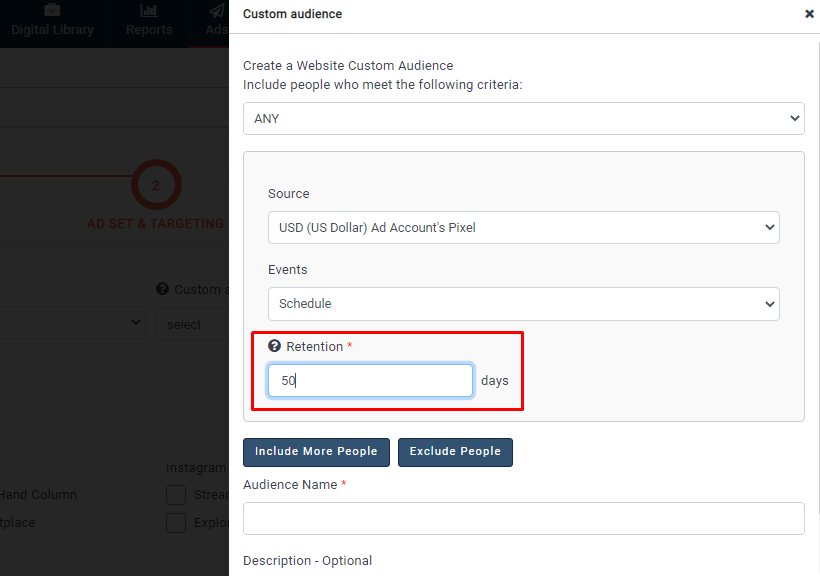
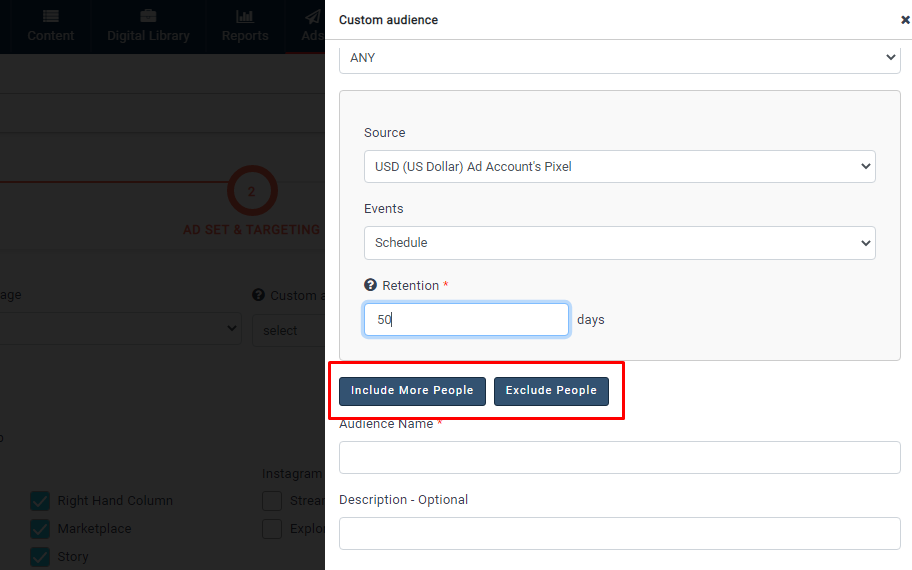
- You may choose to include more people and exclude people by clicking the respective button and entering the criteria.
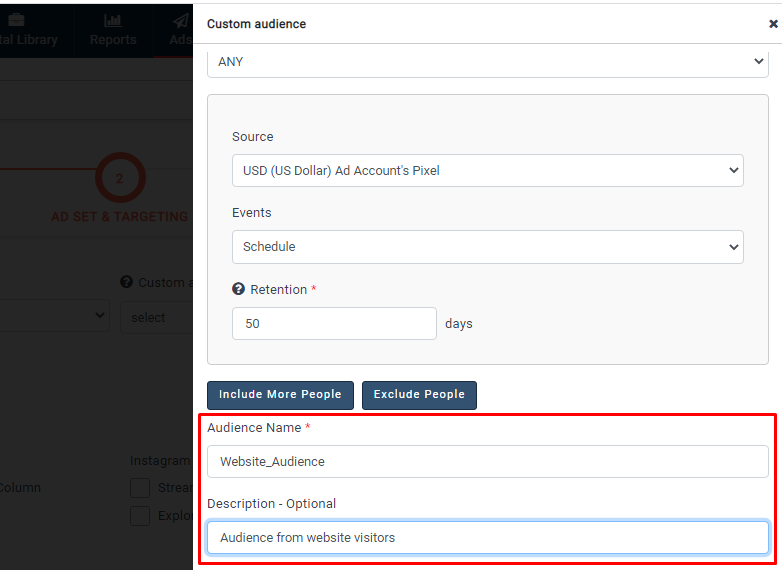
- Give your Custom Audience a name and description.
- Click on Create Custom Audience to finish creating your audience.
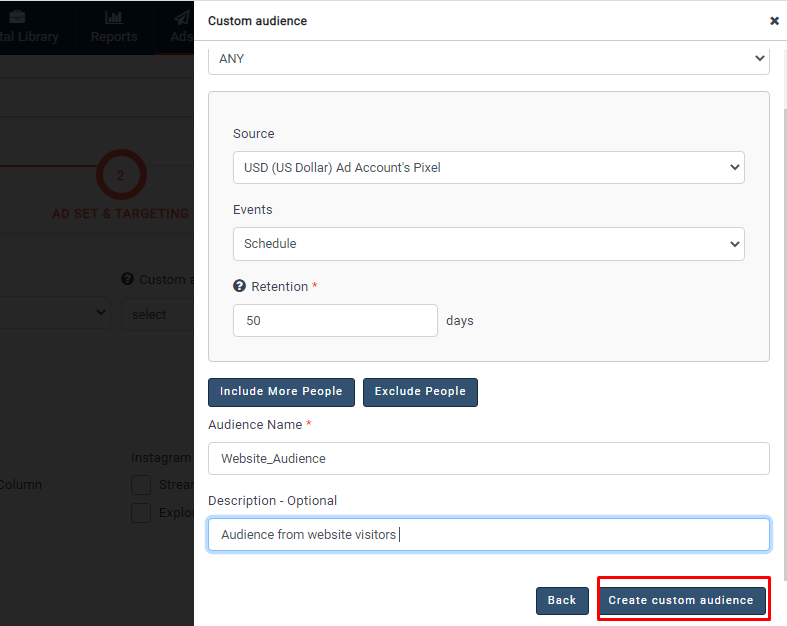
- The Custom Audience will be created on Facebook Ad Manager for the selected Ad Account.
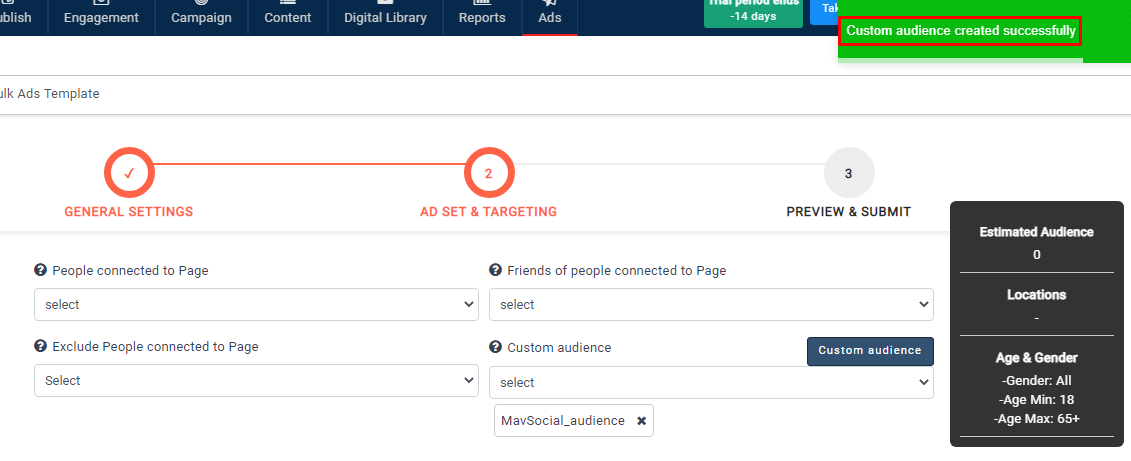
- Click on the continue button after completing your targeting options.
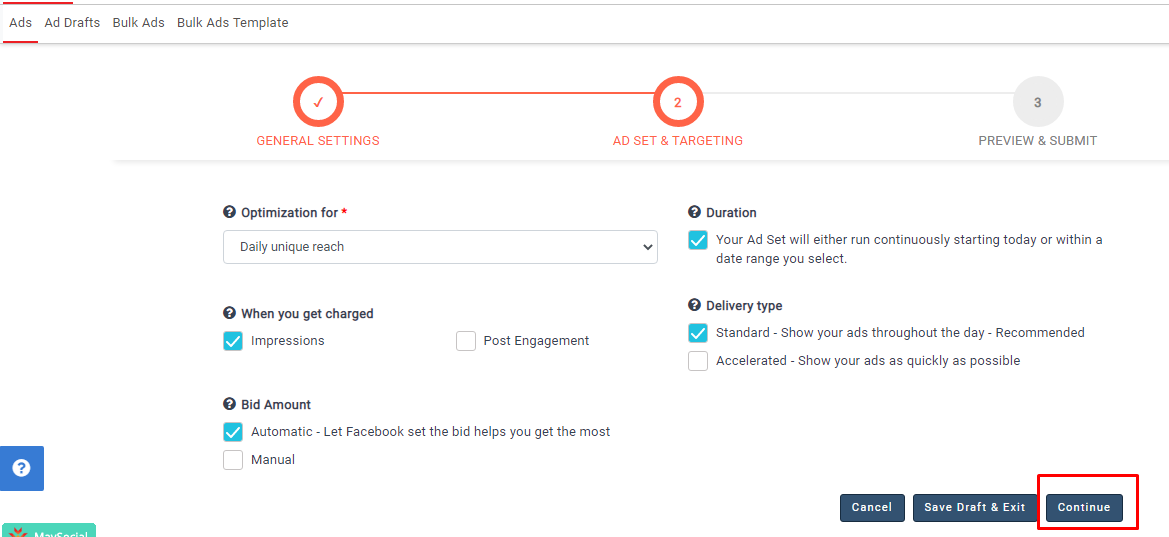
- The Ad set will be created on Facebook and the page will navigate to the 3rd step.
- In the 3rd step, give the ad a name.
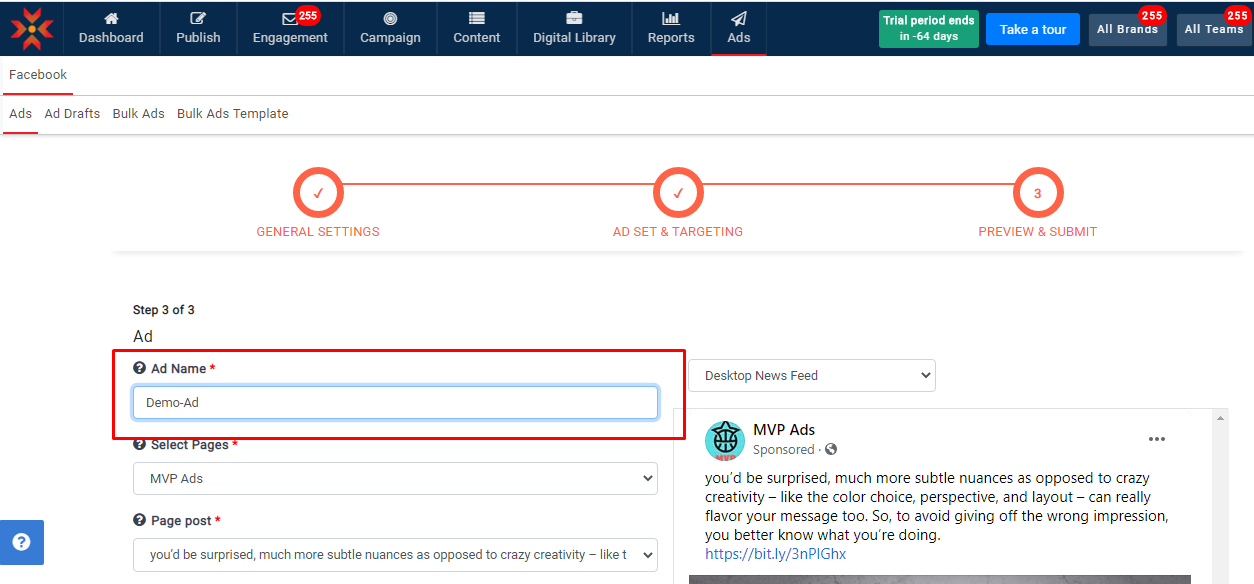
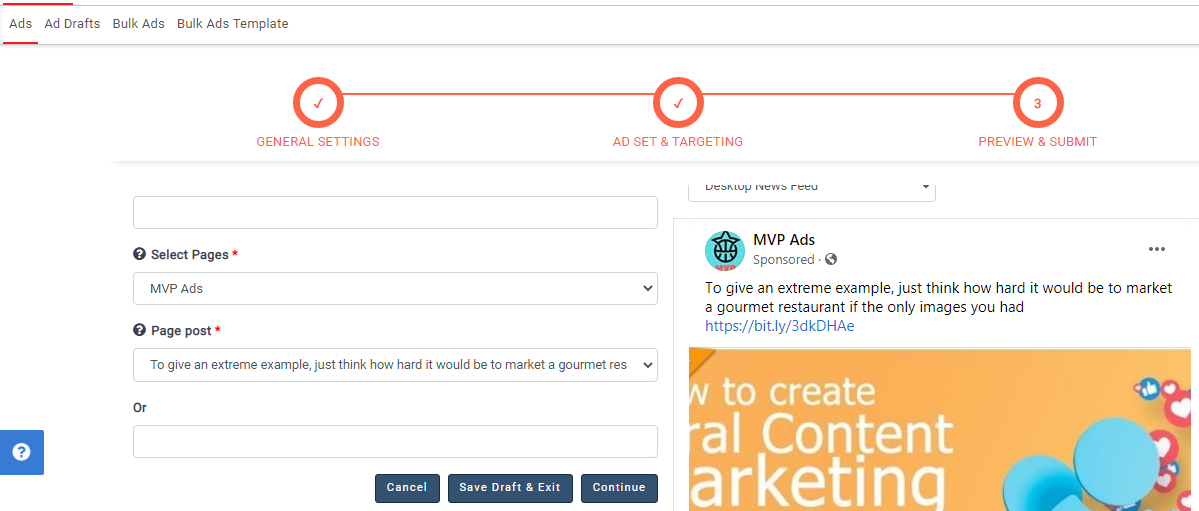
- The Page Name and Post will be displayed; you can change the Post if you want by selecting a different one.
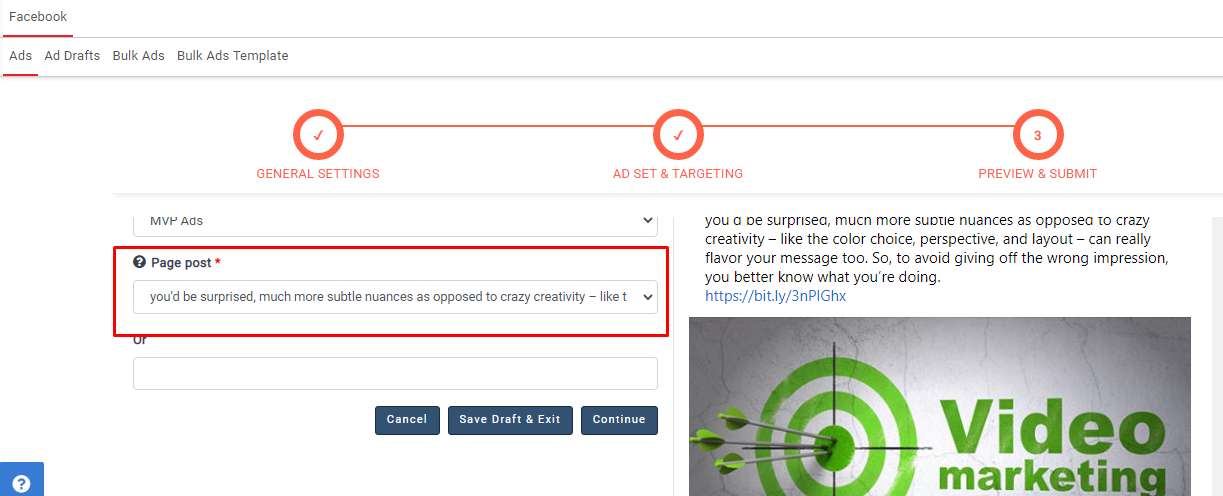
- After completing these fields, click continue.
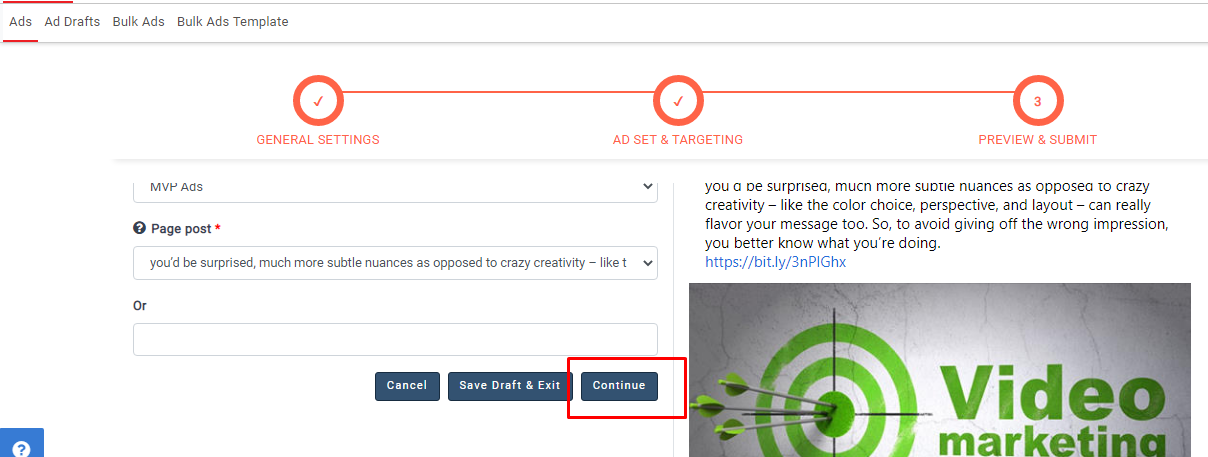
- The ad will be created and scheduled on Facebook.
Note:-
- The page post field will be hidden if you select the Store Traffic objective in the first step
- Pixel and Pixel Events options will be enabled in the second step if you select conversion objective in the first step
- Store Sets option will be enabled in the second step if you select Store traffic objective in the first step
- Ad creatives options will be enabled in the third step if you select Store traffic objective in the first step
- URL need to give in post description when you run the Ad in Conversion Objective.
Comments
0 comments
Please sign in to leave a comment.