
What is LinkedIn Advertising?
LinkedIn advertising allows you to reach people based on location, age, gender, interests, job title, upcoming life events, and more, with regular updates on how well your ads perform. You can create a single Ads in MavSocial.
This feature is available to Enterprise users.
How to create a LinkedIn Ad
- Select the LinkedIn profile which page posts you want to create Ads from the list of Pages.
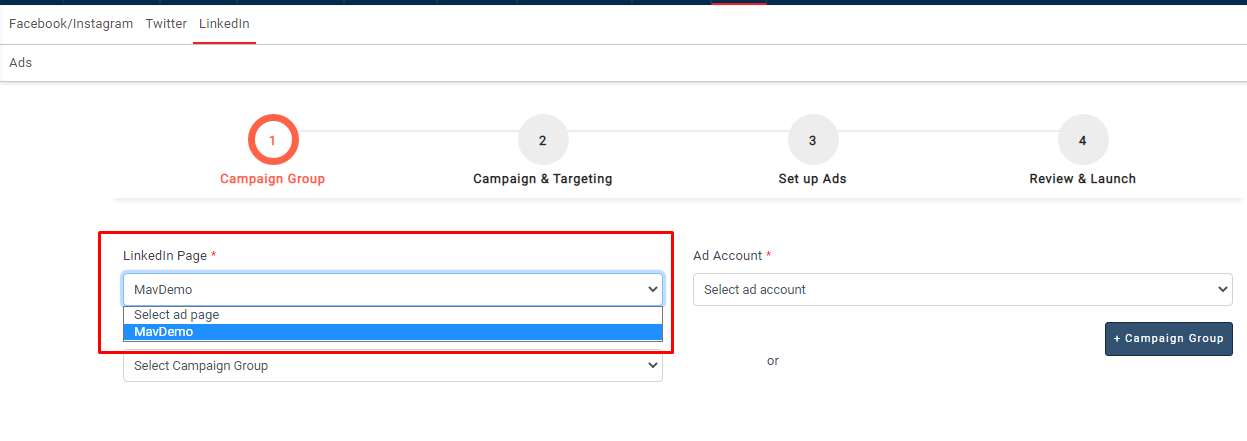
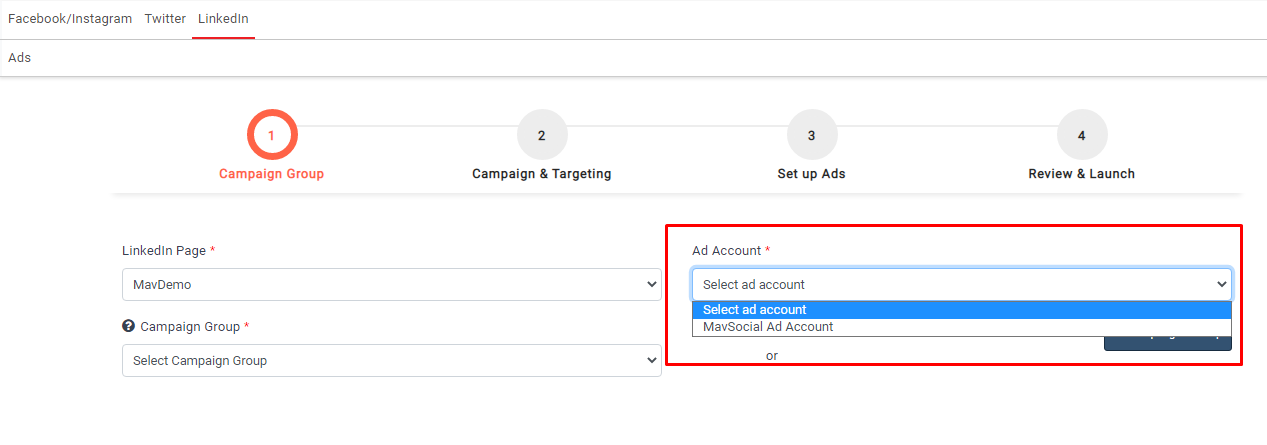
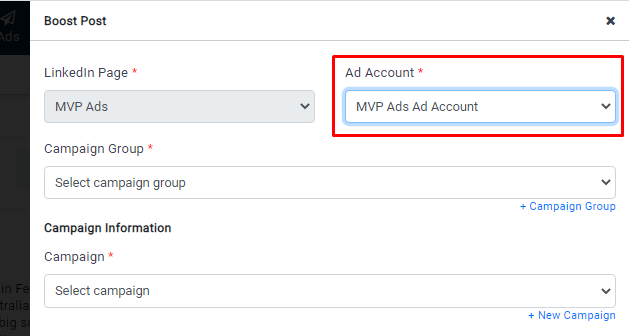
- A list of ad accounts will be shown in the ad account dropdown list after selecting the LinkedIn page; select the ad account which you want to create and run ads.
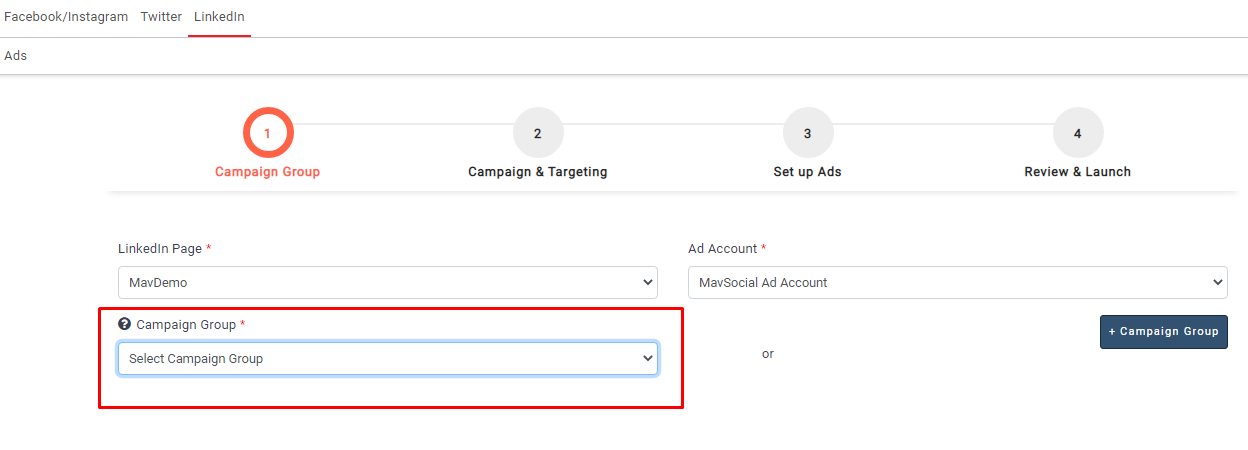
- Select Campaign group from the campaign group dropdown list if you want to create an ad under an existing campaign group
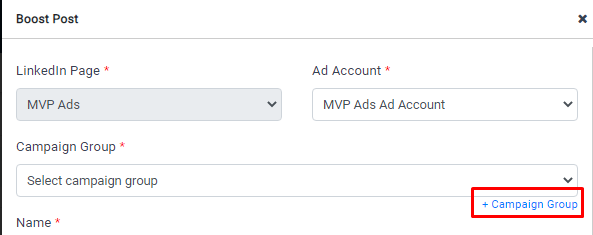
 4. Click on the + Campaign group if you want to create a new campaign.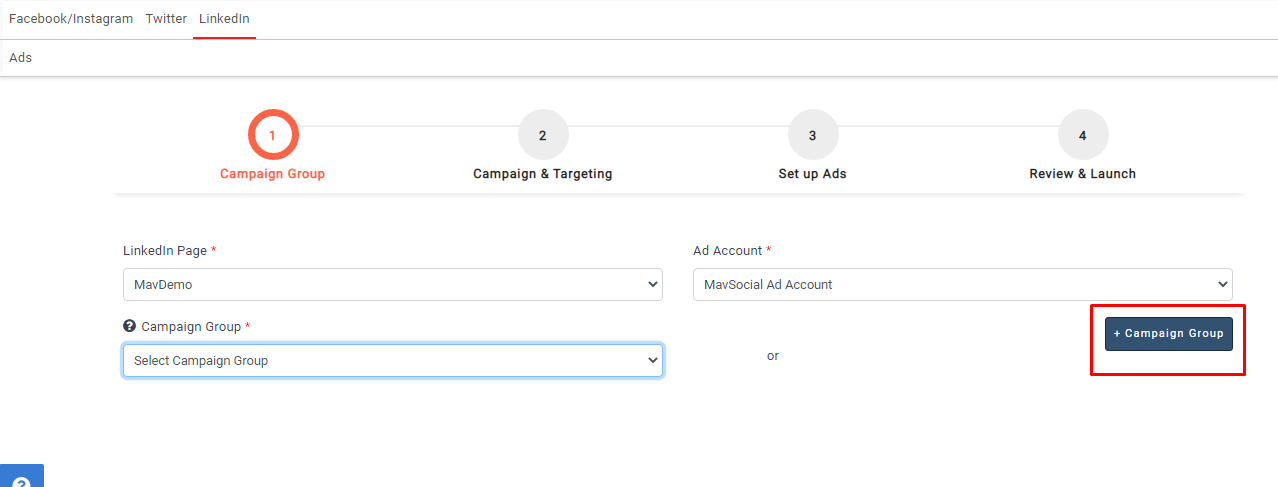
5. Give the campaign group a name, start and end dates
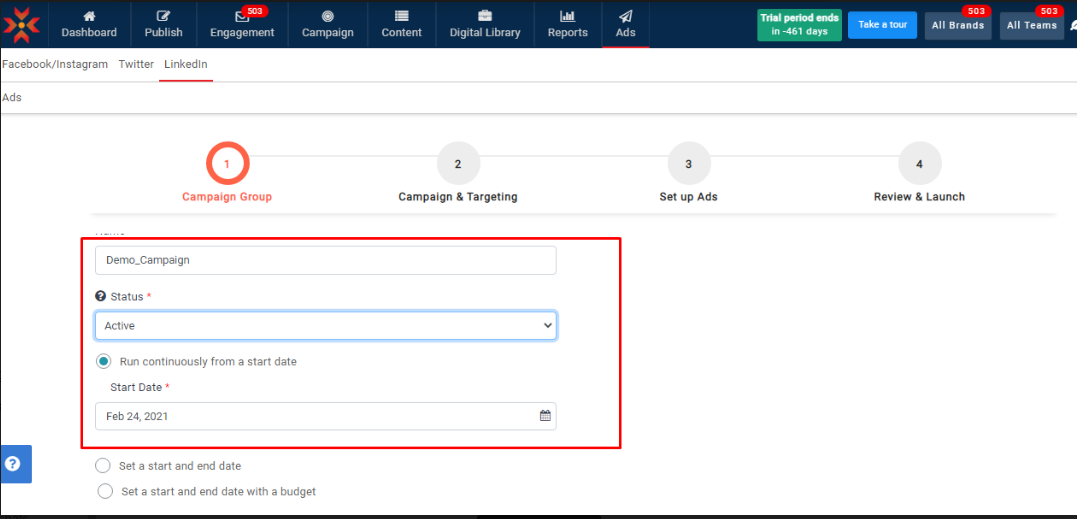
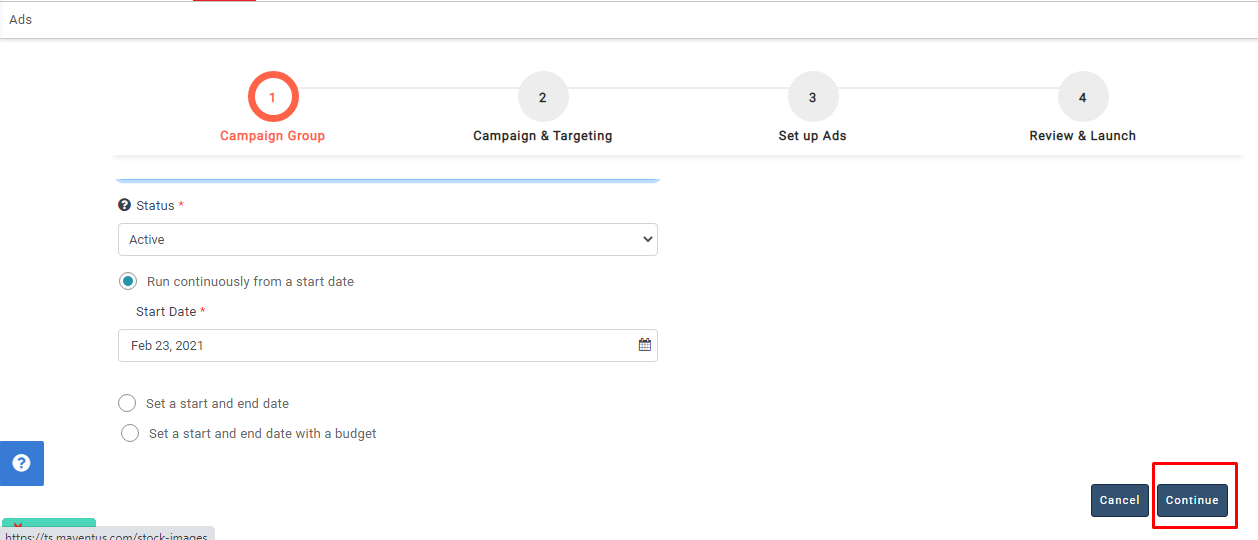
6. Click on the continue button after completing these options; the LinkedIn campaign group will be created.
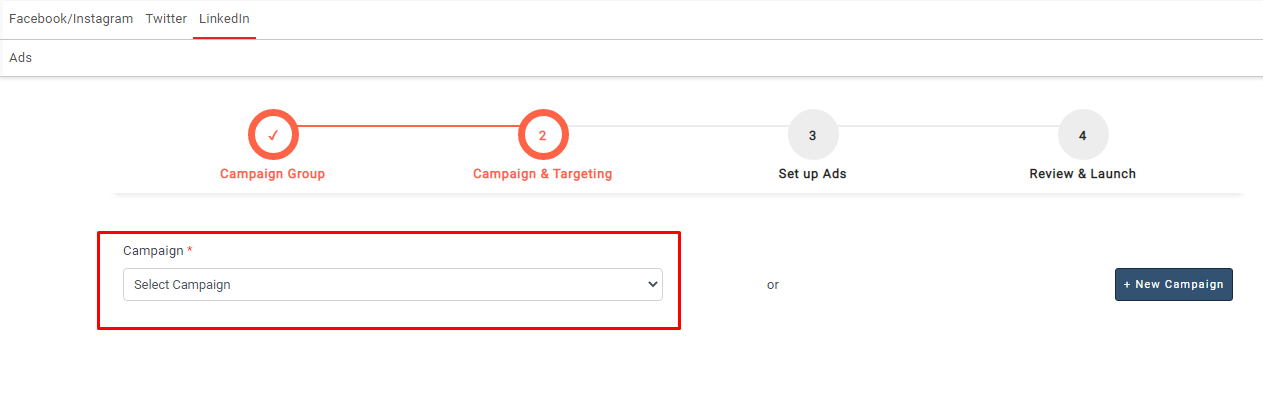
7. Select Campaign from the campaign group dropdown list if you want to create an ad under the existing campaign
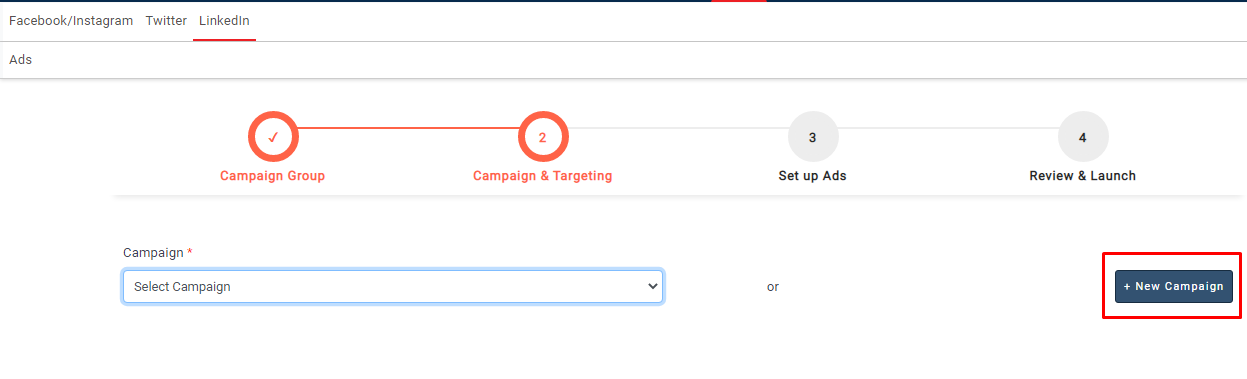
8. Click on the +New Campaign if you want to create a new campaign
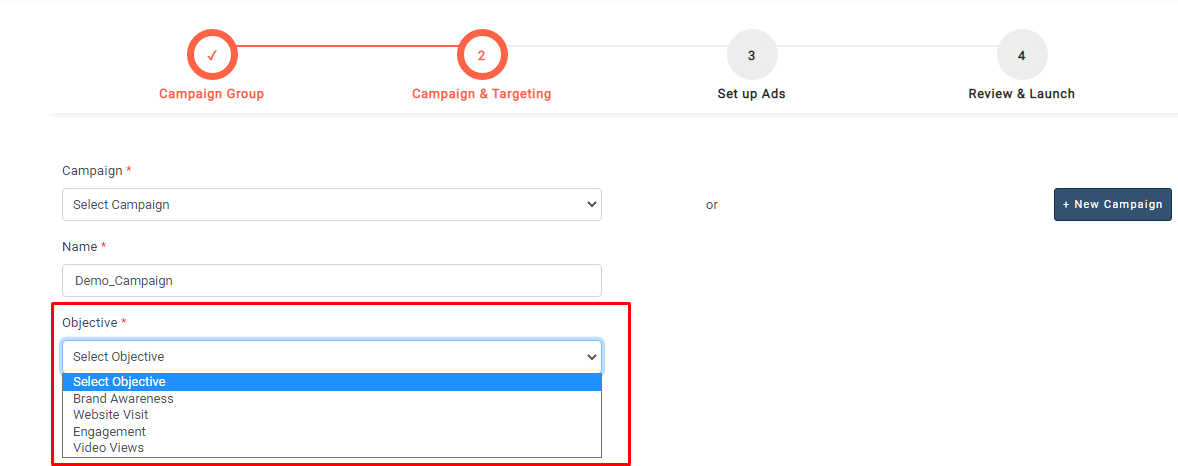
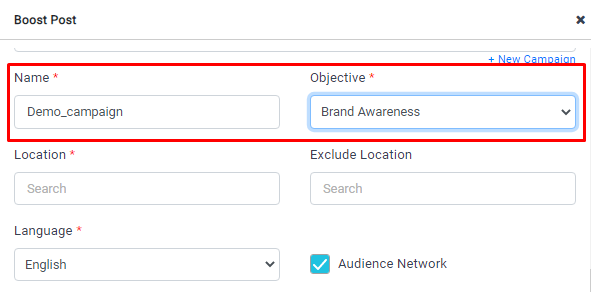
9. Give the campaign a name and select the Campaign Objective. Currently, we are supporting four objectives.
Brand awareness: Tell more people about your product, services, company, or LinkedIn event
Website visits: Drive traffic to your website, marketing landing pages, or LinkedIn event. Your campaign will be shown to people most likely to click on your ads.
Engagement: Increase social engagement with your content or LinkedIn event, increase followers of your Company Page. Your campaign will be shown to people most likely to engage with your ad or follow your company.
Video views: Share your videos with more people. Your campaign will be shown to people most likely to view your videos.
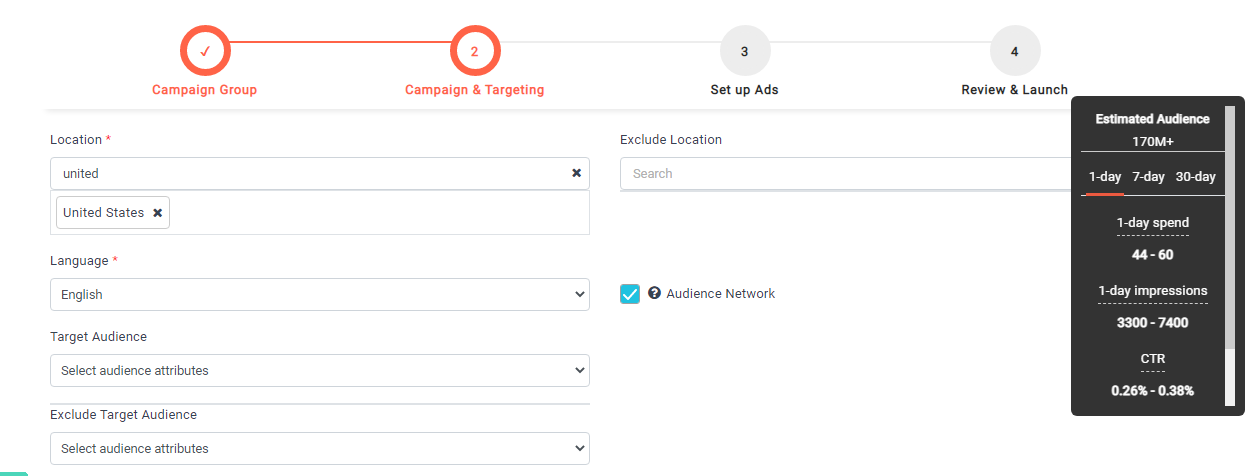
10. Give Location, Language, audience
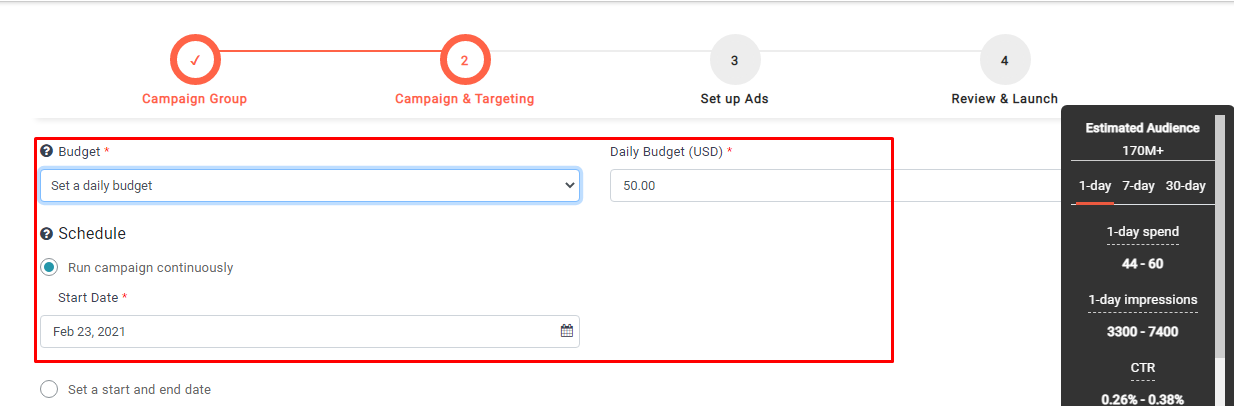
11. Give Budget, Campaign start, and end dates
12. Select Bidding and optimization goal
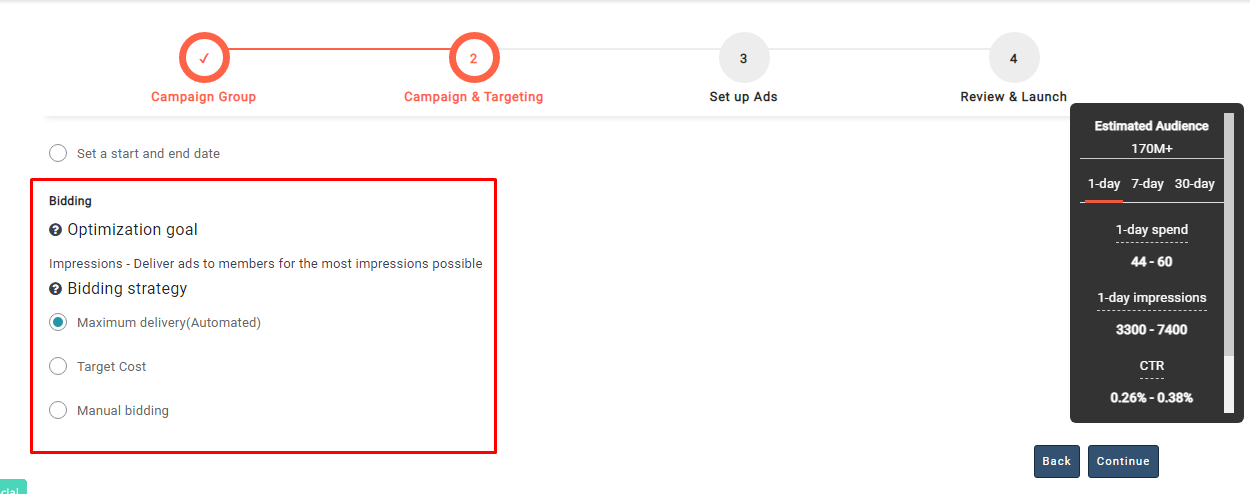
13. Click on the continue button after completing these options, and the campaign will be created on LinkedIn; then the page is moved to creatives step 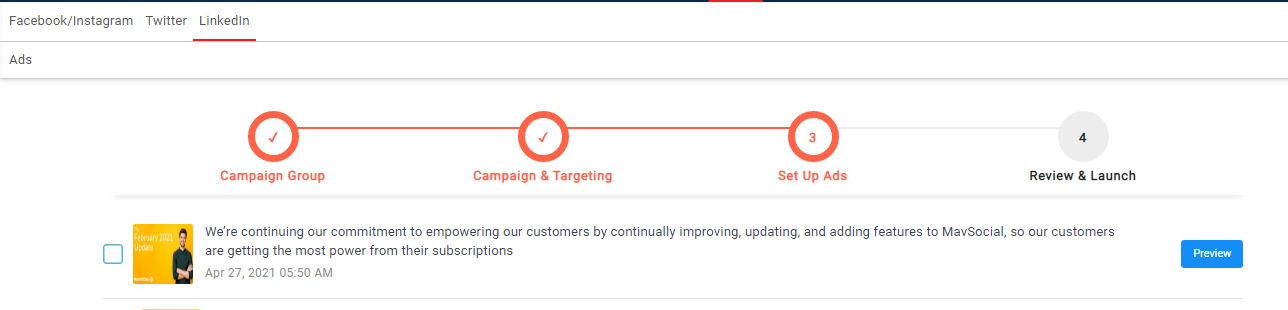
14. If you want to see the post preview, please click on the preview button 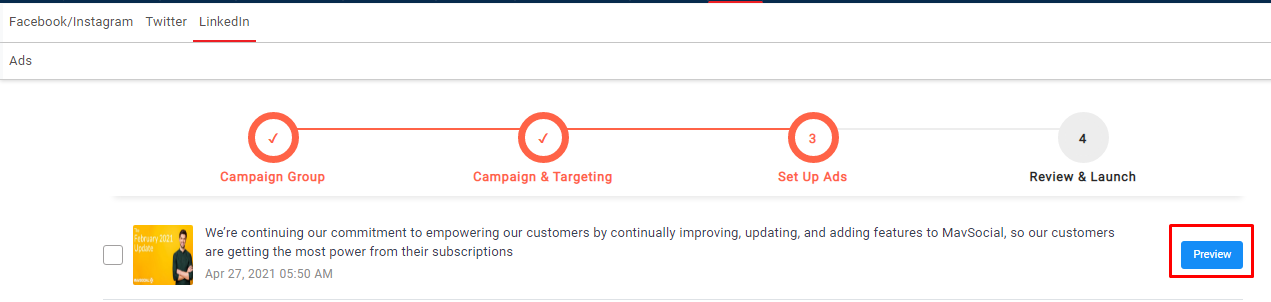
15. Preview will be shown on right side popup 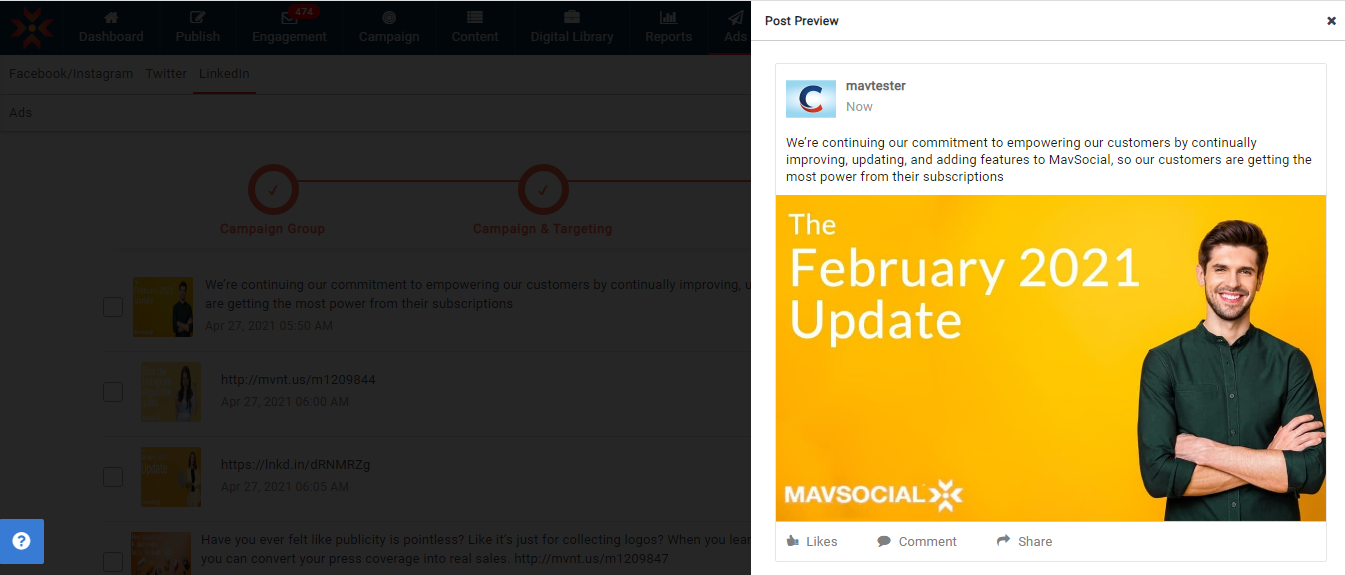
16. In this step, you need to select the post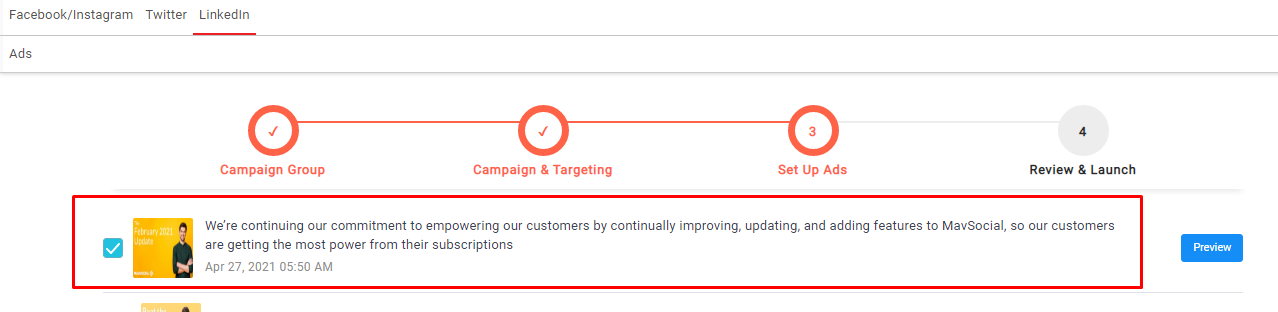
17. Click on the continue button after selecting the post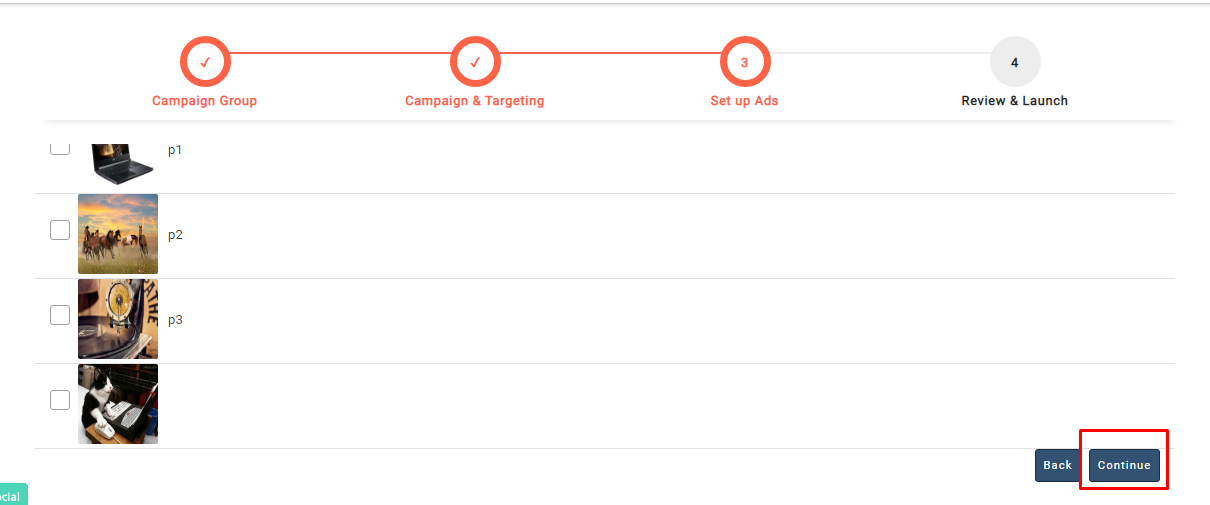
18. The creatives are selected.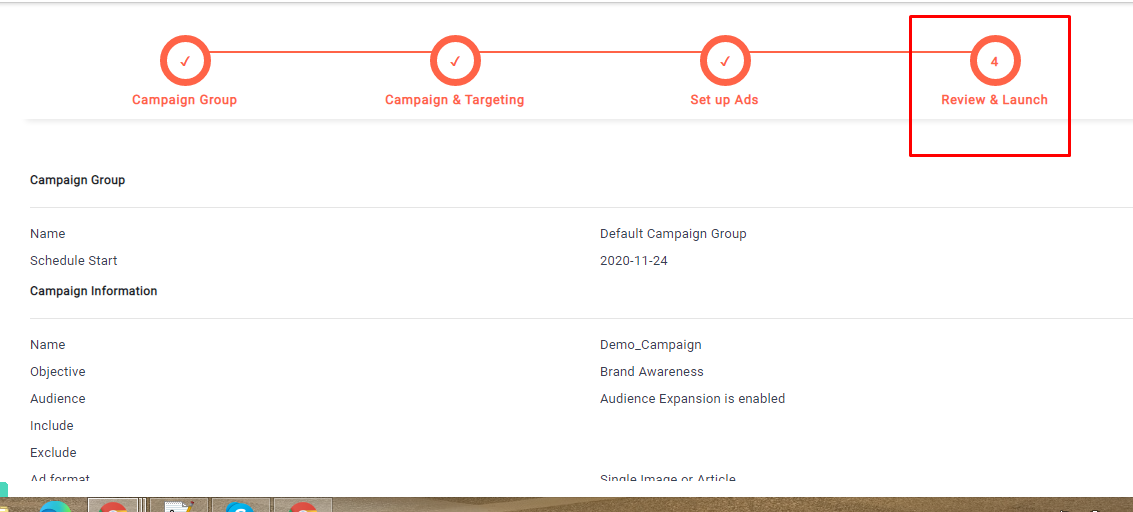
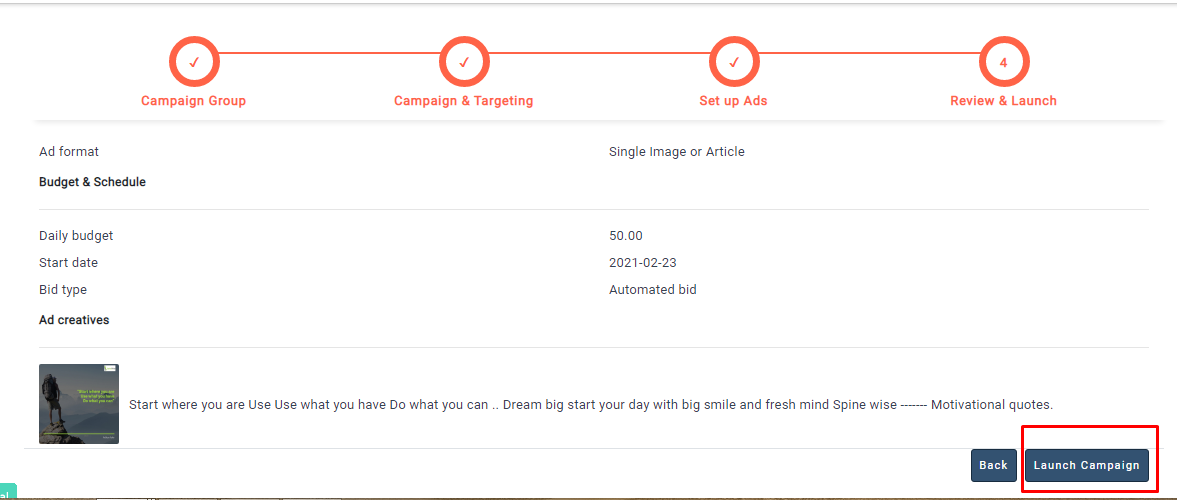
19. The Ad will be scheduled on LinkedIn after clicking on Launch Campaign.
Boosting LinkedIn Posts in the Post Manager
This feature is available for Business and Enterprise users.
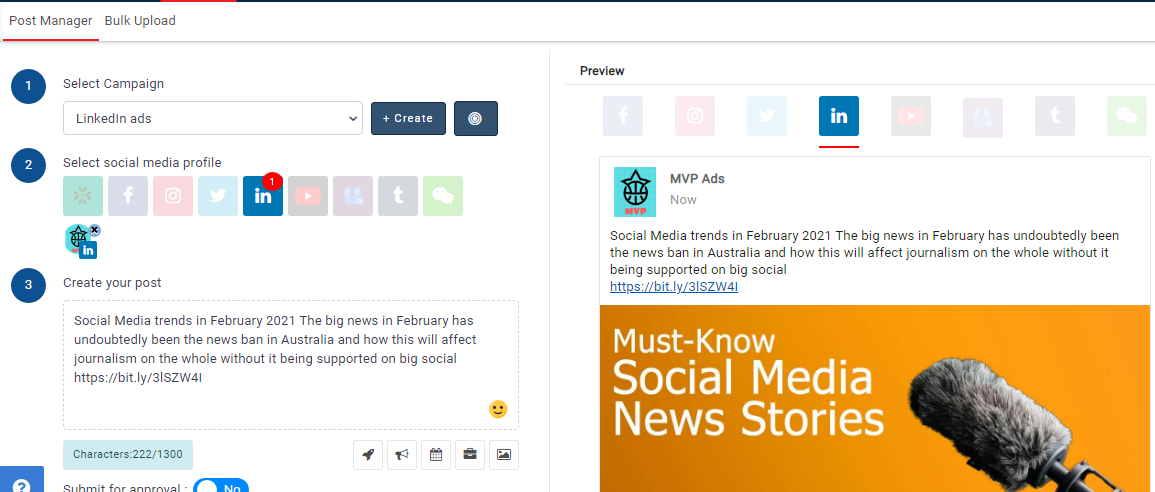
- Go to the Post Manager and select the LinkedIn tab.
- Create your post as normal, then click on the Boost Post button.
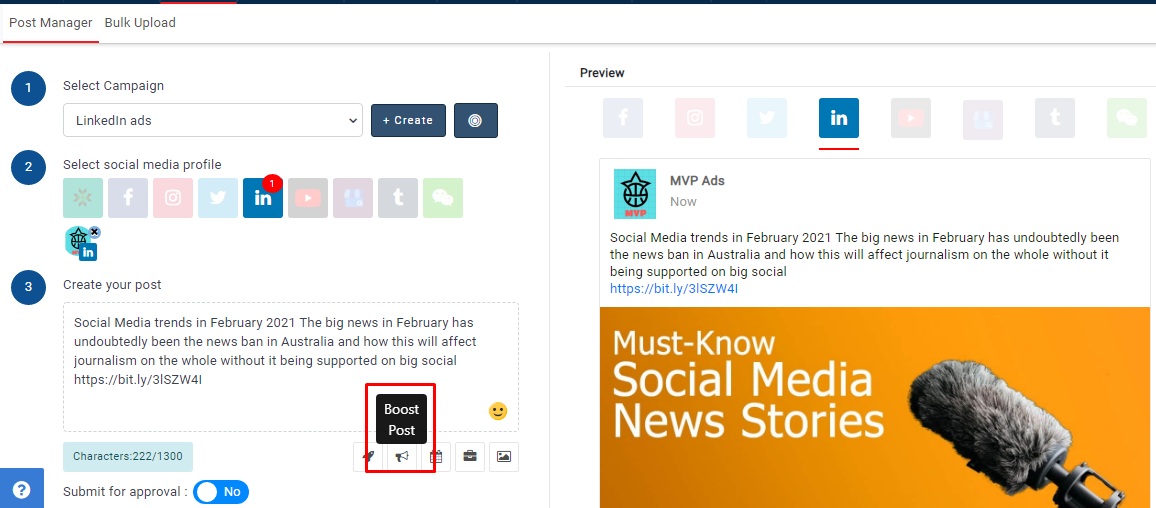
- Then Boost post popup will be displayed, as shown below.
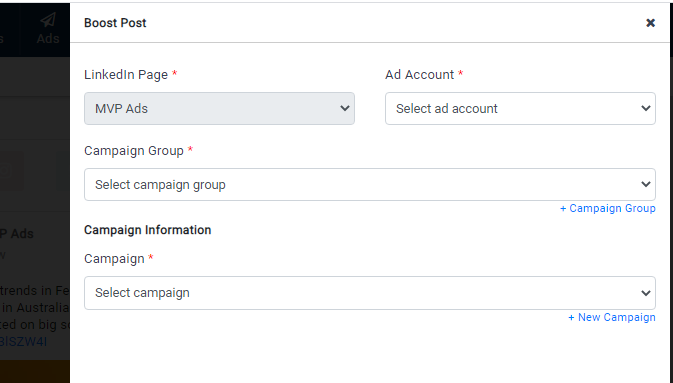
- Select an Ad account.
- Click on Create campaign group.
- Give campaign group name, Start and End dates.
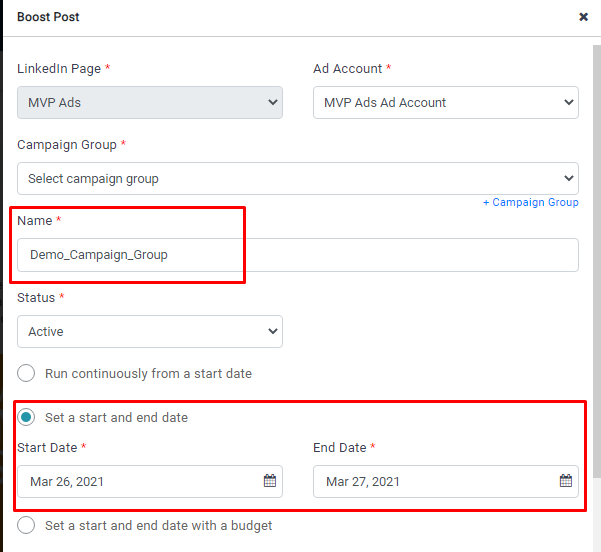
- Click on +New campaign if you want to create a new campaign under this campaign group.
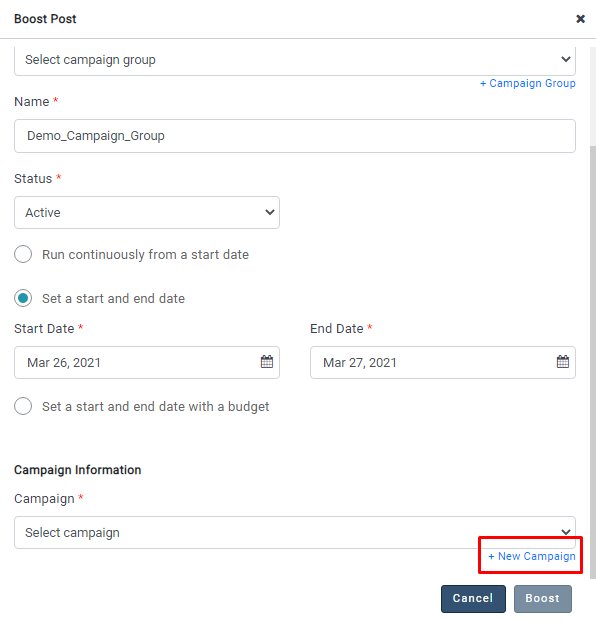
- Give Campaign name, and select the and objective
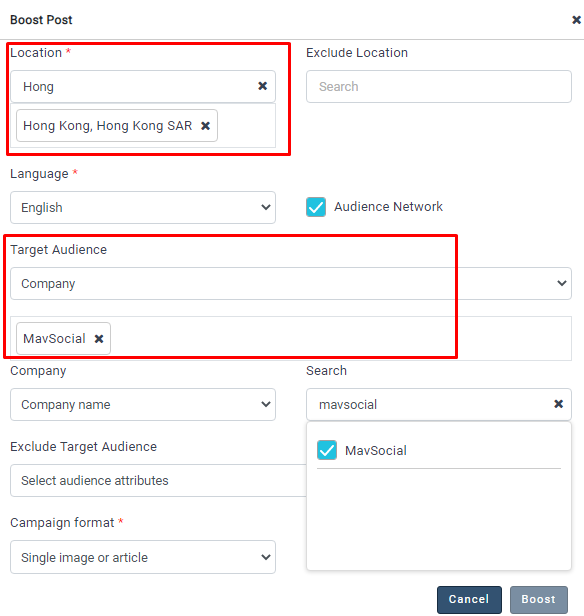
- Give the location and target audience
- Give the Budget and Bidding options
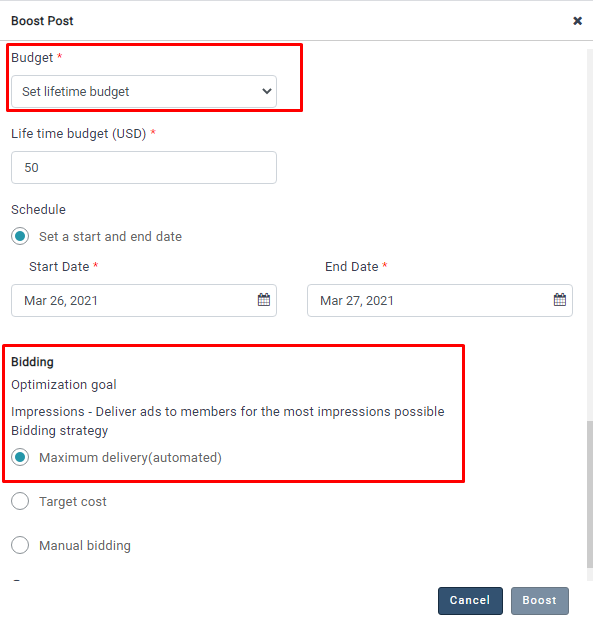
- Click on the Boost button
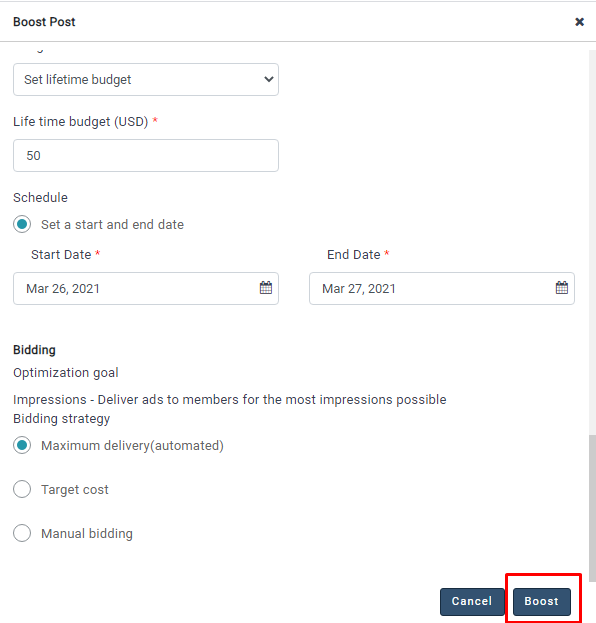
- The Ad will be created on LinkedIn after clicking on the Boost button.
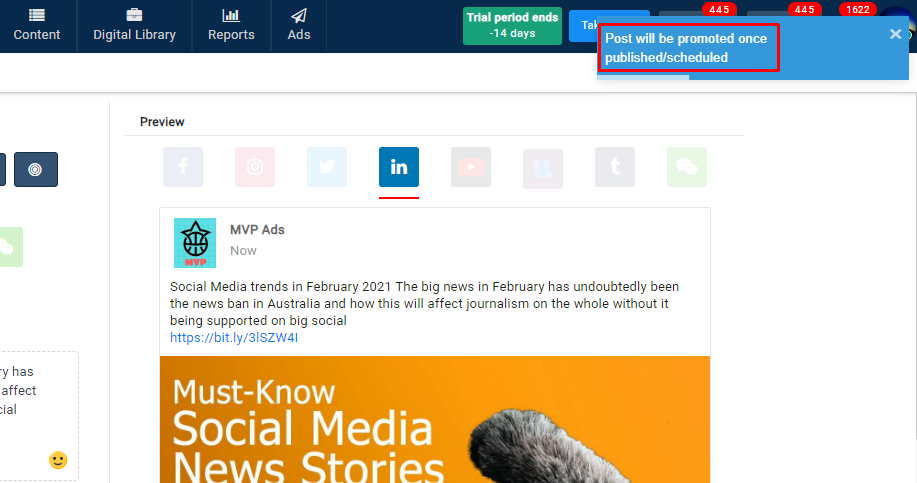
- In the same way you can Boost the post from campaigns for published posts.
Note:-
- Only Post Engagement and Brand awareness objectives will be available in Boost Post Popup.
Comments
0 comments
Please sign in to leave a comment.