
Twitter advertising allows you to reach people based on location, age, gender, interests, and more and report on how well your ads are performing.
This feature is available for Enterprise users.
How to create Twitter Ads in MavSocial
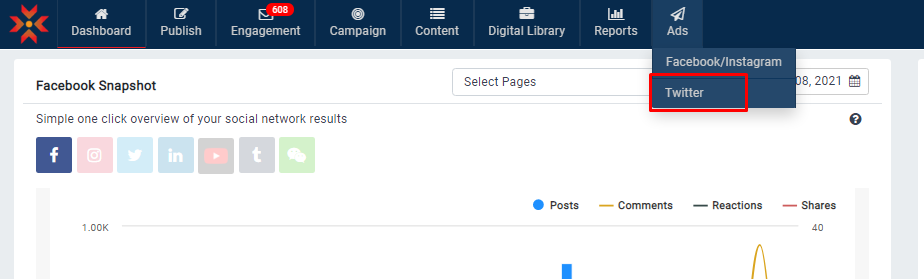
- Click on Twitter under the Ads section.

- Select the Twitter profile on which you want to use to create Ads from the list of Profiles.
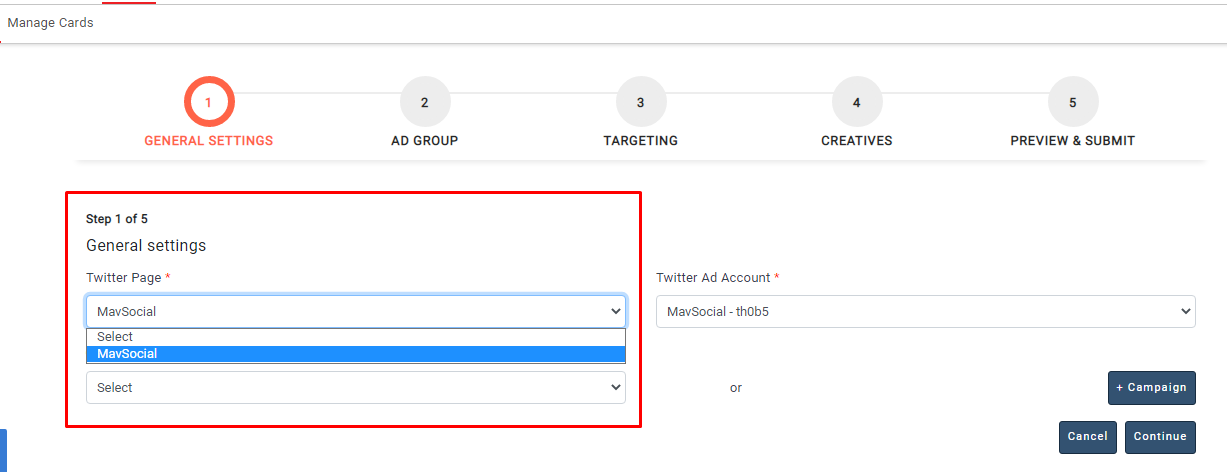
- Ad accounts will be shown in the dropdown list after selecting the Twitter Profile.
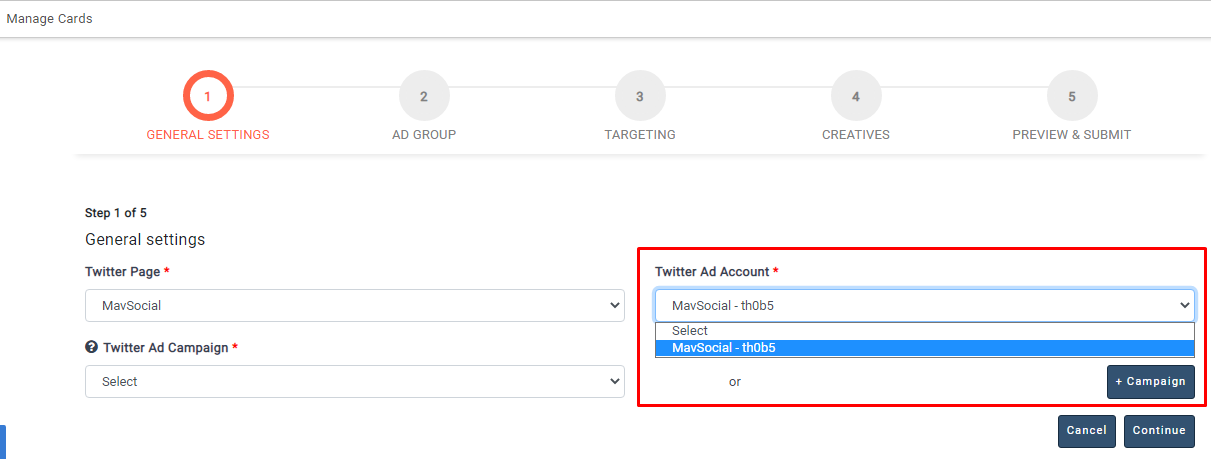
- Select the Ad Account which you want to create and run Ads.
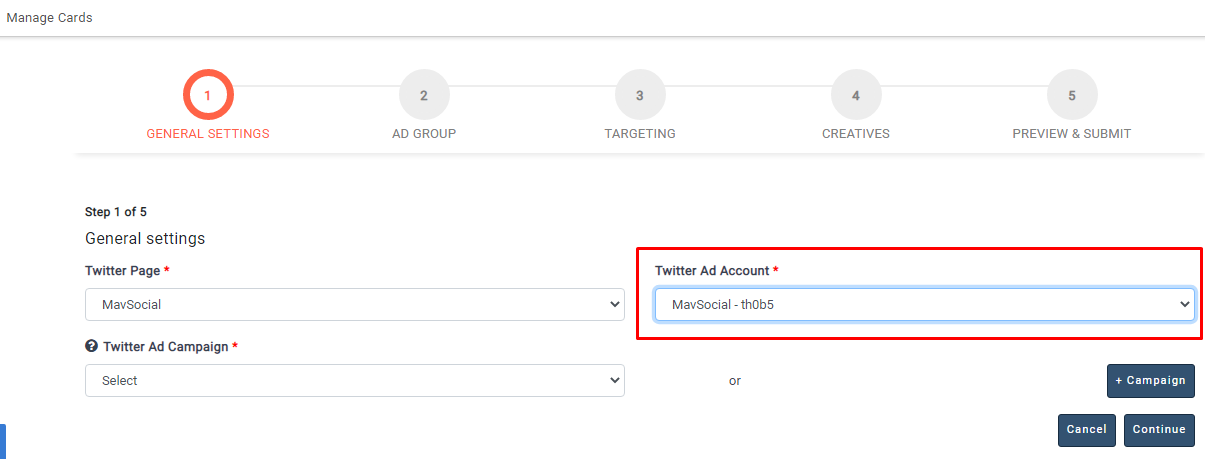
- Select Campaign from the Ad campaigns dropdown list if you want to create an Ad under the Existing campaigns.
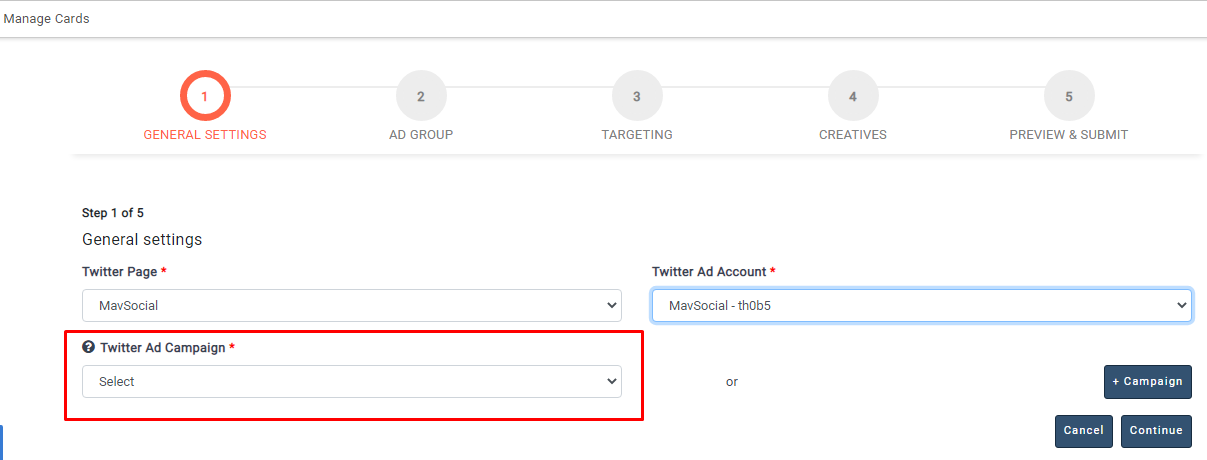
- You have an option to clone the campaign by clicking on Clone campaign under the Campaign dropdown.
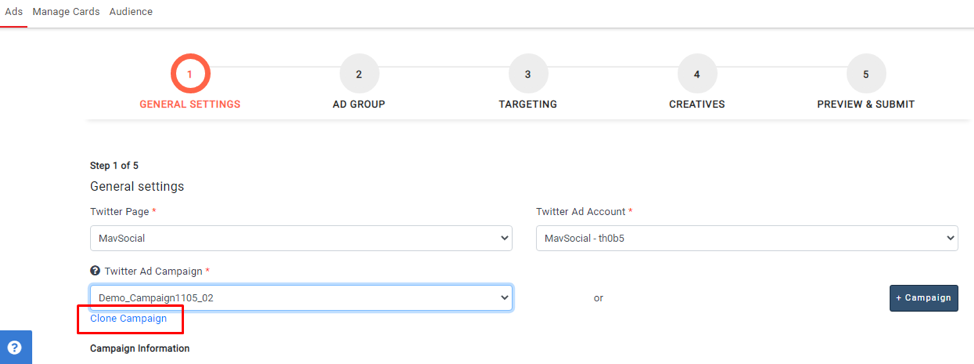
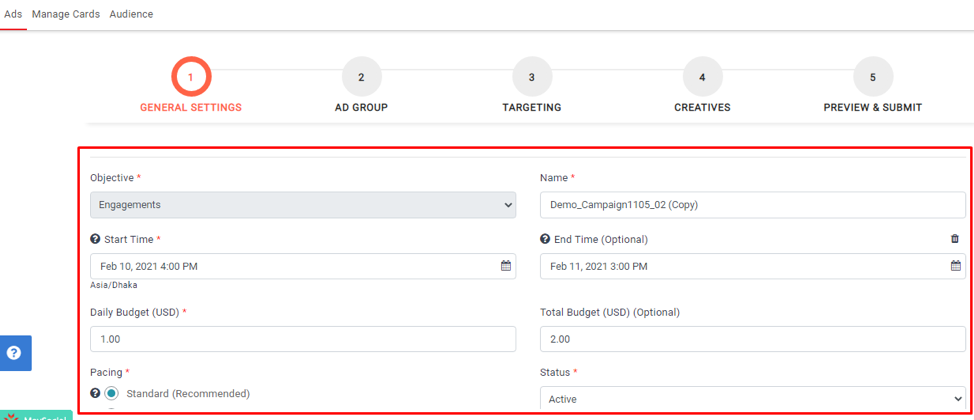
- The campaign and its data will be cloned after clicking on Clone campaign.
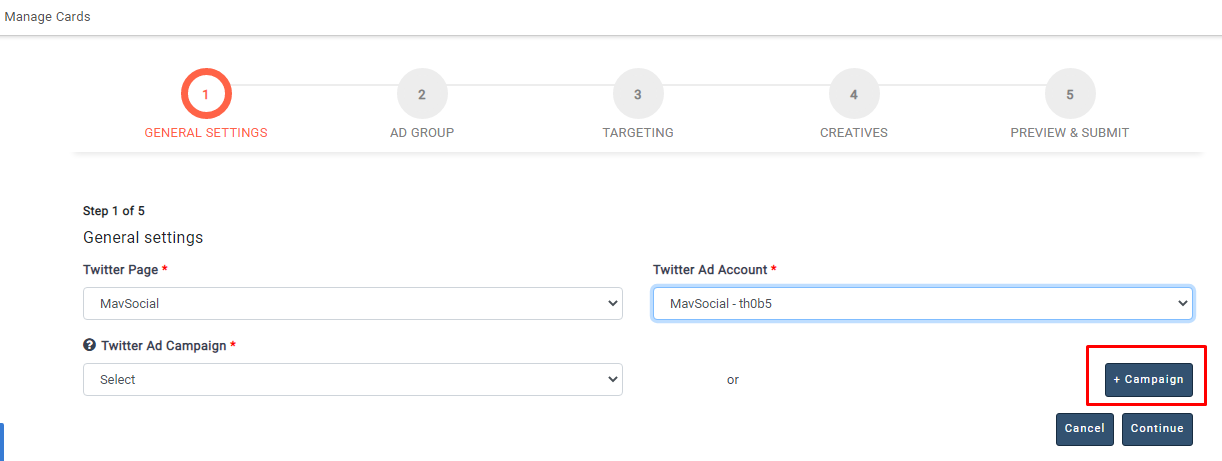
- Click on +Campaign if you want to create a new campaign.
- Select the Campaign Objective: Your advertising objective is what you want people to do when they see your ads. Currently, we support six types of objectives:
Engagements: You want to maximize engagement with your Promoted Tweets. You’re billed per engagement, but only on the initial engagement with each user.
Video views: You want people to watch your videos or GIFs. You’re billed for each video view.
App Installs: You want people to install your app. You’re billed for each app install.
Website clicks: With the website clicks objective, you can drive people to visit and/or take action on your website.
Followers: Followers’ campaigns build an engaged audience to amplify your message — on and off Twitter. People who follow you not only see your Tweets, they're likely to become brand advocates and customers.
Reach: Reach campaigns increase a brand's awareness by getting as many people to see your ad as possible. Tweet impressions are the only thing you pay for, but people are also likely to follow, retweet you, and visit your website after discovering your Tweets.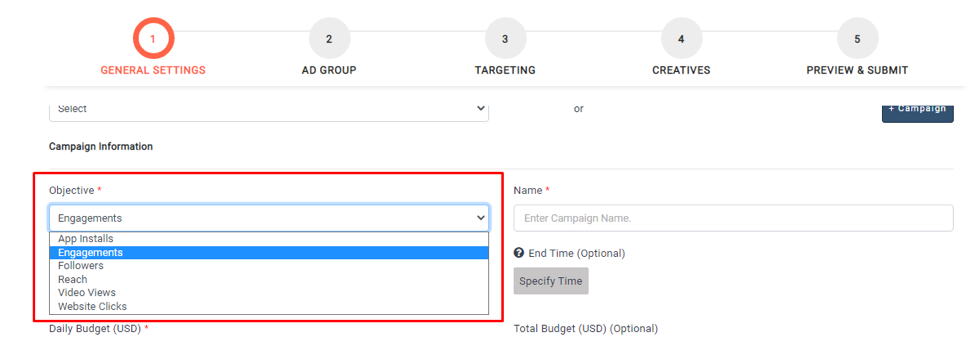
- Give campaign name, Campaign Start and End time, Daily and Total budget.
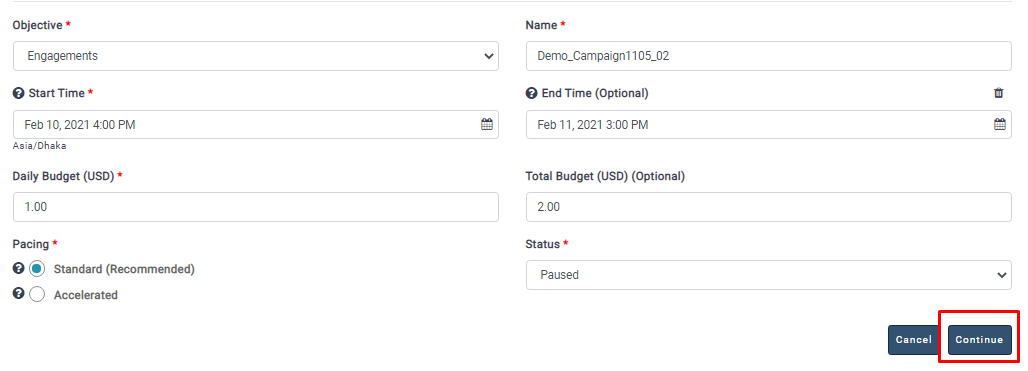
- Click on Save Draft & Exit button if you want to save the campaign and exit.
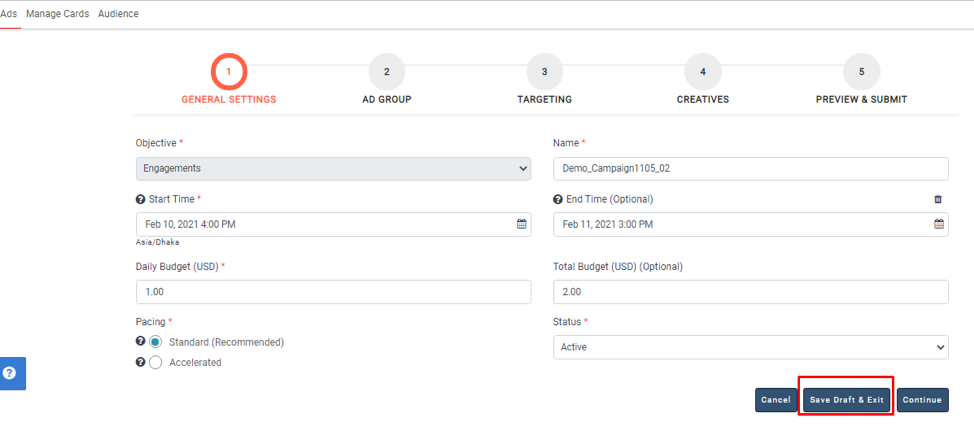
- Click on the Continue button after completing these options to move to the next step.
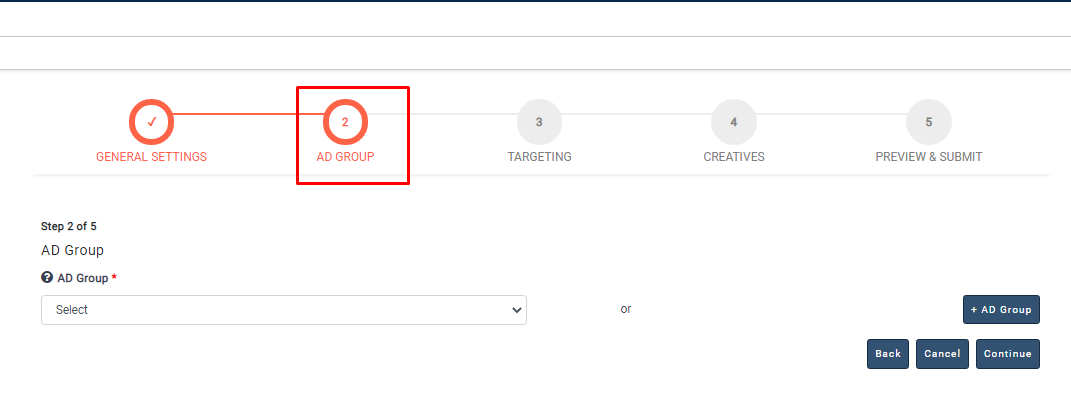
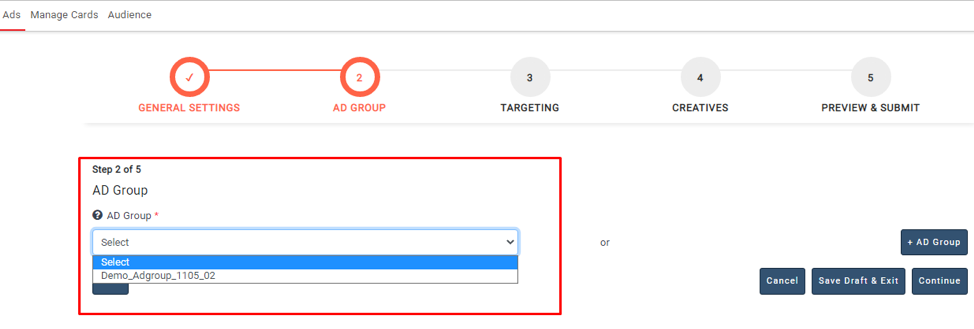
- Select an Ad group from the Ad groups dropdown list if you want to create an Ad in the Existing Ad group
- You have an option to clone the Ad Group by clicking on Clone Ad Group under the Twitter Ad Group dropdown.
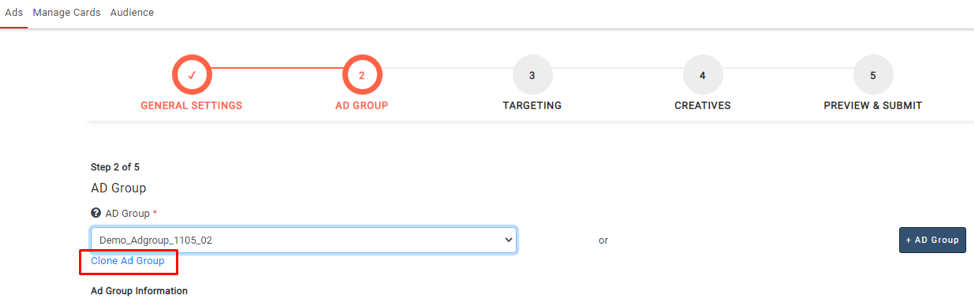
- The Ad Group and its data will be cloned after clicking on Clone Ad Group.
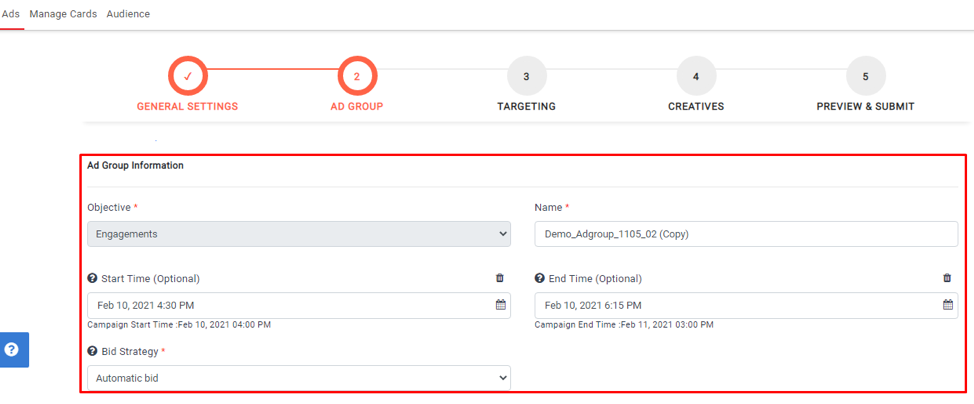
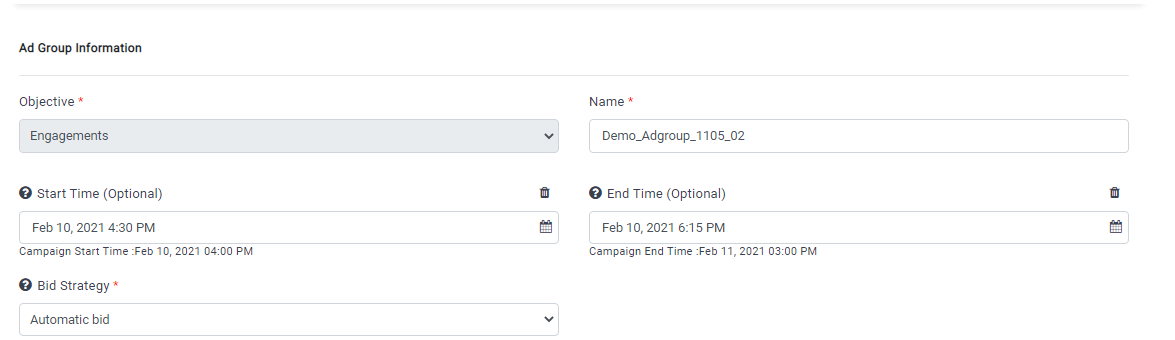
- If you want to create a new Ad group, click on + Ad Group. You can give Ad Group name, start and end times, Bid type, Ad group budget, and more.
If you select the App Installs objective, you will need to enter the following information: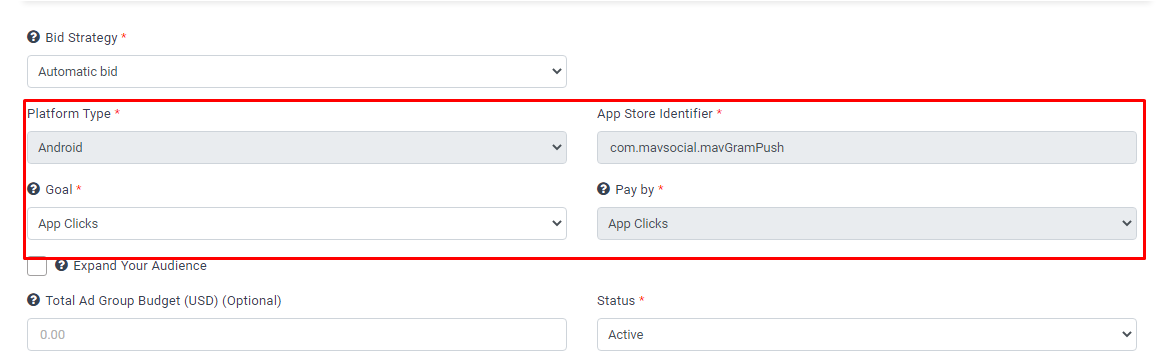
If you select the Video Views objective, you will need to enter the following information: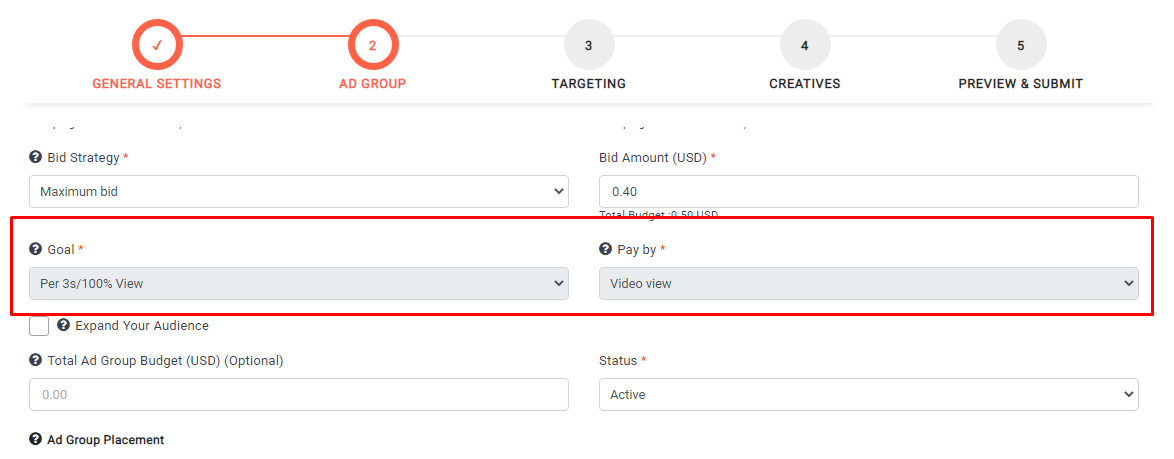
If you select the Website Clicks objective, you will need to enter the following information: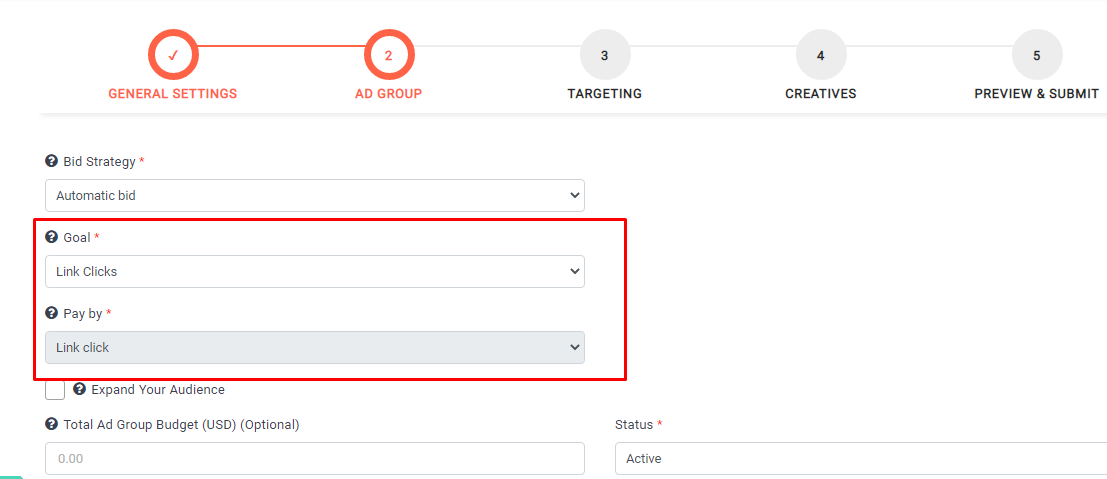
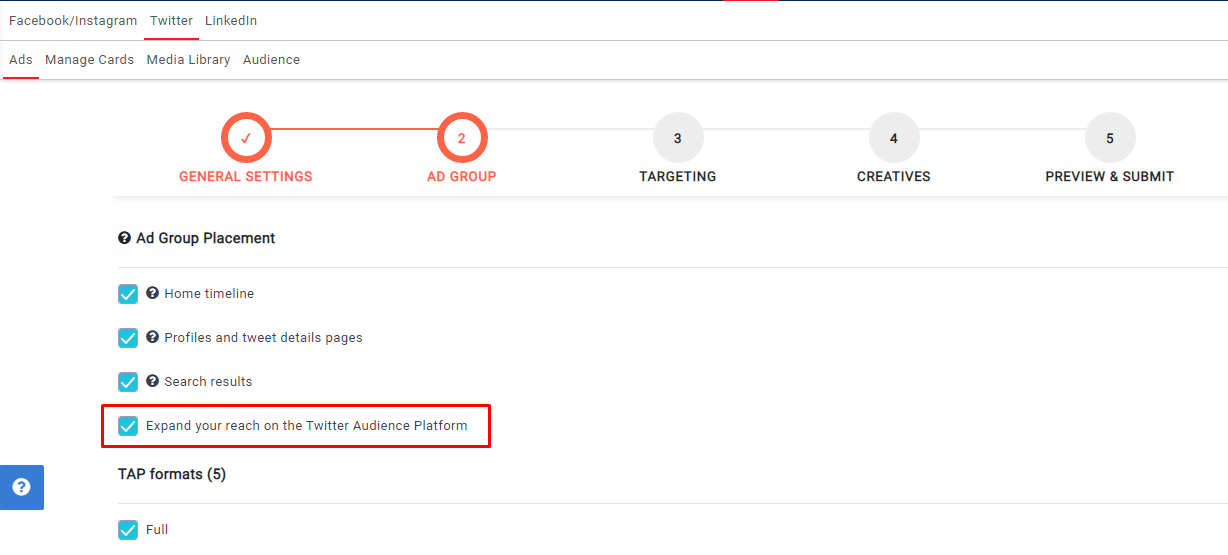
- Please check the Expand your reach on the Twitter Audience Platform check box if you want to select the display creatives in creatives step
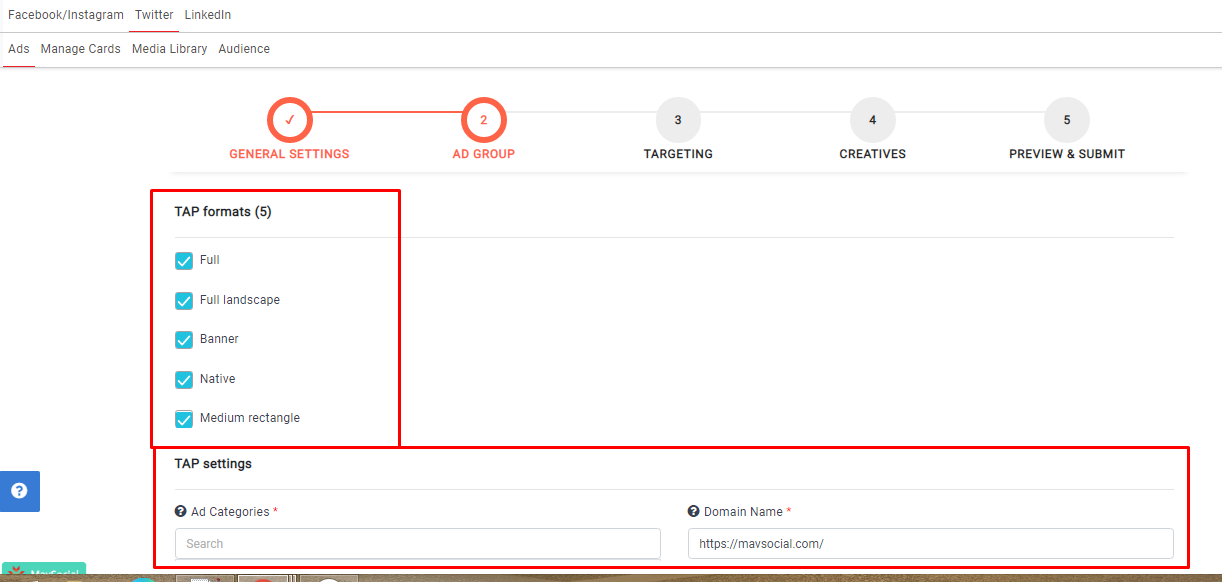
- Select the formats and give the settings as shown below
- Click on Save Draft & Exit button if you want to save the Ad Group and exit.
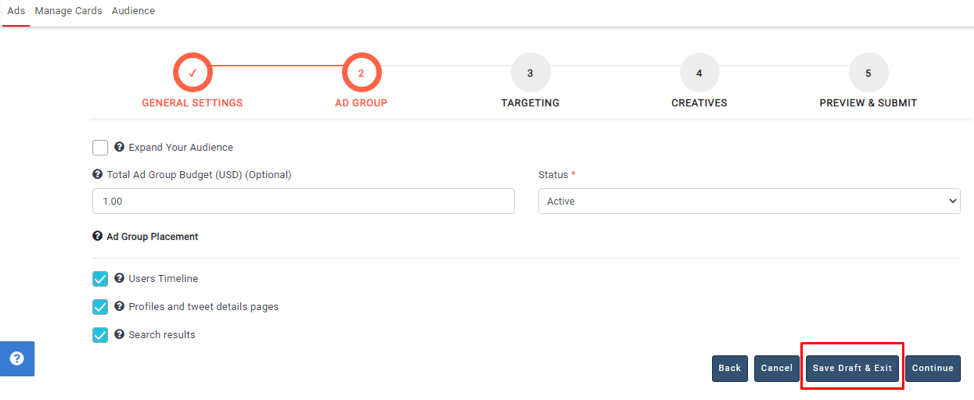
- The Ad Group will be created.
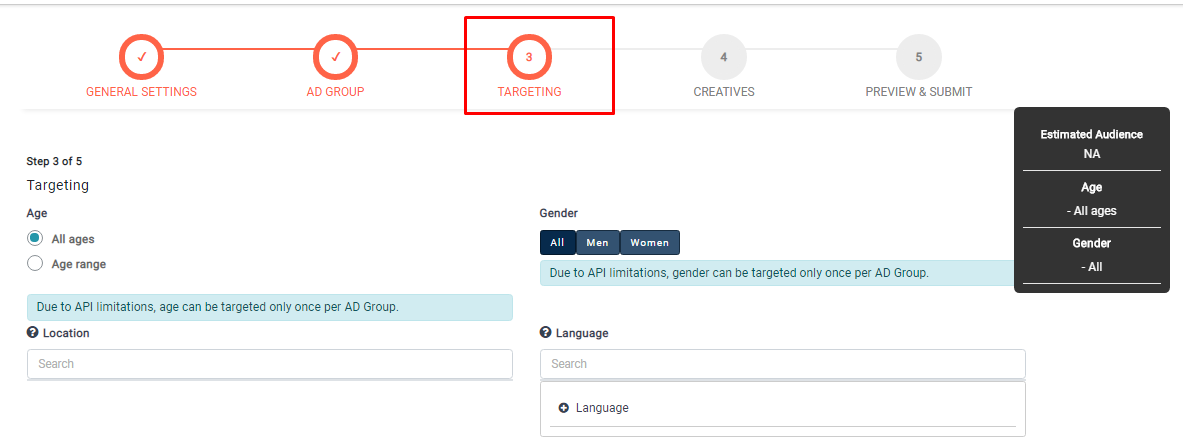
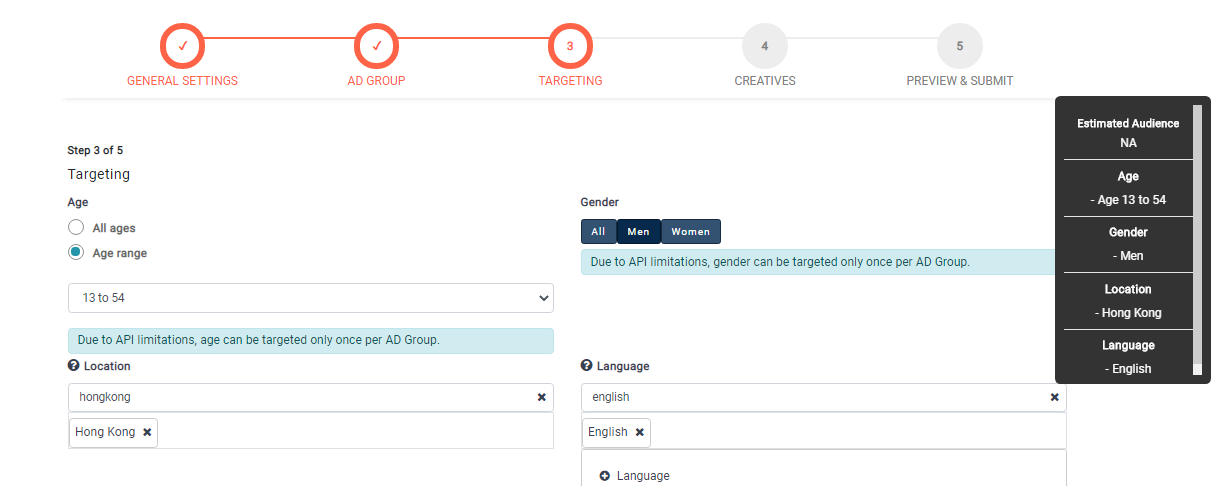
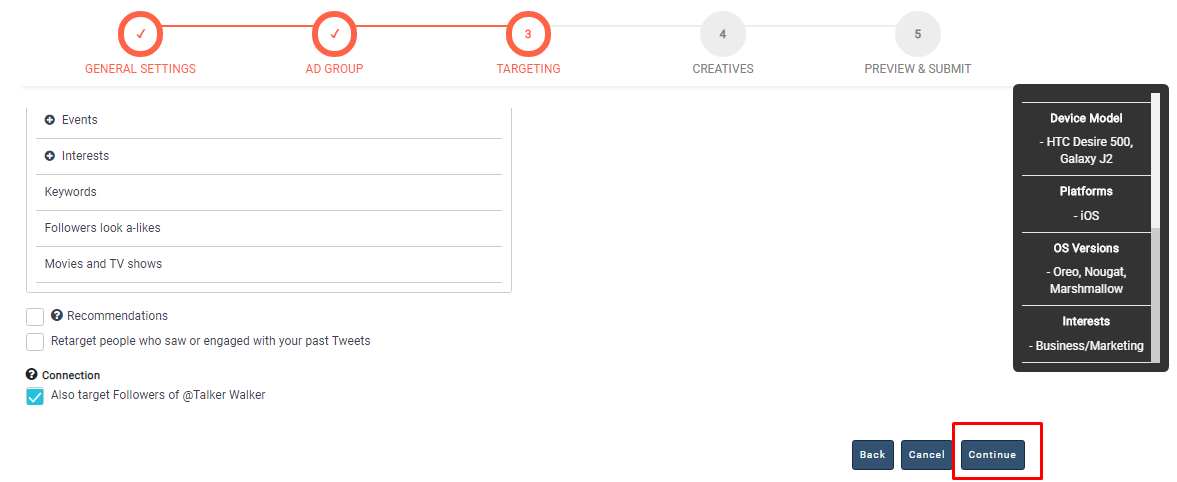
- In the 3rd step, you need to select the targeting options like Age, Gender, Location, Targeting, Languages, etc.
- You can target audiences with platforms, OS versions, device models, carriers, and audience features.
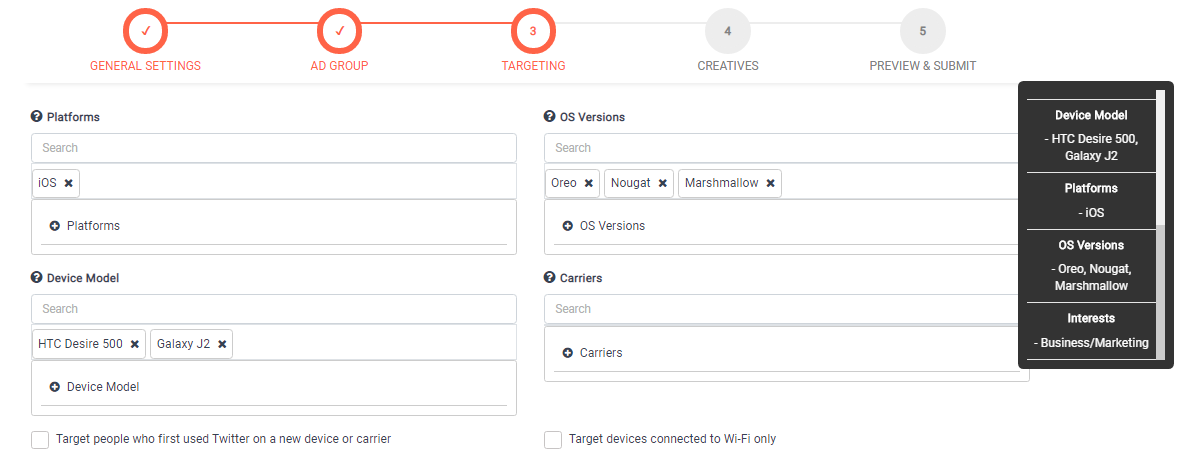
- Click on the Continue button after completing your targeting options.
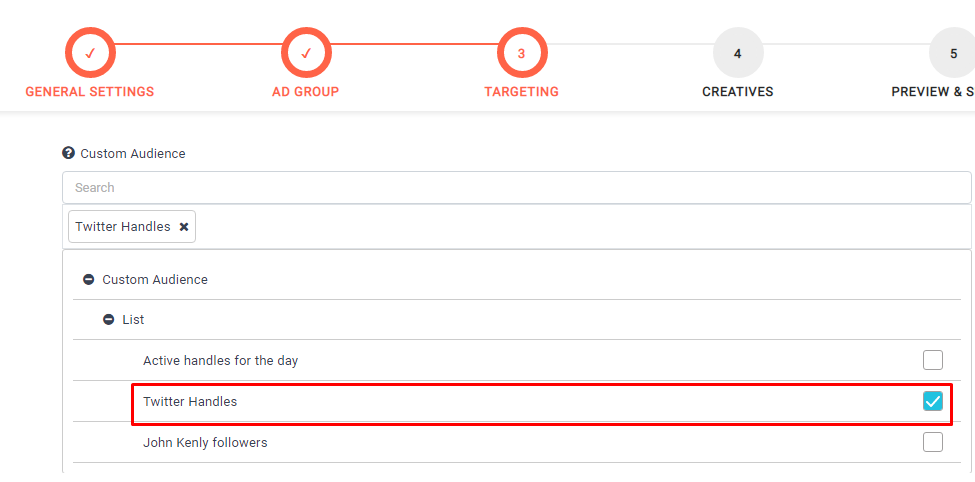
- Select the required custom audience.
- Click on the Continue button after completing your targeting options.
- The Ad Group targeting options are created, and the page will navigate to the 4th step.
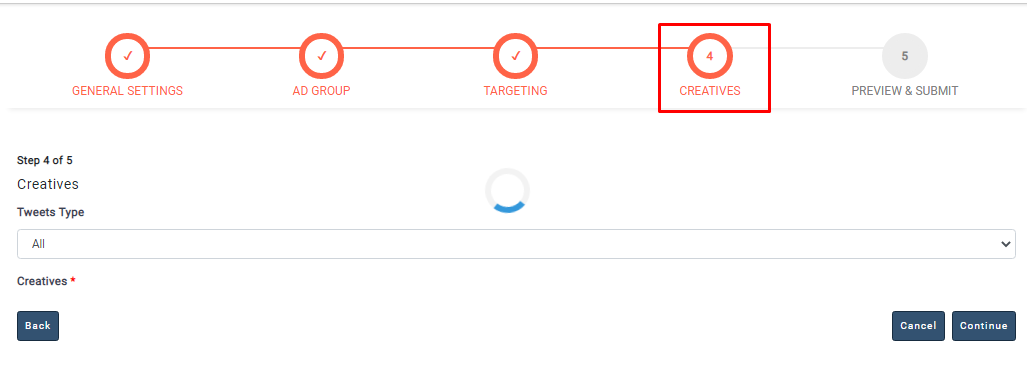
- In the 4th step, you can select creatives. These creatives will appear based on the chosen objective in step 1.
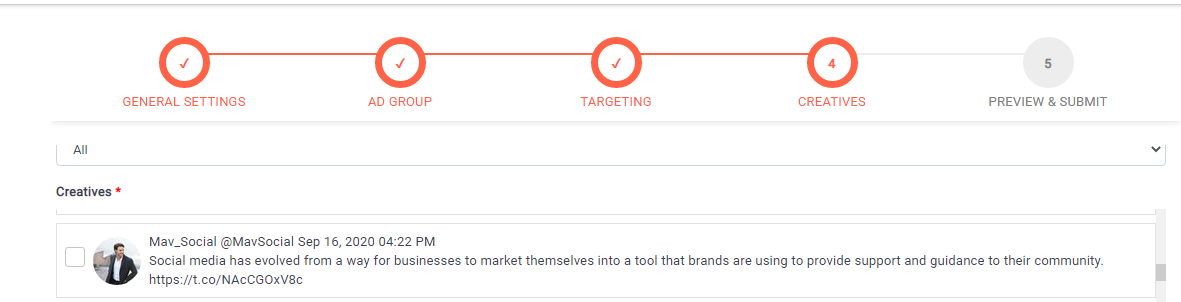
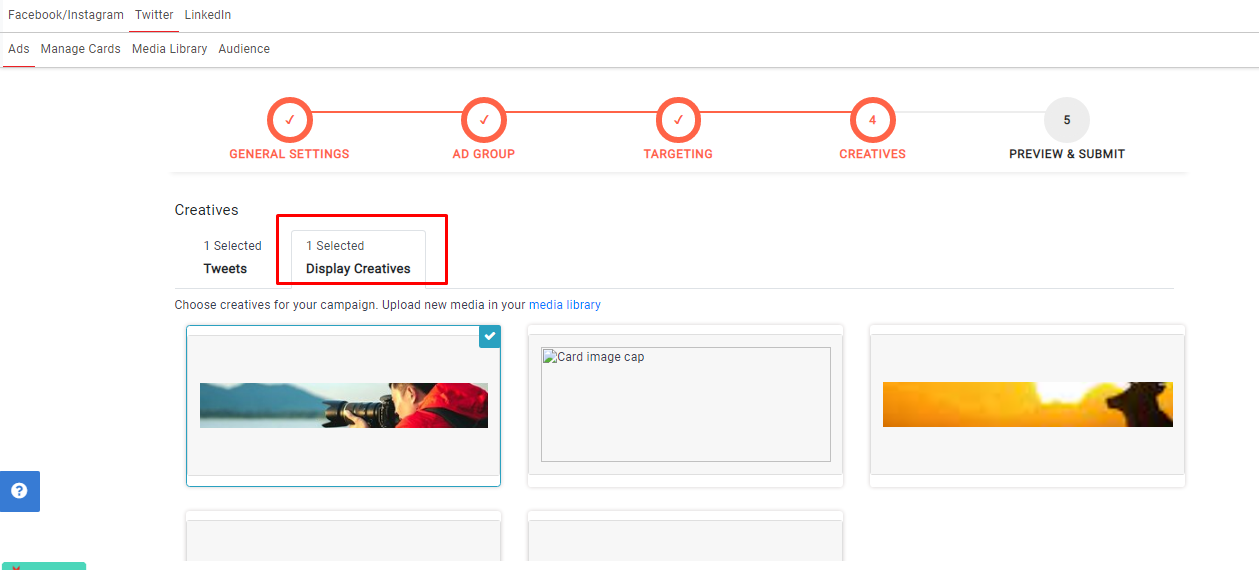
- You have an option to select the display creatives if you select the Website clicks or App installs objectives at the time of campaign creation
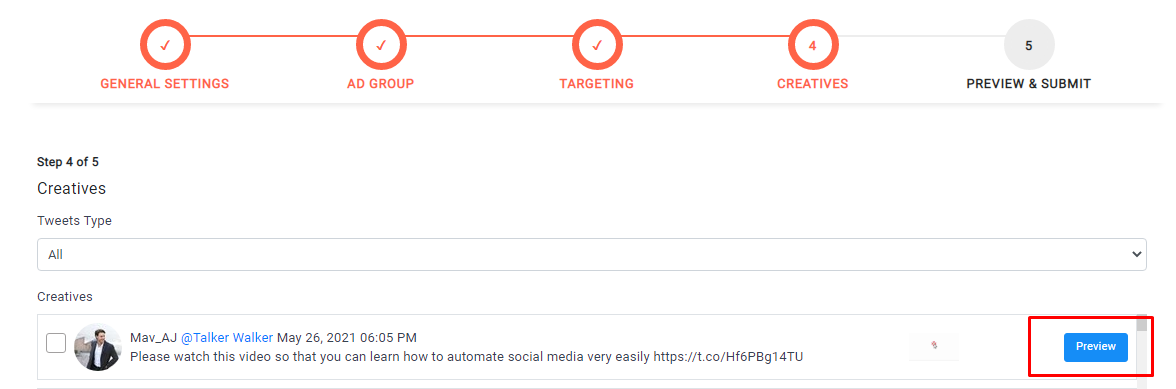
- To see the post preview, please click on the Preview button.
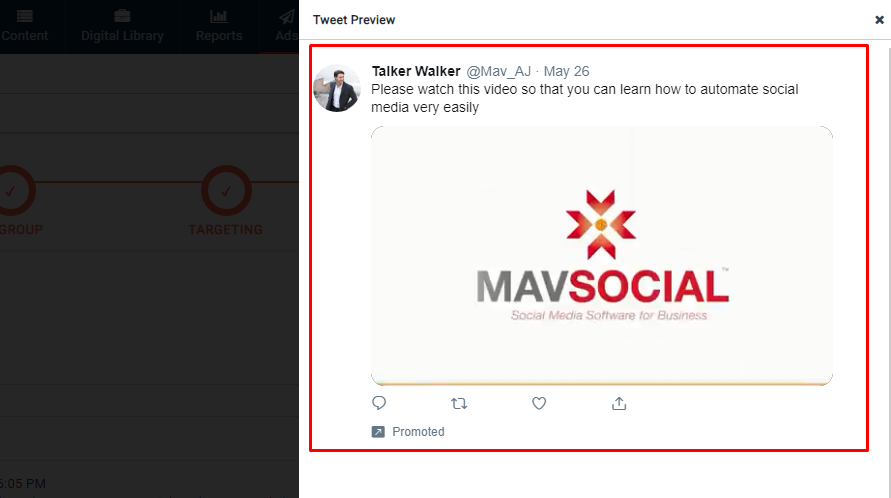
- Preview will be shown on the right side popup as shown below.
- Select the required creatives and click on the Continue button.
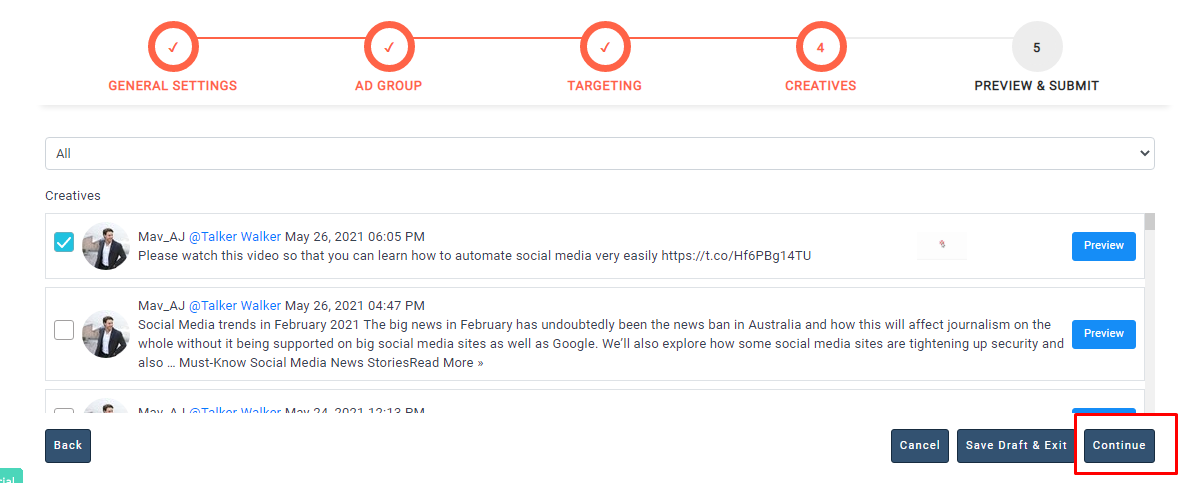
- Creatives will be selected, and the page will progress to the final step.
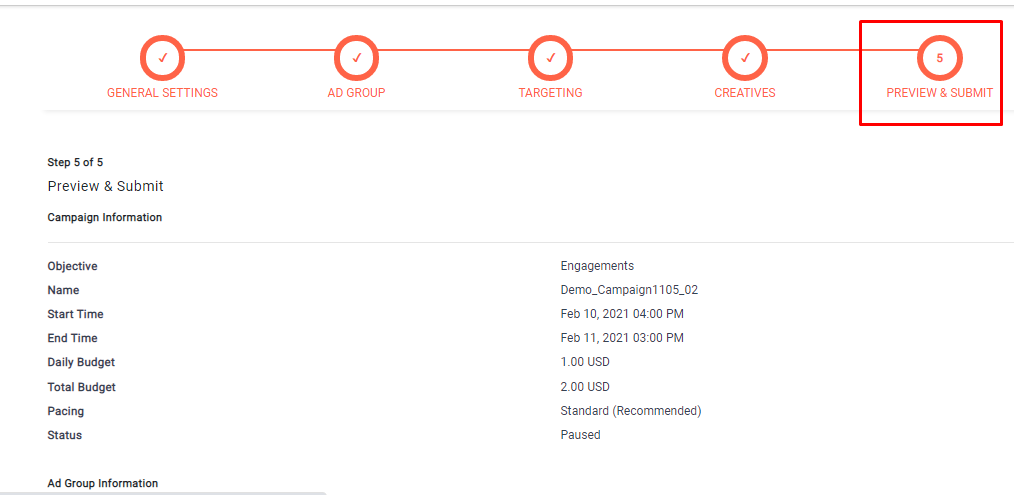
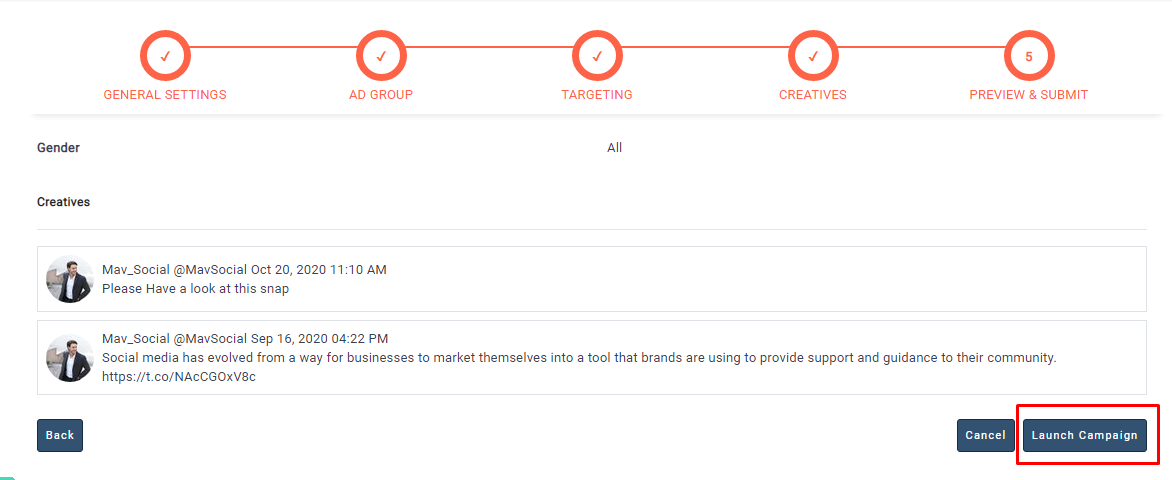
- The Ad will be scheduled on Twitter after clicking on Launch Campaign.
Note:-
- Only organic tweets will be shown in Ad creatives.
- If you select the engagement objective in the first step, only text and image tweets will be shown in the creatives dropdown.
- If you select the video views objective in the first step, only video tweets will display in the creatives dropdown.
- If you select the App installs objective in the first step, only App card tweets will display in the creatives dropdown.
- If you select website clicks objective in the first step, only Website card, Video Website card tweets will display in the creatives dropdown.
- For the followers’ objective, it’s not mandatory to select a tweet in the creatives step.
- If you select the Website clicks and App installs objective in campaign creation, the display creatives tab will be shown.
Creating App Cards for Twitter Ads in MavSocial
App cards are used to create App Installs ads. These App Cards will be shown in the creatives step when selecting the App installs objective in the first step.
- Navigate to Twitter under Ads.
- Click on Manage Cards.
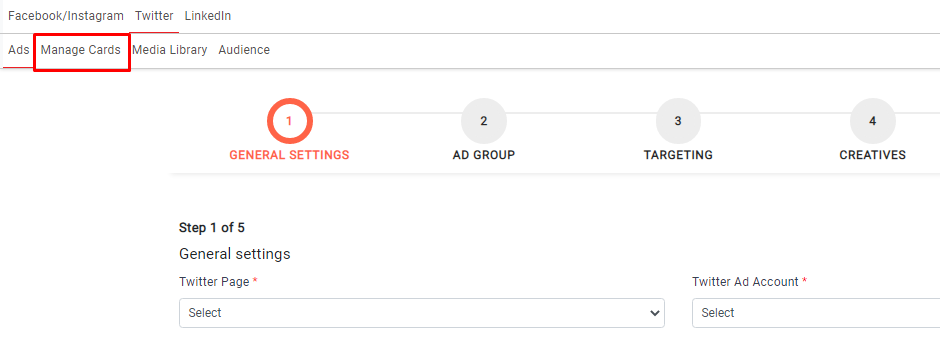
- You can create an Image, Video, Carousel image, or Carousel video card. Select the Twitter profile, Twitter Ad account, select card type, and click on the +Card button.
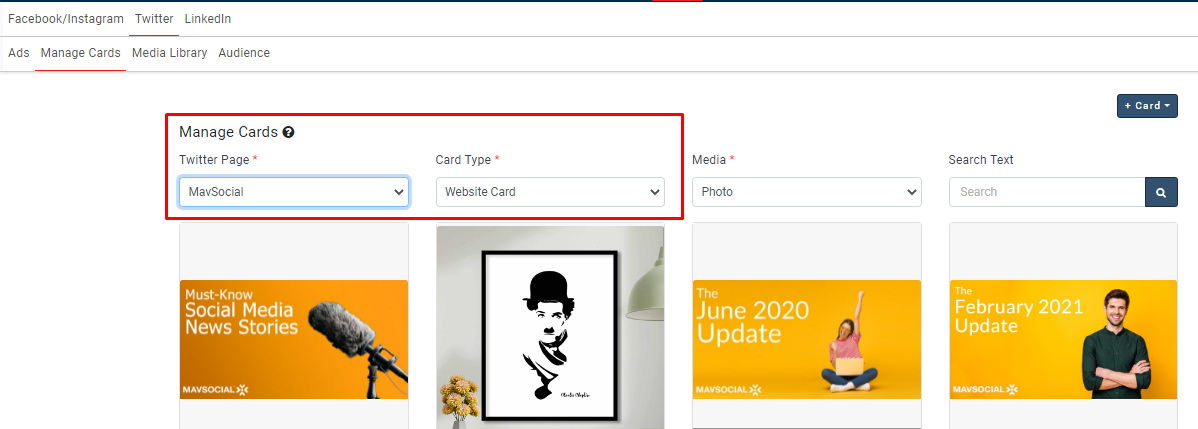
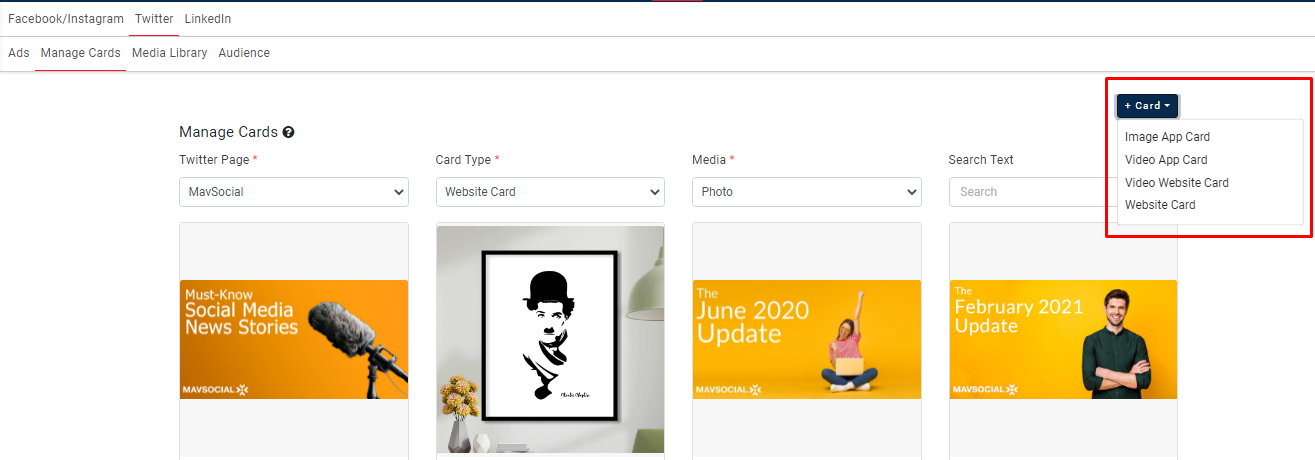
- Select the card type (Image App card, VIdeo App card, Video Website card, Website card)
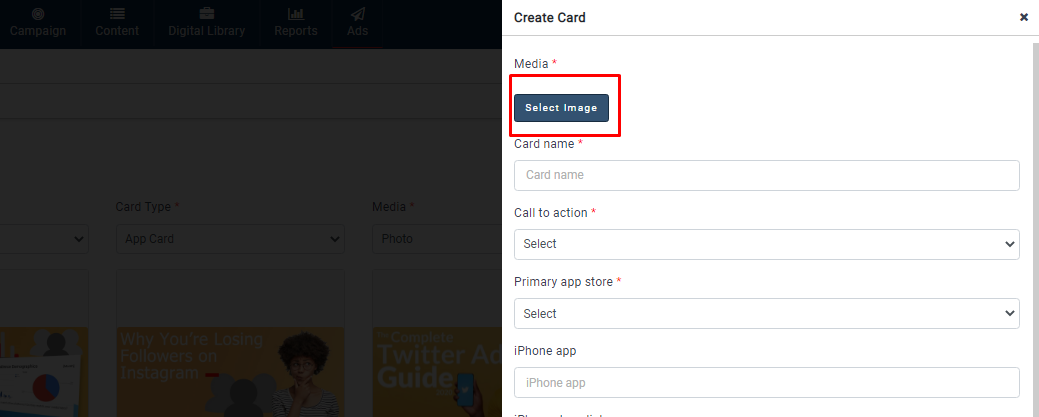
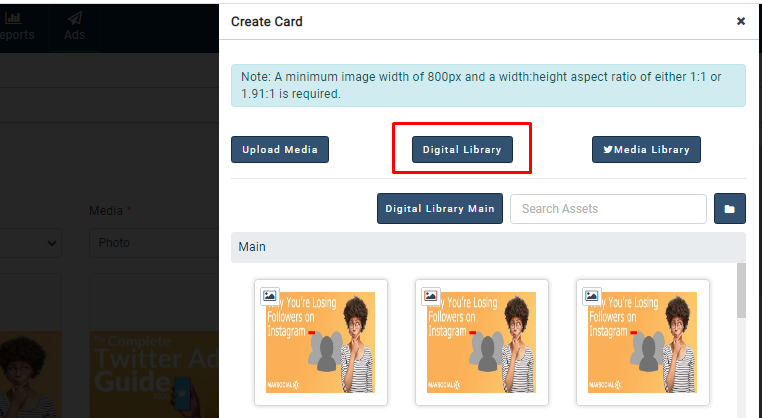
- Click on Select image to select the image from the Digital library.
- Select the required image.
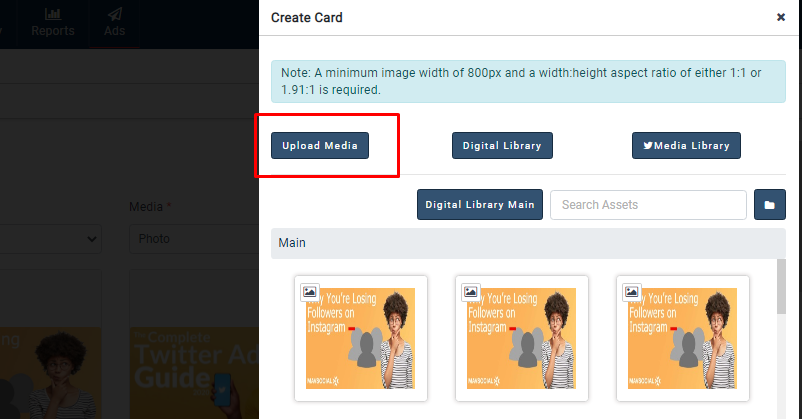
- You can select the desired image from MavSocial digital library.
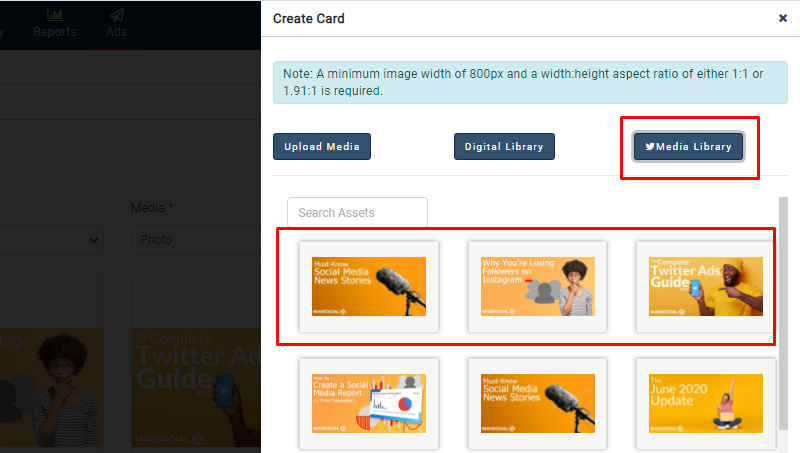
- Similarly, you can choose the image from the Twitter media library
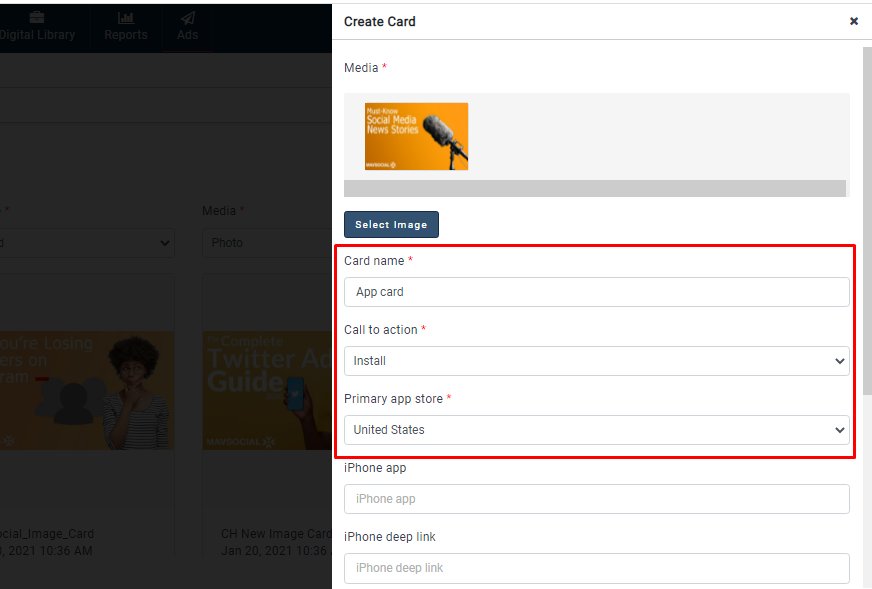
- Give card name and select the required country in the Primary app store territory and the call to action.
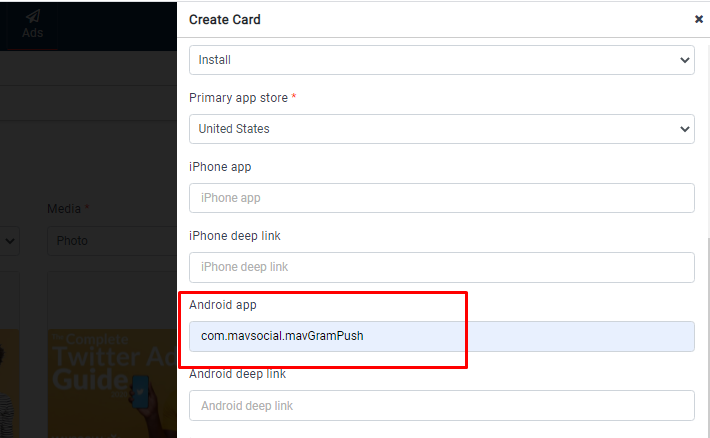
- Give the value of the Android App. You can find the Android app value in the Play Store.
- Click on the Create button, and the App card will be created in MavSocial.
- Similarly, you can create a Video card, a Website card, a Video Website card, a Carousel Image/Video app card, or a Carousel Image/Video website card.
- If you want to edit the card, mouse over the old Image/Video Card, the card’s edit button will appear.
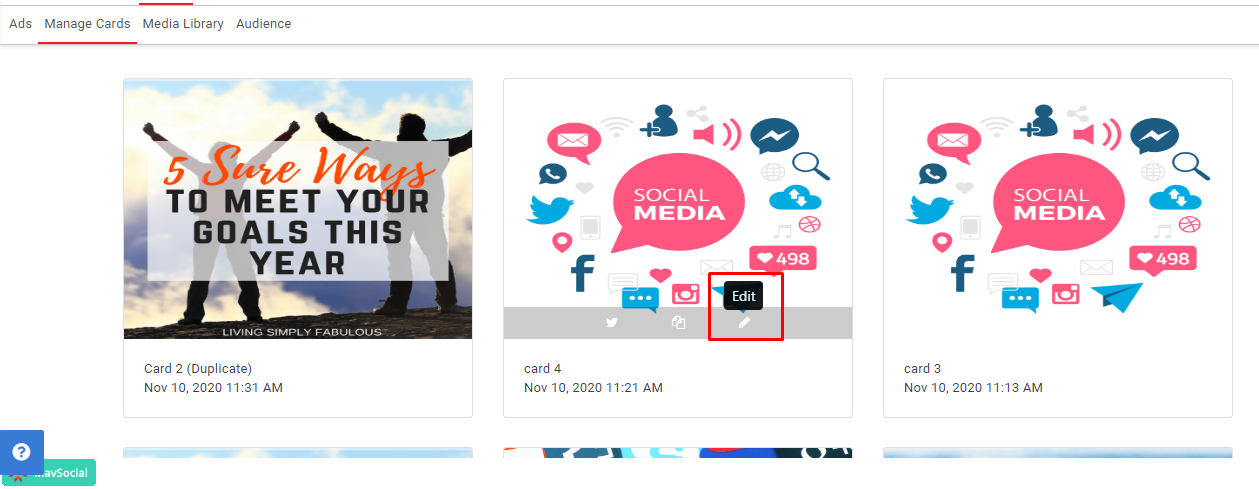
- All options will be displayed after clicking on the Edit button so that you can edit them if needed.
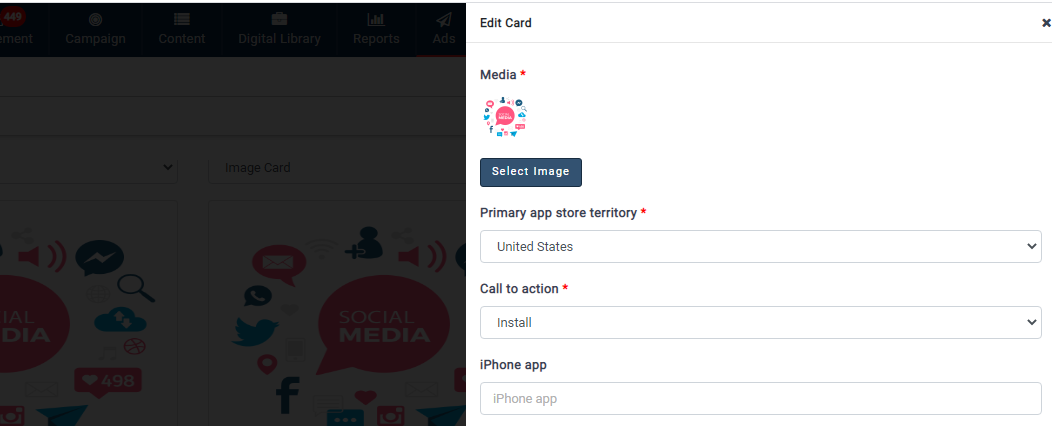
- Click on the Update button after you have finished the changes.
- If you would like to Compose the Tweet, hover the mouse over the Image/Video Card, and the Compose Tweet button will appear.
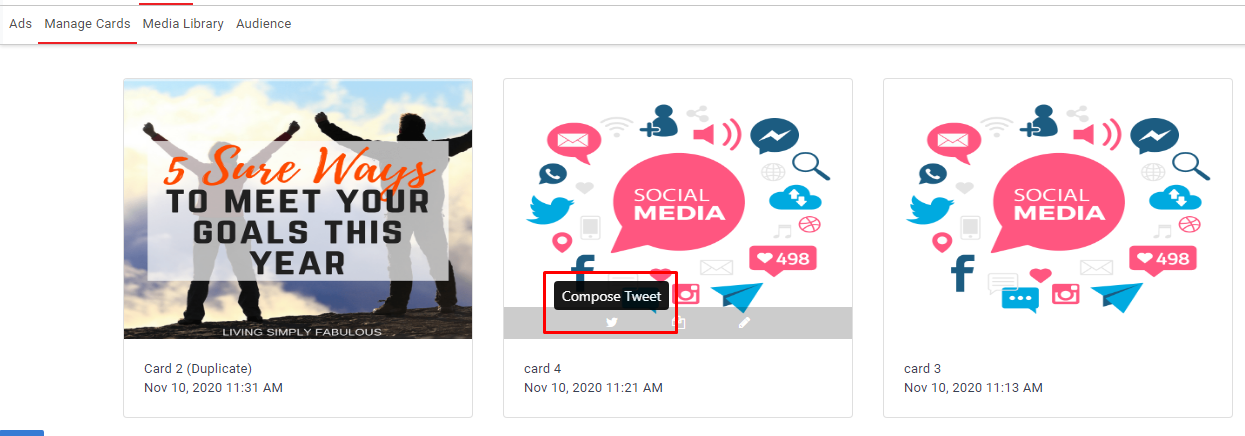
- Compose tweet box will open. Here, you can enter the Tweet Description.
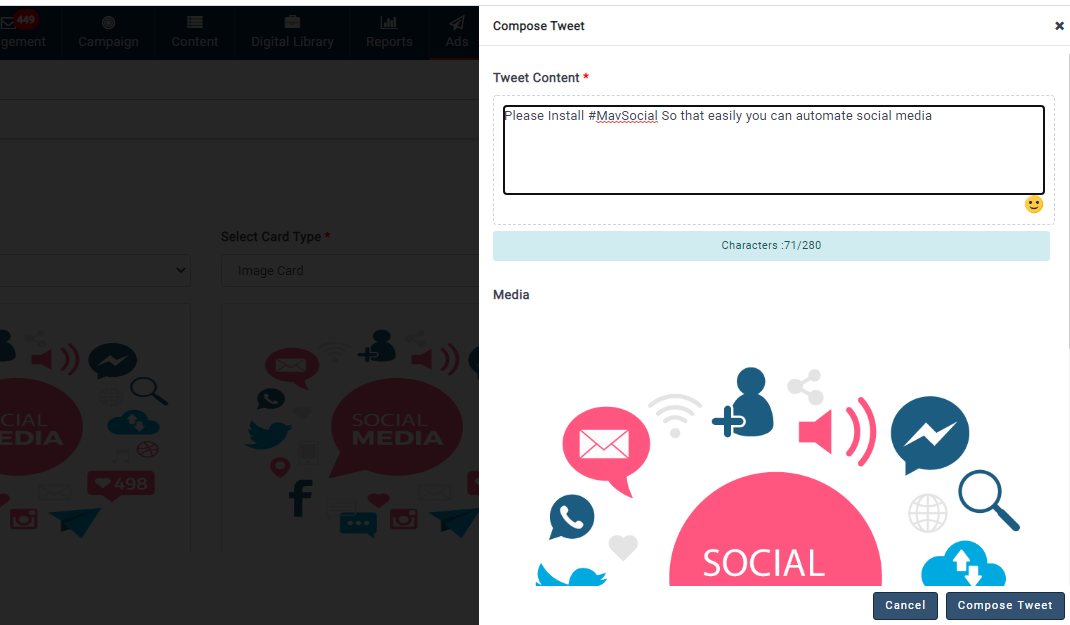
- Select the required option in who can reply using the dropdown
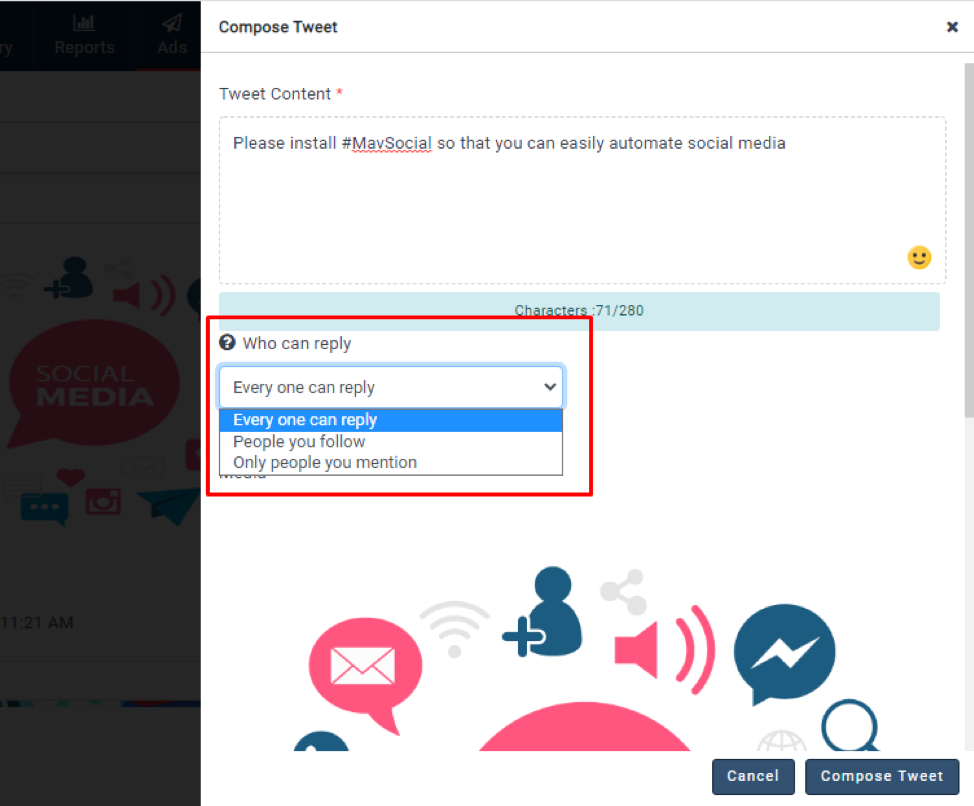
- Click on the Compose Tweet button, and the Tweet will be composed.
- The published card tweets will be shown in the creatives step.
- If you want to create a duplicate card, mouseover on the Image/Video Card, and the Duplicate Tweet button will appear.
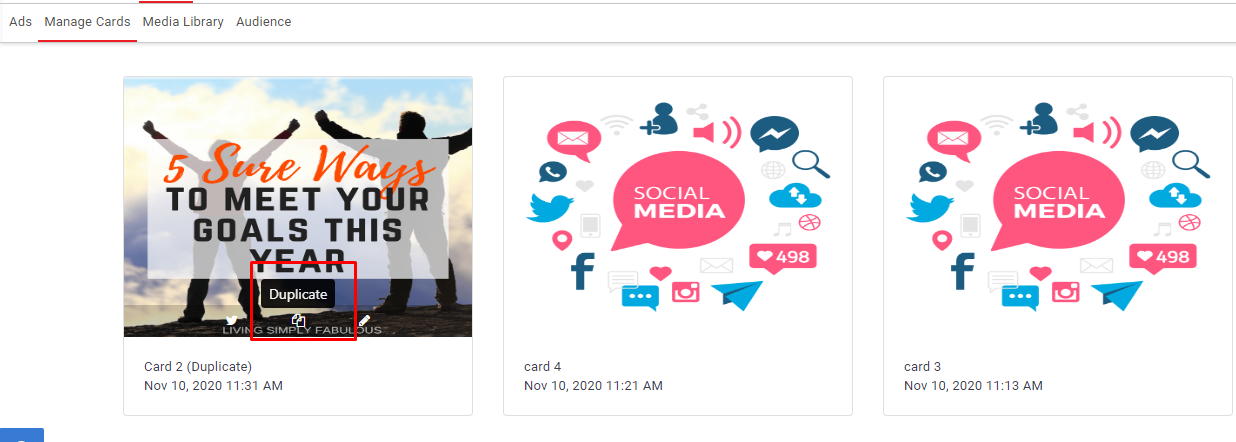
- The card will be duplicated, and you can make any changes you wish. Once finished, click on the Create button.
Note:
- A minimum image width of 800px and a width: height aspect ratio between 1:1 or 1.91:1 is required.
- A video aspect ratio of between 16:9 and 1:1 is needed.
- Edit, duplicate card option will be available for old cards
- Users can select a minimum of 2 images/videos and a maximum of 6 images/videos for creating a carousel image/video card
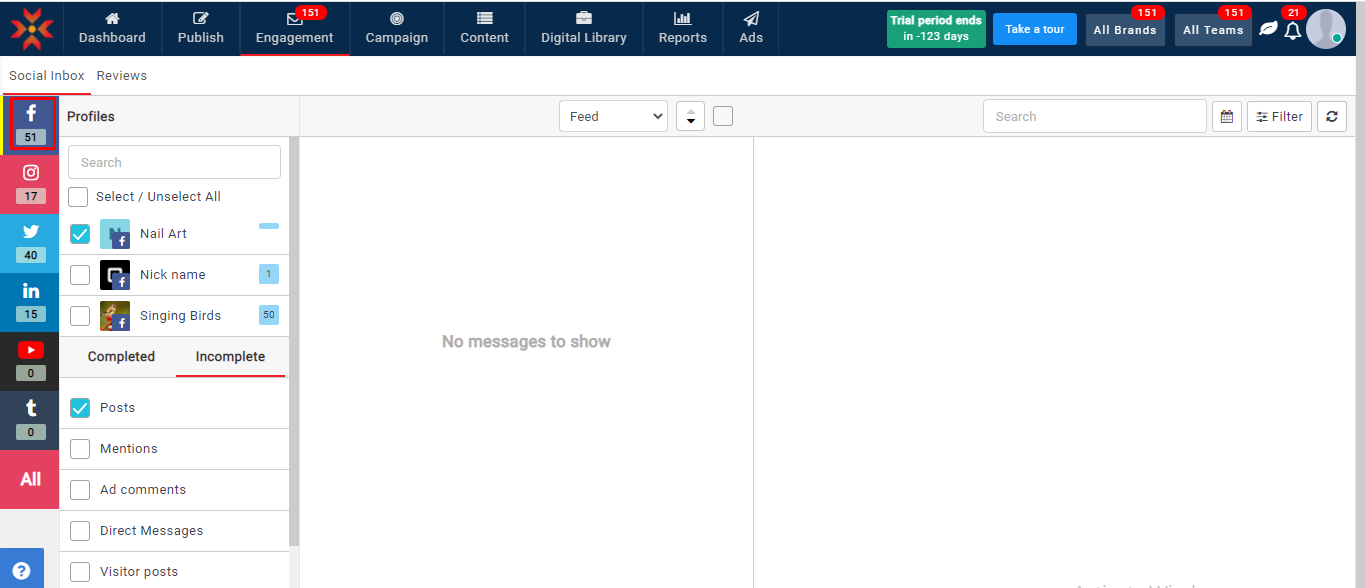
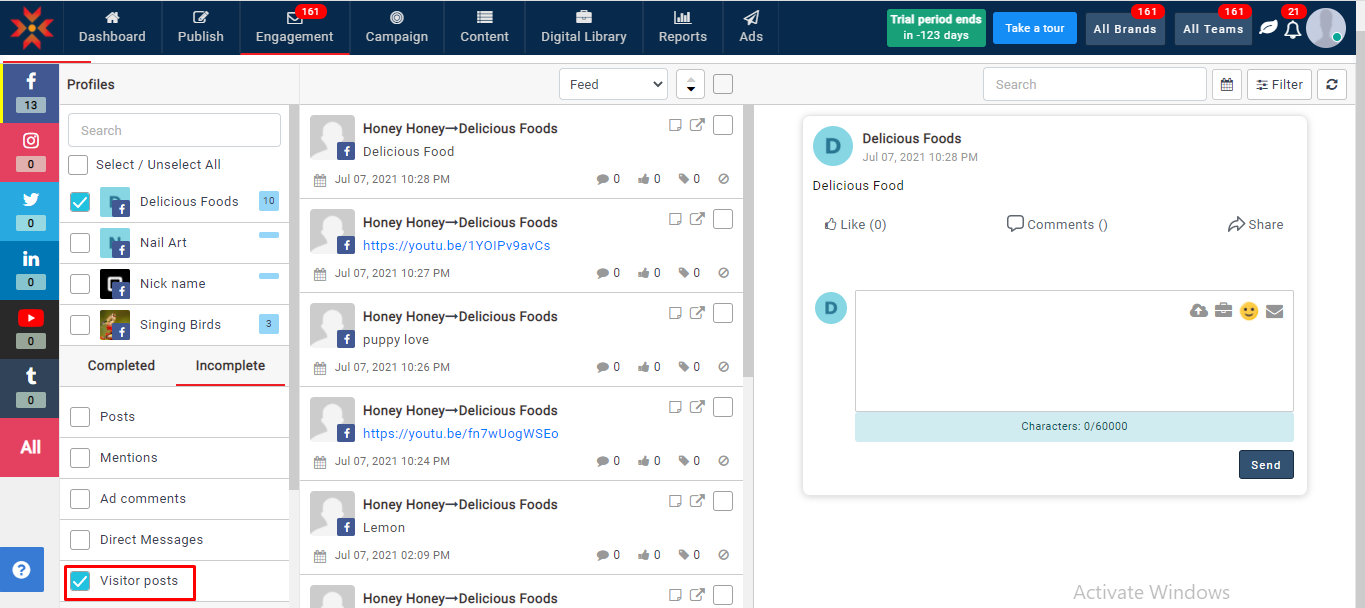
- You can see the filter option, Visitor posts.
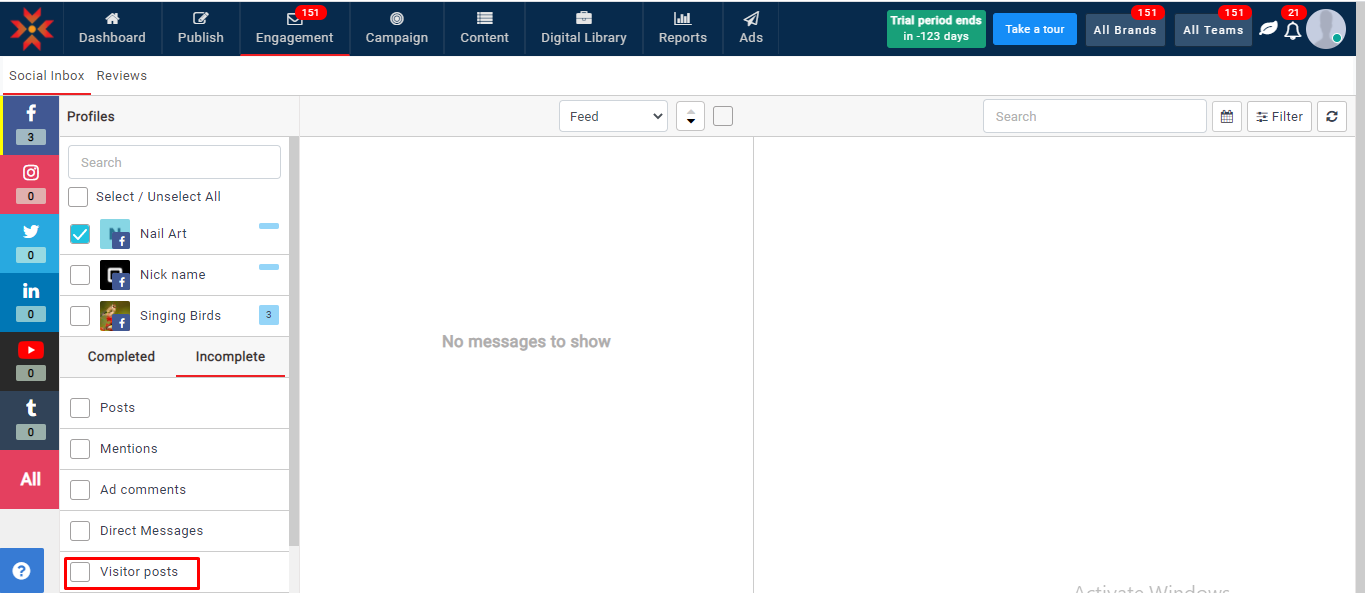
- Select Visitor posts
Comments
0 comments
Please sign in to leave a comment.